Conference Calls and Meetings
You can talk with several people in a single call. You can dial another person and add them to the call. The
conference ends when all participants hang up.
Add Another Person to a Call
Procedure
Step 1 From an active call, press Conference.
Step 2 Enter the phone number for the party you want to add and press Call.
Step 3 Press Conference again.
Record a Call
When you're on an active call, you can record it. You might hear a notification tone as you record the call.
During a recording, you see different recording icons on the Calls screen. The icon depends on the recording
state:
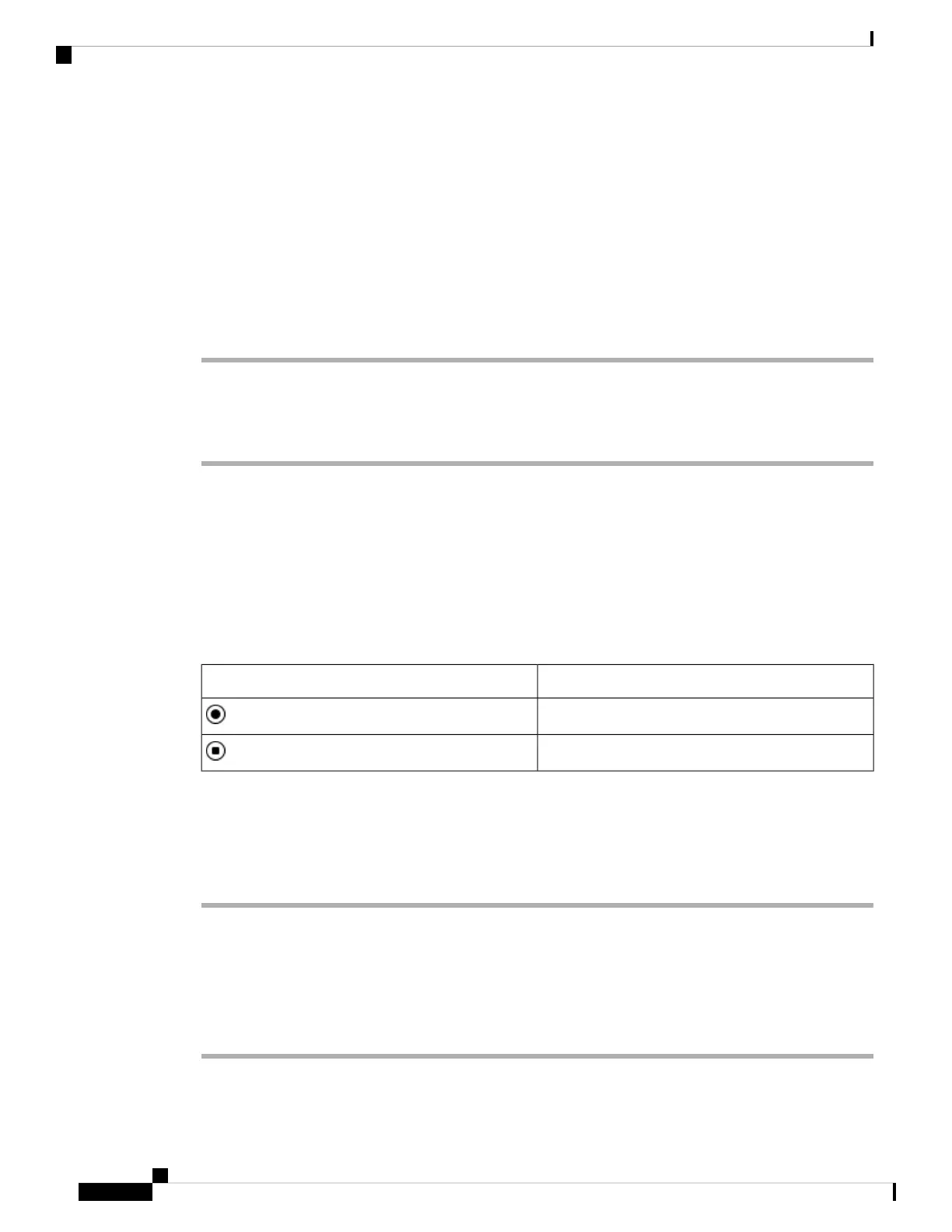
Table 1: Recording Icons
MeaningIcon
Recording in progress
Recording paused
Before you begin
Your administrator enables your phone with call recording.
Procedure
Step 1 Press Record while on an active call.
Step 2 (Optional) While recording is in progress, you can press PauseRec to pause the recording.
Step 3 (Optional) Press ResumeRec to resume the recording.
Step 4 (Optional) Press StopRec to stop the recording.
Step 5 Press End Call to end the call.
Cisco IP Conference Phone 8832 Multiplatform Phone User Guide
40
Calls
Conference Calls and Meetings










 To Next Page