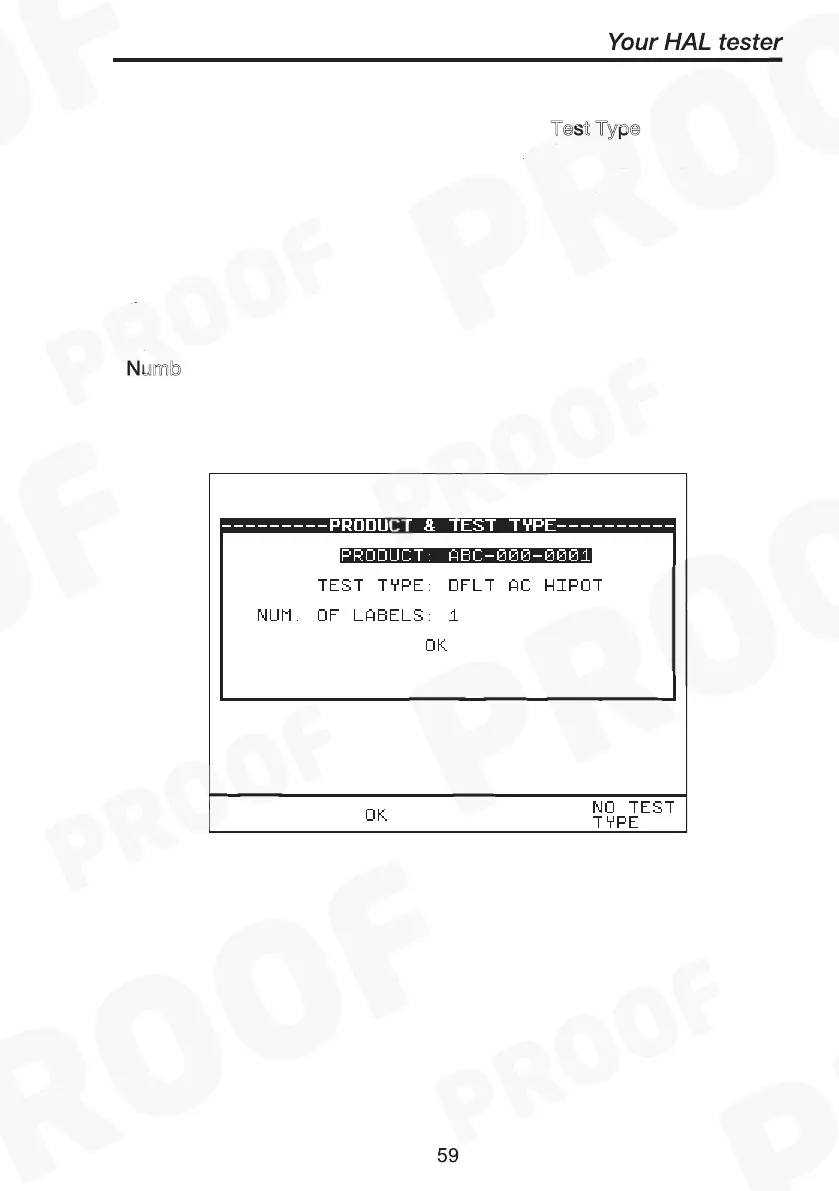
To print barcode Product & Test Type
From the Barcode print menu select P
Test Type, press Green
to display the product & test type window. A default product number
(representing 12 characters) will be shown in highlight. Press Green to
enter the editor to I
the correct product details (up to 15
characters). This option will just print out the barcode and number for
the Product only when OK key is pressed. However to print Product
number & Test type to be tested, enter details of product first as
described then highlight Test type and press Green to display the test
settings list. Highlight test type and press SELECT TEST and this
displays the data selected as shown in Fig. 14. Notice that the
N
umb
can also be selected for the printing process. Press
key to confirm printing.
To print barcode Product & Test Type
Product & Test Type
Insert
Numbers of labels
OK


 To Next Page