Apex Tool Group GmbH P2398PM | 2018-12 45
Menus and Functions
3
EN
To save torque graphs:
1. Connect the USB stick with the tool via the Micro B USB cable.
2. Navigate to Save torque graphs:
> >
3. must be pressed to start the saving process.
→ The progress bar and status bar indicate when the archive is saved.
→A graphic_ID.csv file is generated. The ID in the file name corresponds to the GraphicID column
from the table of the archive, see Saving an archive, Seite 43. In this way, each graphic can be
assigned to a measurement result from the archive.
In the .csv file, the angle, time, torque and speed are entered for each data point. The .csv file contains a
table with the following columns:
3.11.4 Loading parameters
All data except the archive data are loaded on the tool.
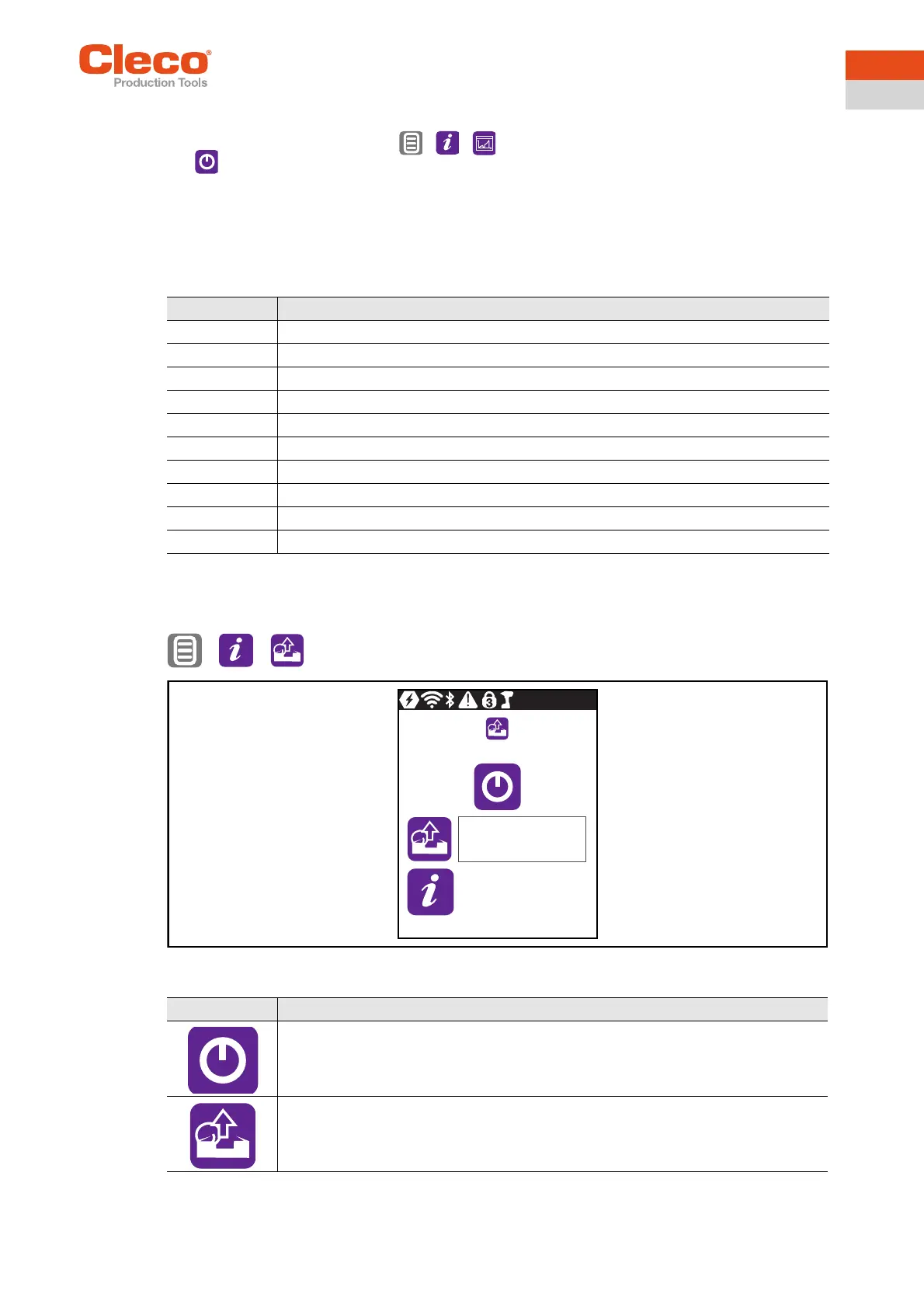
> >
Abb. 3-36: Submenu – Loading parameters
Designation Description
Date Date of export: Day.Month.Year
Time Time of export: Hour:Minute:Second
Application Number of the Linking group.
GraphicID Number of the graphic entry. The number is identical to the GraphicID for the archive.
Angle [deg] Angle
Time [ms] Time
Torque 1 [Nm] Torque
Torque 2 [Nm] Torque (redundancy)
Current [A] Current
Speed [rpm] Speed
Button Description
Start the loading process.
Display of the saving progress.
The status bar indicates what percentage of the parameters are already loaded.
0%
0


 To Next Page