1
Chapter 5 Software upgrade
The system software is able to be upgraded with the USB-stick.
5.1 Preparation before Upgrade System Software
1) Before software upgrade, please check software version (Please refer to section 4.4 for specific
operations.);
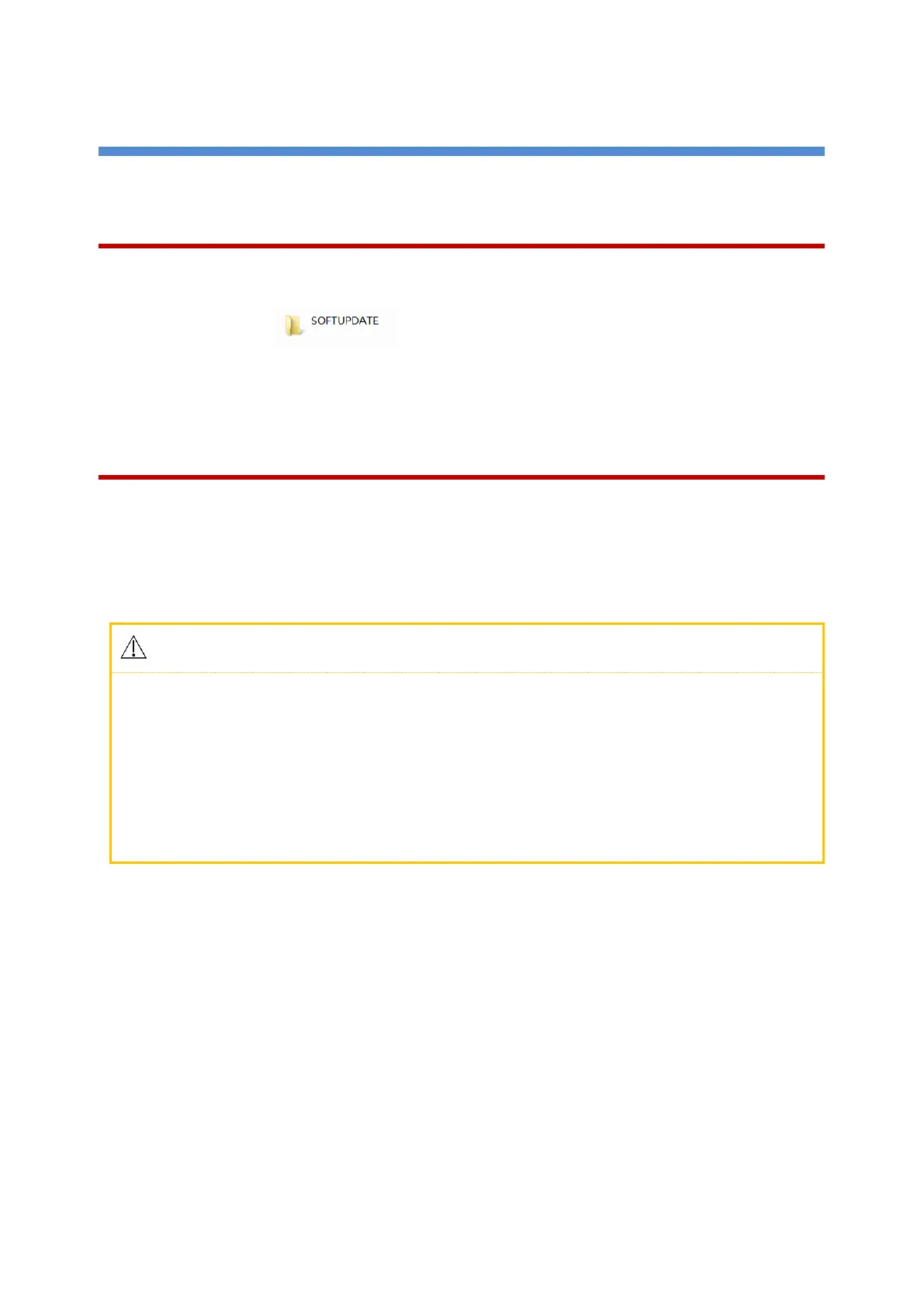
2) Copy the folder (The folder name should be “SOFTUPDATE” in capital; do not
change the file name(s), otherwise the upgrade is unable to complete) on the computer to the root
directory in USB-Stick
3) Insert the USB-stick into the USB interface on the back of the monitor;
5.2 System Software Upgrade
After preparation, perform the system software upgrade as follows:
1) Ensure that the USB-stick with the upgrade folder is inserted into the USB interface on the back of the
monitor;
2) Power on the patient monitor, you would see the software upgrade progress on screen
3) Wait a few minutes, the screen shows “update finished, please remove usb device and reboot”, reboot.
● Make sure you have confirmed with Comen’s Customer Service Department the software package is
fit for the software upgrade for the monitor you are currently operating on.
● Disconnect the patient monitor from patient before software upgrade.
● Make sure the battery capacity is enough or plug on AC power while doing the software upgrade
process, it takes around 30 seconds to 2 minutes during the whole upgrade.
● Program upgrade should be performed by qualified service personnel only.
● Do not plug or unplug the USB-stick during the software upgrade process.



 To Next Page