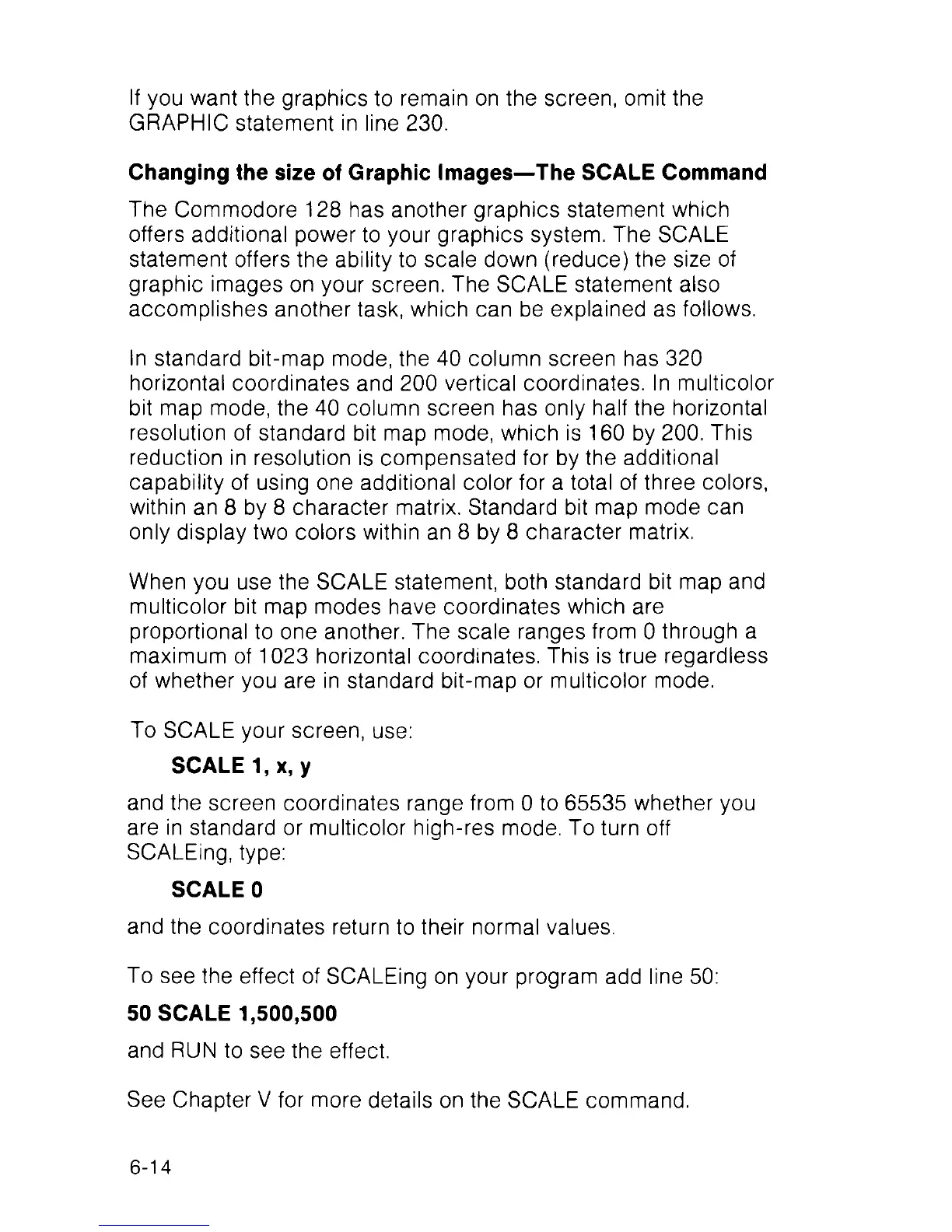
If you want the graphics to remain on the screen, omit the
GRAPHIC statement in line 230.
Changing the size of Graphic Images—The SCALE Command
The Commodore 128 has another graphics statement which
offers additional power to your graphics system. The SCALE
statement offers the ability to scale down (reduce) the size of
graphic images on your screen. The SCALE statement also
accomplishes another task, which can be explained as follows.
ln standard bit-map mode, the 40 column screen has 320
horizontal coordinates and 200 vertical coordinates, ln multicolor
bit map mode, the 40 column screen has only half the horizontal
resolution of standard bit map mode, which is 160 by 200. This
reduction in resolution is compensated for by the additional
capability of using one additional color for a total of three colors,
within an 8 by 8 character matrix. Standard bit map mode can
only display two colors within an 8 by 8 character matrix.
When you use the SCALE statement, both standard bit map and
multicolor bit map modes have coordinates which are
proportional to one another. The scale ranges from 0 through a
maximum of 1023 horizontal coordinates. This is true regardless
of whether you are in standard bit-map or multicolor mode.
To SCALE your screen, use:
SCALE 1, x, y
and the screen coordinates range from 0 to 65535 whether you
are in standard or multicolor high-res mode. To turn off
SCALEing, type:
SCALE 0
and the coordinates return to their normal values.
To see the effect of SCALEing on your program add line 50:
50 SCALE 1,500,500
and RUN to see the effect.
See Chapter V for more details on the SCALE command.
6-14



 To Next Page