5 COLOR 0,1:COLOR 4,l:COLOR
1,
2 : REM
SET COLORS
10
GRAPHIC 1,1
: REM
SET HI-RES GRAPHIC MODE
15 BOX 1,2,2,45,45
: REM
PICTURE FRAME
20
DRAW 1,17,10 TO 28,10 TO 26
,30:REM
CAR BODY
22
DRAWTO 19,30 TO 17,10
: REM CAR BODY
24
BOX 1,11,10,15,18
: REM
UPPER LEFT WHEEL
26
BOX 1,30,10,34,18
: REM
UPPER RIGHT WHEEL
28
BOX 1,11,20,15,.28
: REM
LOWER LEFT WHEEL
30
BOX 1,30,20,34,28
: REM
LOWER RIGHT WHEEL
32
DRAW 1,26,28 TO 19,28 : REM
DRAW GRILLE
34
BOX 1,20,14,26,18,90,1 : REM
CAR SEAT
36
BOX 1,150,35,195,40,90
t 1
: REM
WHITE LINES
38
BOX 1,150,135,195,140,
90,
1
: REM
WHITE LINES
40
BOX 1,150,215,195,220,
90,
1
: REM
WHITE LINES
42
BOX 1,50,180,300,195
: REM
FINISH OUTLINE
44
CHAR 1,18,23,"FINISH" : REM
DISPLAY FINISH
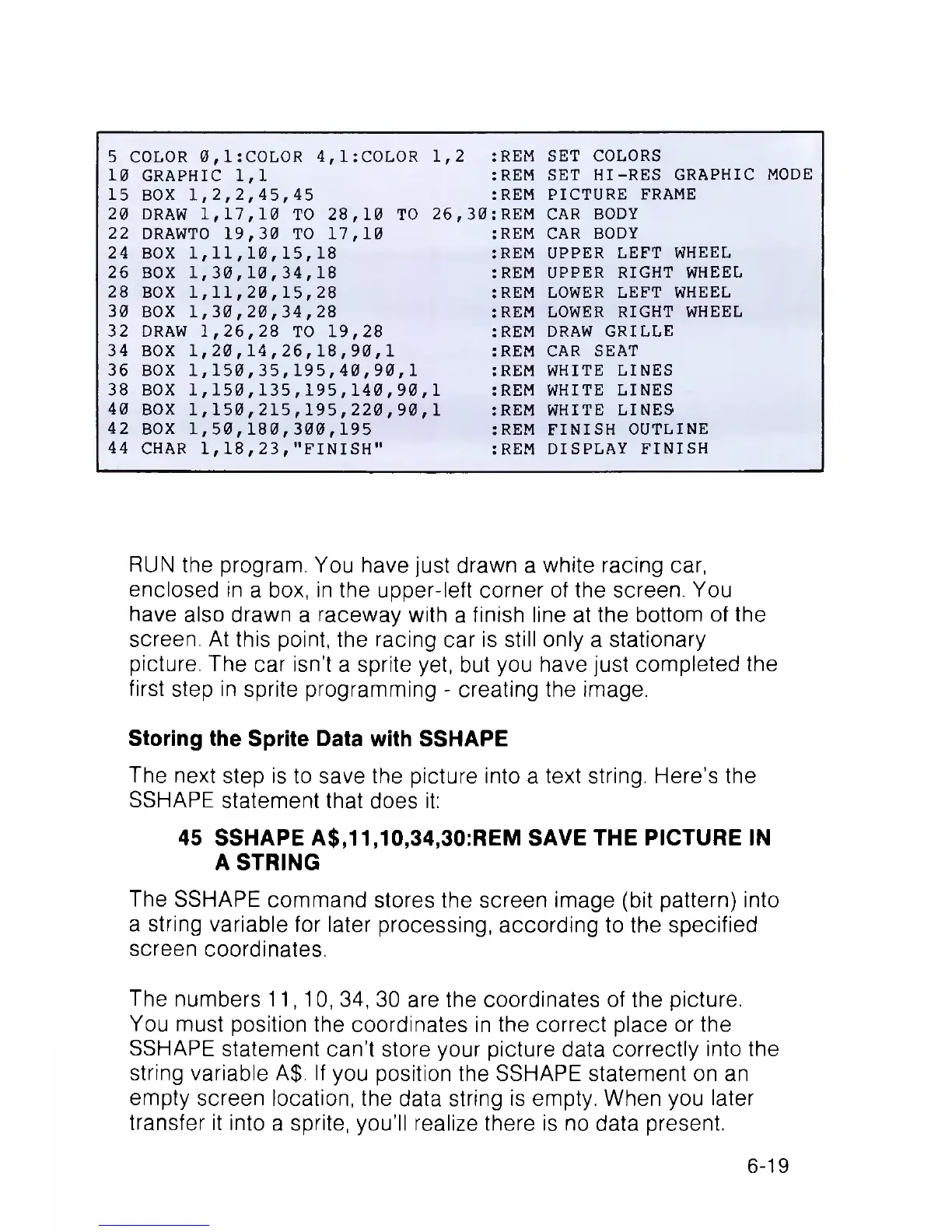
RUN the program. You have just drawn a white racing car,
enclosed in a box, in the upper-left corner of the screen. You
have also drawn a raceway with a finish line at the bottom of the
screen. At this point, the racing car is still only a stationary
picture. The car isn’t a sprite yet, but you have just completed the
first step in sprite programming - creating the image.
Storing the Sprite Data with SSHAPE
The next step is to save the picture into a text string. Here’s the
SSHAPE statement that does it:
45 SSHAPE A$,11,10,34,30:REM SAVE THE PICTURE IN
A STRING
The SSHAPE command stores the screen image (bit pattern) into
a string variable for later processing, according to the specified
screen coordinates.
The numbers 11,10, 34, 30 are the coordinates of the picture.
You must position the coordinates in the correct place or the
SSHAPE statement can’t store your picture data correctly into the
string variable A$. If you position the SSHAPE statement on an
empty screen location, the data string is empty. When you later
transfer it into a sprite, you’ll realize there is no data present.
6-19



 To Next Page