ComNav T300 + CGSurvey User Guide
48
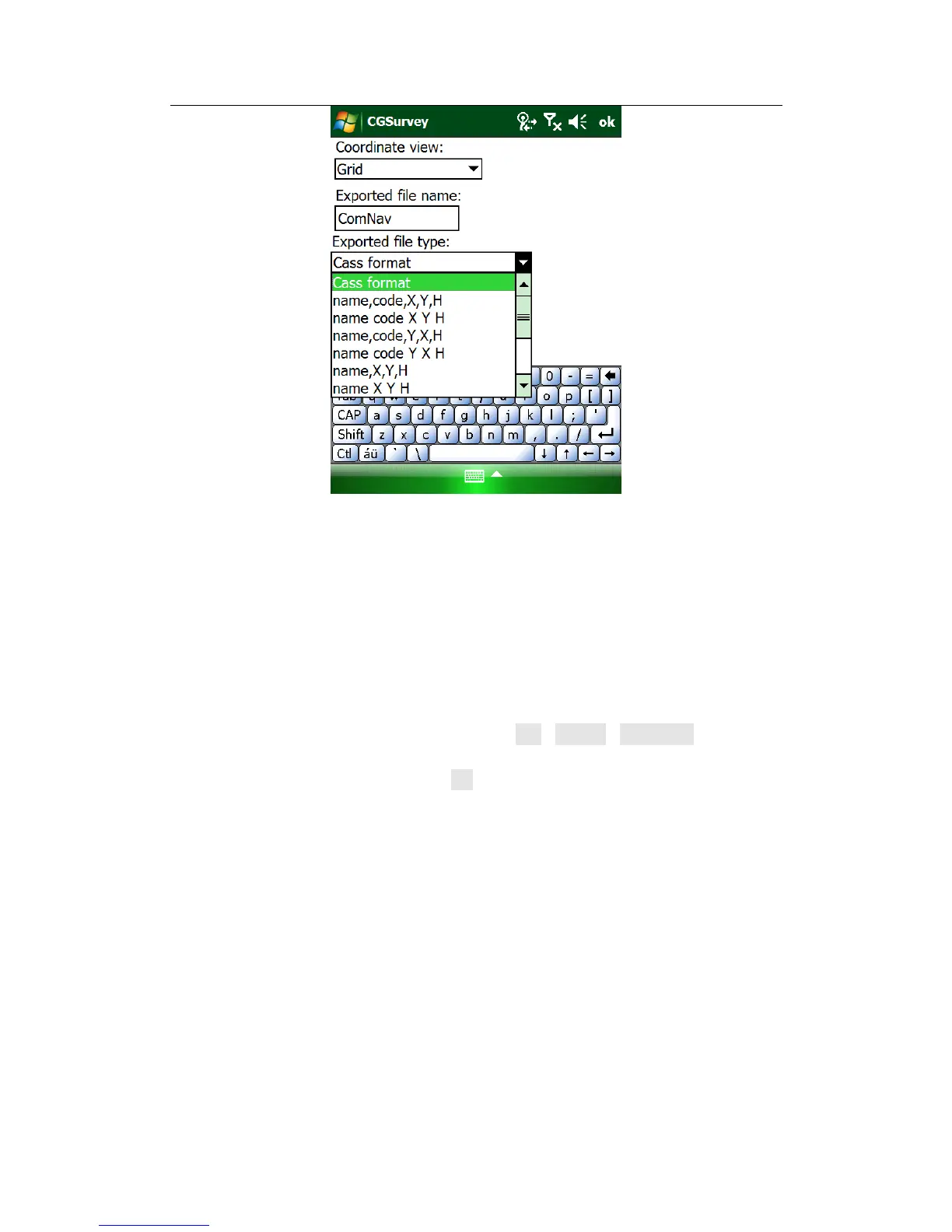
Connect the Controller to PC using the USB cable. You can find your export result
in the path: Your Controller\\\Program Files\CGSurvey
7.6 Import Points to Current Job
Do the followings issues indoor:
Prepare the right format (*.txt or *.csv) coordinates files on your PC.
Connect the Controller to your PC using the USB data cable.
Copy the existing coordinates file to your Controller root directory.
On the Controller, launch CGSurvey and tap File->Import->Grid point (local
points coordinate), select the right format of the points according, choose the
file copied to Controller, and click “OK”



 To Next Page