DeviceMaster LT User Guide: 2000586 Rev. B
Managing the DeviceMaster LT - 71
Updating Firmware Across WANs (Windows)
2. Make sure that you have downloaded the latest SocketServer version from:
ftp://ftp.comtrol.com/dev_mstr/LT/software/socketserver.
You may want to place SocketServer in the same
directory as the Tftpd server.
3. Optionally, rename the Soc
ketServer-x.xx.bin file (where x.xx is the version
n
umber) to 1.bin to make the following steps easier.
4. If necessary, open PortVision DX: Start >Pr
ogram > Comtrol > PortVision DX >
Po
rtVision DX or the desktop shortcut.
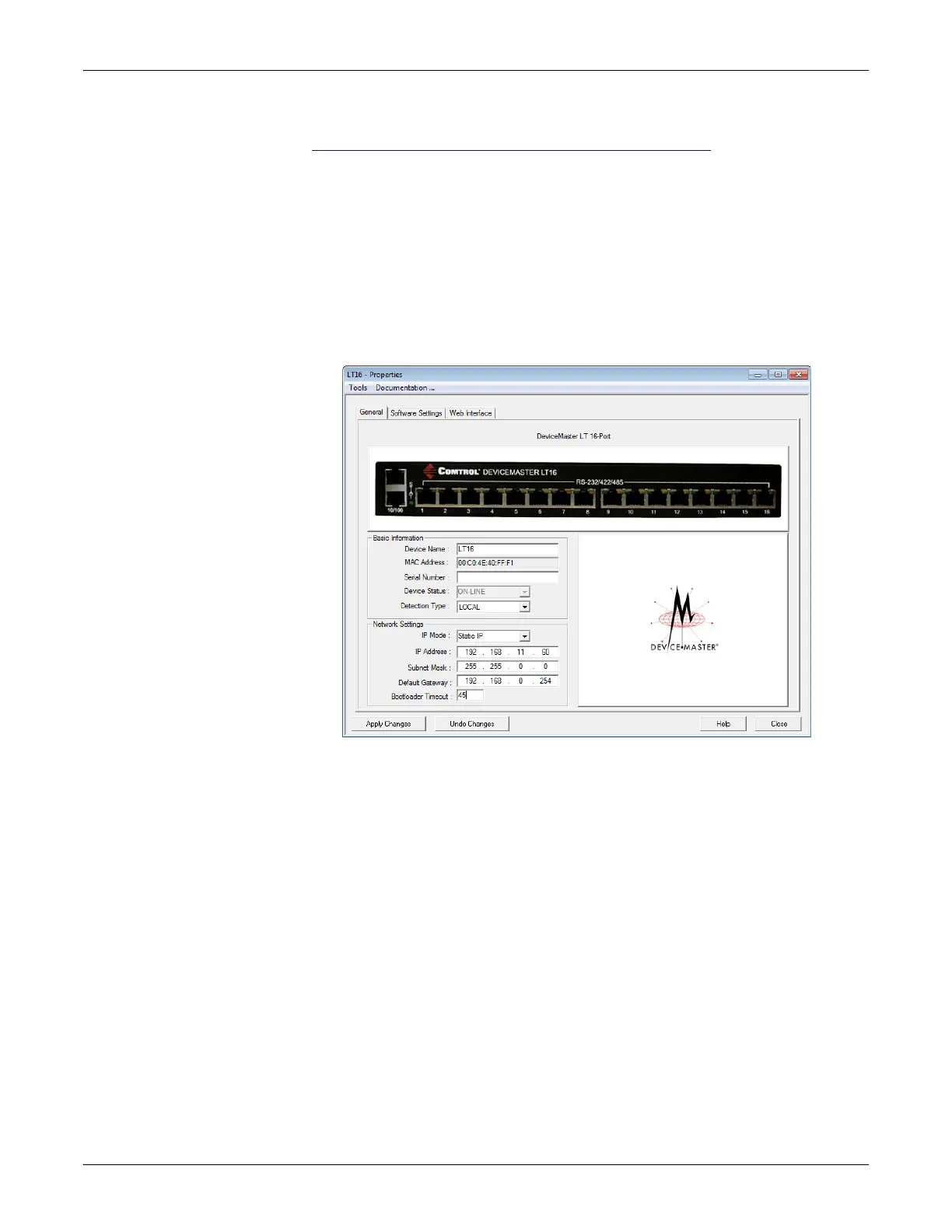
5. Change the Bootloader Time
out value to 60 seconds.
a. Right-click the DeviceMaster LT in the Device List p
ane for which you
want to upload the latest SocketServer and click Properties.
b. Change the B
ootloader Timeout value to 60, click Apply Changes, and then
Clo
se.
Note: If the PuTTY screen flashes in the background and does not appear
as
shown above, make sure that Enable Telnet/ssh has not been
disabled in SocketServer. To check this, return to PortVision DX,
right-click the DeviceMaster LT in the Device List pane, and click
Webpage. Click the Security tab and if necessary, verify that the
Enable Telnet/ssh option is enabled.



 To Next Page