Kangaroo™ Console | 7
Console user interface:
The console has a color-display touch screen with step-by-step prompts to guide you
through setup andoperation.
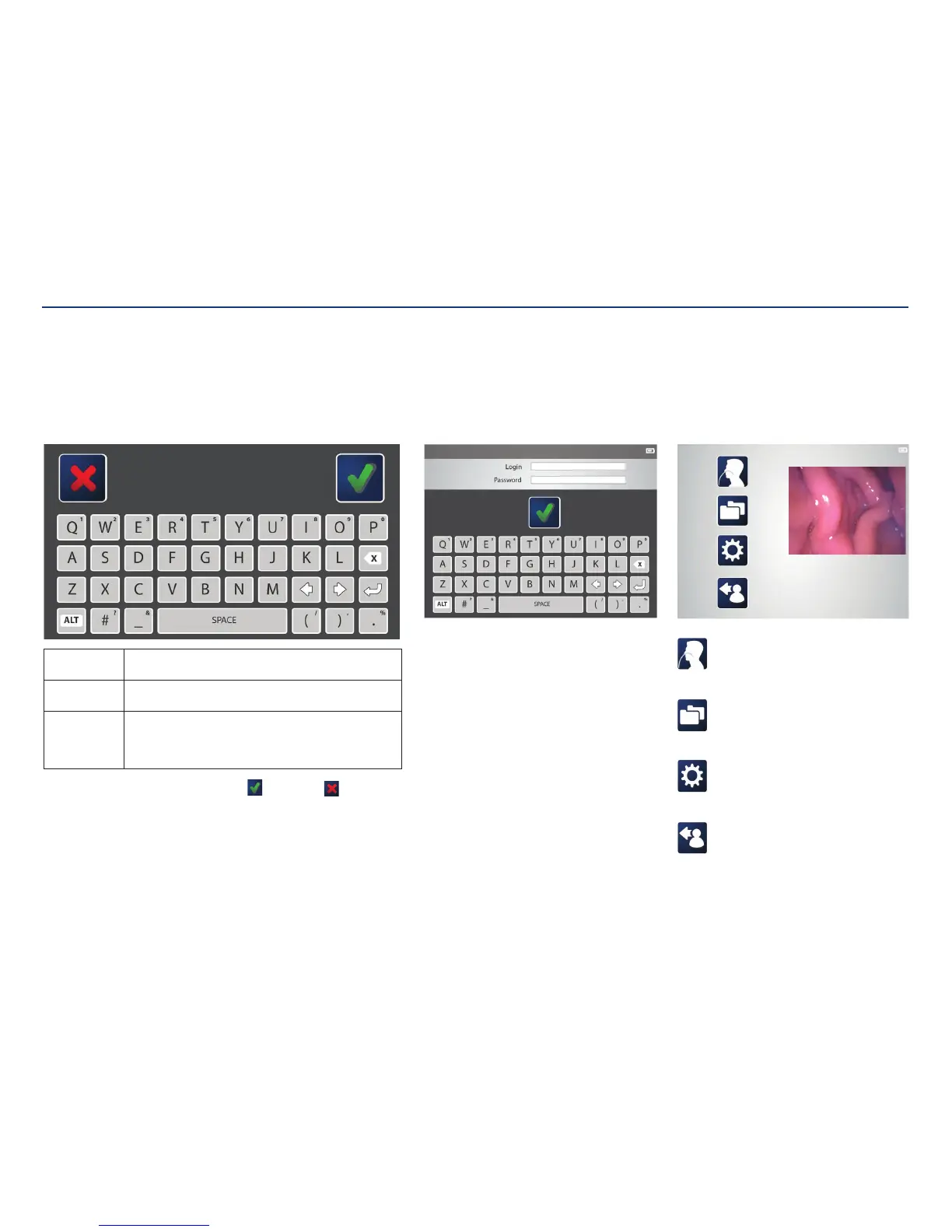
On screen keyboard:
An on screen keyboard will appear when typing is necessary. Use the keyboard to
enter text, such as a login name, patient information, or to annotate images.
To enter text: Tap a text field (such as a login name or password) and then use
the on screen keyboard to type.
To edit text: Tap the text field and use the arrow keys to navigate to desired
text location.
To enter
numbers or
secondary
symbols:
Press the ALT key. Tap the key(s) that contains the desired
number or symbol (displayed in the upper, right corner). When
finished, press the ALT key again.
When finished typing, press the check mark icon
to save or the to cancel and
return to the previousscreen.
Procedure:
Use the procedure feature to launch
the functional flow for entering patient
information and procedure activities.
Folders menu:
The folders menu launches the data browser
of patient folders. Each folder contains images
captured during theprocedure.
Settings menu:
The settings menu provides links to modify
language, date/time, file formats, passwords,
device options, and usersettings.
Log out:
Clicking the log out icon ends thesession.
Section I: System Overview
Main menu:
The main menu provides links to log out, settings, file
management, and procedure initiation. Clicking any of
these icons brings you to thosescreens.
System login:
After the initial set up, users will be prompted for a
login name and password to access the system. First
time users should receive their login information from
an administrator. After logging in, the screen will show
the main menu.


 To Next Page