Page 97
SPECIAL KEYPAD OPERATING FEATURES
ARMING or DISARMING MULTIPLE AREAS at a KEYPAD
If the panel is configured for Multiple Areas and the option “ARM” button required before code is turned on (P45E
Option 1 for each Area), there are a number of possible arming options.
If a user code is only assigned to one area and they press <ARM> <CODE> <ENTER> at the keypad, only the
Area assigned to their code will Arm.
If a user code is assigned to multiple areas but the keypad being used is only assigned to one area, pressing
<ARM> <CODE> <ENTER> will only arm the area assigned to the keypad.
If a user code is assigned to multiple areas and the keypad being used is also assigned to the same multiple ar-
eas, plus the ARM button is assigned to the same Areas (P74E), pressing <ARM> <CODE> <ENTER> will put
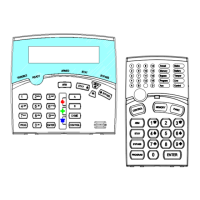
the keypad into a “Ready to Arm” state. On the LCD keypad the display will show “Area/s to Arm” “X Y Z .
.” (where X, Y, Z, . . equal the area numbers), and on the Icon LCD keypad the zone indicators will show the as-
signed area numbers.
If you press the <ENTER> button now, all displayed areas will arm. If before pressing the enter button you wish
to deselect one, or a number of the allowed areas before arming you can enter the two digit area numbers corre-
sponding to the areas you don’t want to arm eg if Areas 1, 2, 3 & 4 were displayed but you only wanted to arm
Areas 1 & 2 you can enter in 03, 04 to deselect areas 3 & 4 then press the <ENTER> button to arm the remaining
areas (which in this case will be Areas 1 & 2).
If you don’t do anything following pressing <ARM> <CODE> <ENTER> the panel will proceed with arming all dis-
played Areas after 10 seconds time has elapsed.
On disarming, after entering <CODE> <ENTER> the display on the LCD keypad will show “Area/s to Disarm” “X
Y Z . .” (where X, Y, Z, . . equal the area numbers), and on the Icon LCD keypad the zone indicators will show the
assigned area numbers.
You can press the <ENTER> button at this point to disarm all areas. If before pressing the enter button you wish
to deselect one, or a number of the allowed areas before disarming you can enter the two digit area numbers
corresponding to the areas you don’t want to disarm eg if Areas 1, 2, 3 & 4 were displayed but you only wanted to
disarm Areas 3 & 4 you can enter in 01, 02 to deselect areas 1 & 2 then press the <ENTER> button to disarm the
remaining areas (which in this case will be Areas 3 & 4).
If you don’t do anything the panel will proceed with disarming all displayed areas after 10 seconds time has
elapsed.
LCD QUICKVIEW MODE
If any zones are unsealed when disarmed the LCD keypad will scroll through each unsealed zone displaying the
20 character name for each zone. If a number of zones are unsealed simultaneously it can take sometime for the
display to show all of the unsealed zones.
By pressing the <È> button when zones are unsealed the keypad will enter the “Quick-view” mode. When in
“Quick-view” mode, each unsealed zone is displayed as a single two digit number eg “01 05 10”. Up to 7 un-
sealed zones maybe displayed at one time. If more than 7 zones are unsealed at the time the display will scroll to
the next bank of 7 zones so the user can see quickly which zones are unsealed. If more than 7 zones are un-
sealed and the keypad enters “Quick-view” mode by pressing the <È> button, you can force the display to mode
to the enxt bank of zones by pressing the <È> button again. To exit “Quick-view” mode you simply press the
<ENTER> button or the keypad will time out automatically in approximately 10 seconds.
TOGGLE CHIME MODE ON/OFF
On the LCD Keypad there is a “CHIME” button. Pressing and holding that button for two seconds will toggle
Chime Mode from On-Off or Off-On.
When “CHIME” mode is off any day zones in the same area associated with the keypad area will be disabled.
SEND MANUAL TEST CALL
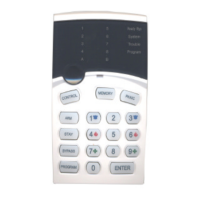
If the panel is configured for Contact ID reporting and test calls are programmed to report, you can force a man-
ual test call by pressing and holding <CONTROL> followed within 2 seconds by <0>. This will cause a manual
test call to be sent to the monitoring company.



 To Next Page