Infotainment System
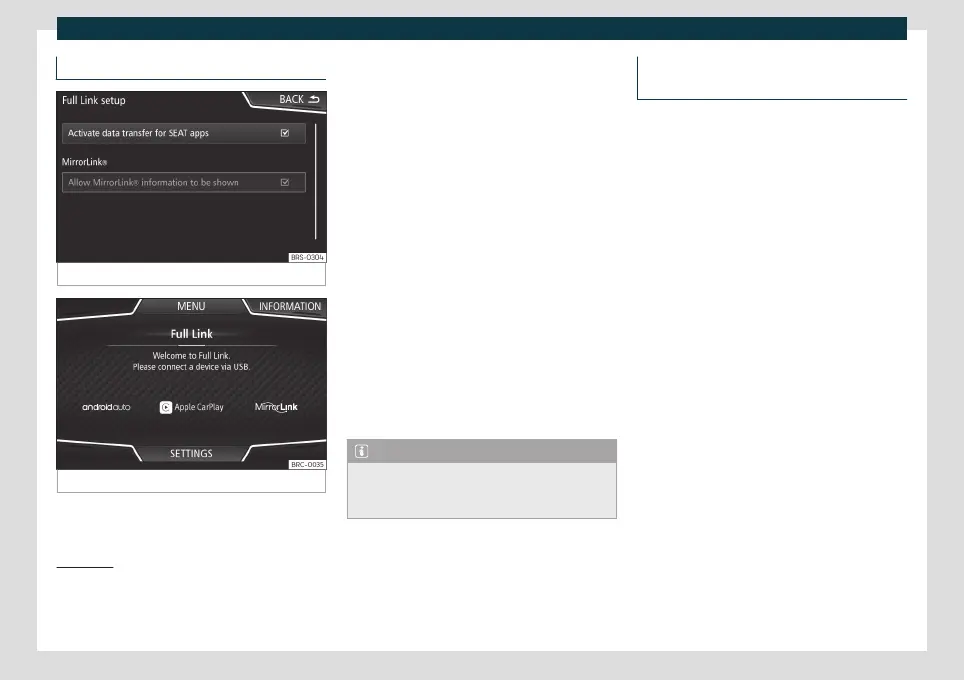
Activation of Full Link
Fig. 136
Full Link Setup
Fig. 137
Full Link menu
Data connection via Wi-Fi or SIM is not
necessary t
o est
ablish the connection be-
tween the smartphone and Full Link.
Data connection via Wi-Fi or SIM is neces-
sary to enable all of the app features
1)
.
Proceed as follows to use Full Link:
●
Switch on the Infotainment system
●
Connect the smartphone to the vehicle's
USB port using a USB cable
›››
page 224.
●
In the main menu for the Full Link settings,
select Activate data transfer for
SEAT apps
›››
Fig. 136.
Finally, a message will appear stating that da-
ta transfer will commence when the device is
connected. Please note that data is transfer-
red over connections between your vehicle
and mobile device. Press OK. Once selected,
the technology compatible with your device
can be used.
Note
Depending on your smartphone, it may
have to be unlocked for the connection to
occur.
What should I do if it does not con-
nect?
Restart the mobile device.
Check the USB cable. Check whether the
USB cable is damaged. Check that neither
connection (USB/micr
o USB) is damaged or
worn.
Check that the USB ports are correctly
connected. Check that the USB port of the
vehicle and the device are not damaged
and/or deteriorated.
●
Clean the USB ports (device and vehicle).
●
Try with another compatible mobile de-
vice.
●
Have the USB port replaced at an author-
ised dealer
ship.
●
Have the mobile device repaired or replace
it.
1)
Using the data connection to transfer the
smartphone apps t
o Full Link may involve addi-
tional charges. Please check the charges with
your operator.
162



 To Next Page