
 Need help?
Do you have a question about the Custom Audio Electronics Q3X and is the answer not in the manual?
Lists all items included in the product package for verification upon receipt.
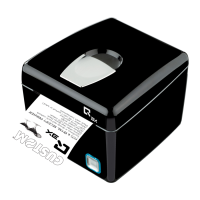
Details the external parts and interfaces of the Q3x, Q3x BTH, and Q3x Wi-Fi models.
Illustrates the internal components and sensors of the printer for maintenance or troubleshooting.
Explains the information found on the product's identification label, including codes and serial numbers.
Describes the operations and outcomes of pressing the FEED key during device power-up.
Explains how to advance paper manually or by a preset length when the device is in standby mode.
Details the meaning of different LED status indicators and their corresponding device states or errors.
Provides diagrams and explanations for connecting the printer to external devices like PCs and drawers.
Details the pin configurations for power supply, USB, RS232, and drawer connectors for different models.
Lists available drivers and SDKs for various operating systems and provides installation guidance.
Instructs on how to power the device on and off, and indicates when it is ready.
Provides step-by-step instructions with images on how to open the device cover.
Guides the user through the process of changing and loading a new paper roll into the printer.
Explains the procedure to enter configuration mode and print a setup report using the device's keys.
Details how to configure device parameters using the "PrinterSet" software tool.
Describes how to interpret device status information provided in the configuration print-out.
Lists and explains various communication parameters like RS232, USB, and network settings.
Details configurable operating parameters such as print mode, font type, and speed.
Explains how to set parameters related to black mark alignment and distance for accurate paper positioning.
Describes how to use the hexadecimal dump function for diagnosing received data from the communication port.
Provides step-by-step instructions for pairing the printer with Windows operating systems via Bluetooth.
Guides users through the process of pairing the printer with macOS devices using Bluetooth.
Explains how to establish a Bluetooth connection between the printer and Linux-based systems.
Details the procedure for pairing the printer with Android mobile devices using Bluetooth.
Provides instructions for connecting the printer to iOS devices (iPhone, iPad) via Bluetooth.
Outlines the steps required to pair the printer with Windows Phone devices using Bluetooth.
Explains the necessary Wi-Fi configuration parameters for wireless communication with the device.
Describes how to enable the black mark alignment feature using the device's setup parameters.
Explains the automatic self-calibration process for the alignment sensor and how to interpret results.
Details the "Black Mark Distance" parameter and its role in defining the alignment point.
Discusses how to calibrate the printing area height based on inter-black mark distance for proper alignment.
Provides instructions on how to clear a paper jam and remove any resulting scraps.
Outlines a recommended schedule for cleaning various components to maintain print quality and device life.
Details the procedures for cleaning specific components like sensors, paper path, printhead, and platen roller.
Guides the user through the process of upgrading the device's firmware using the "PrinterSet" software.
Lists the detailed hardware specifications of the printer, including sensors, interfaces, and memory.
Provides information on character sets, density, columns, and character dimensions.
Shows the physical dimensions (length, height, width, weight) of the printer.
Details the dimensions of the supplied power supply unit and power cord.
Specifies the dimensions of an optional power supply unit.
Describes the specifications for thermal paper rolls, including dimensions and black mark placement.
Lists the available character coding tables for CUSTOM/POS emulation and their usage.
 General
| Brand | Custom Audio Electronics |
|---|---|
| Model | Q3X |
| Category | Printer |
| Language | English |




 To Next Page
