24
Dane-Elec. All rights reserved 2010
5.3.2 Sharing Folders: Contains all the folders which are shared to/by the
current user. Refer to section 5.8.2, How to uninstall?
1. Run the local client you want to uninstall.
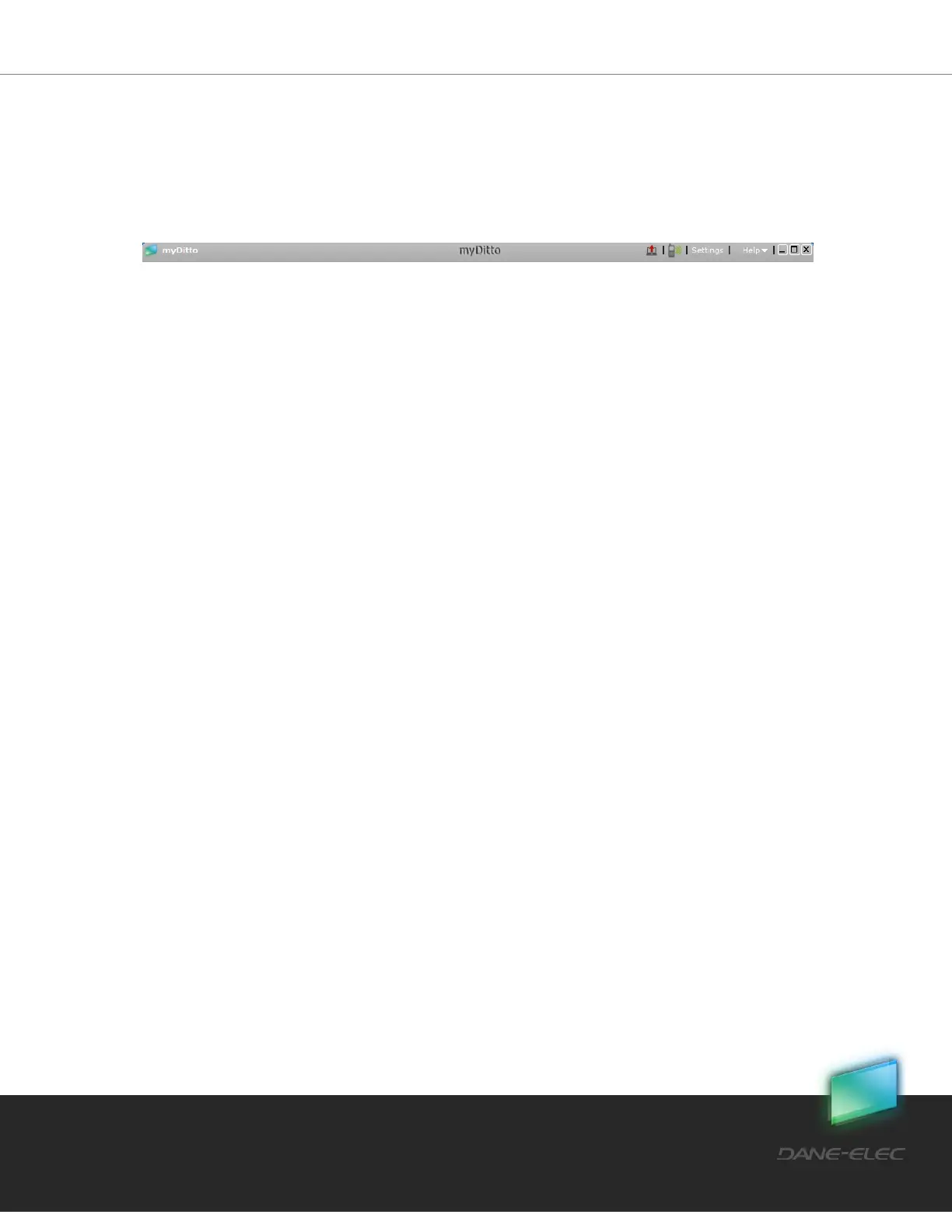
2. Press the Local client button with the red arrow located on the top menu bar.
3. That is it! The application has been removed
my-Ditto Application – Sharing, on page 34, for more details.
5.3.3 Functions
Open*
Double-click on the desired file or folder, or
Use the Ctrl+O keys (Cmd+O for Macs) on your keyboard, or
Place your cursor on a selected file or folder and right-click on it; then select open
from the menu list.
* Files will open using existing applications installed on the local computer
Copy
Drag a file or folder from anywhere on your local computer and drop it into the
desired my-Ditto folder and vice versa, or
Use the Ctrl+C keys (Cmd+c for Macs) on your keyboard, or
Place your cursor on a selected file or folder and right-click on it; then select copy
from the menu list.
Cut & Paste
Place your cursor on a selected file or folder and right-click on it; now select the cut
function from the menu list, or
Use the Ctrl+X keys (Cmd+x for Macs) on your keyboard in order to cut the
file/folder, then Use the Ctrl+V keys (Cmd+v for Macs) on your keyboard to paste
the file/folder, or
Hold the shift key on your keyboard and drag a file or folder from anywhere on your
local computer and drop it into the desired my-Ditto folder and vice versa
(Windows OS only).
Move File/Folder to the Recycle Bin (Delete)
Use the delete key, or


 To Next Page