64
Dane-Elec. All rights reserved 2010
6. Remove my-Ditto key.
7. Plug my-Ditto key into your PC.
8. Launch my-Ditto application.
9. Enter username and password.
7.2.2 Start using a New Mobile Phone
First you should verify your email addresses and install the software (refer to section 4.4.2
Access from a Mobile Device, on page 15).
7.3 Changing Passwords
7.3.1 Solution A – Key Authentication
1. Make sure my-Ditto is turned ON.
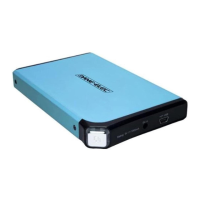
2. Plug in my-Ditto key to the USB1 port located on the front panel.
3. Wait until the USB1 LED is illuminated.
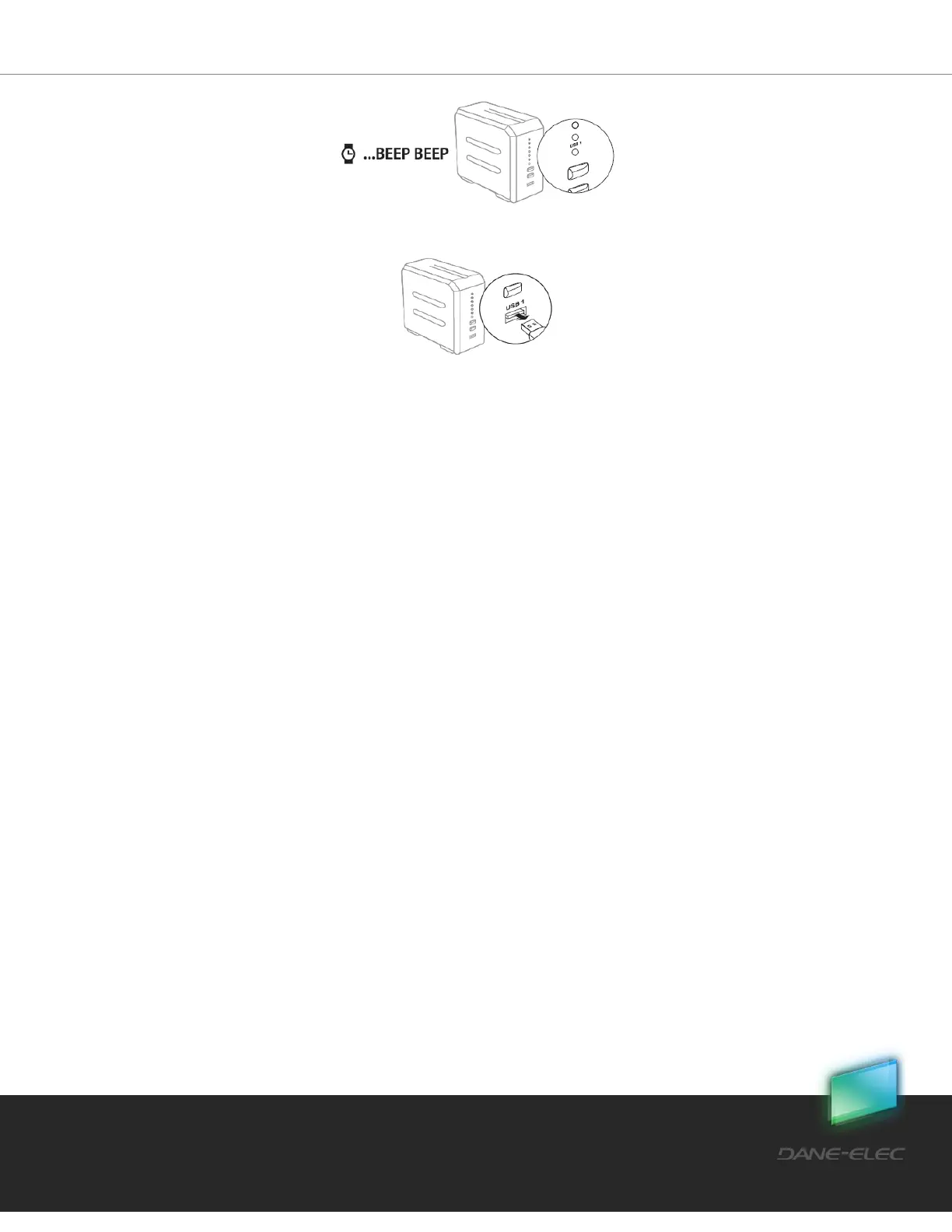
4. Press the COPY button for 4 sec. or until a beep is heard.
5. Wait a few seconds until you hear two short beeps; the USB1 LED will turn off (the
USB1 LED will flash briefly before it turns off).
6. Remove my-Ditto key, and your previous password has been cleared.
7. When launching the application, you will be asked to type in a new password and
confirm it.


 To Next Page