36
Dane-Elec. All rights reserved 2010
Changing Permissions
1. Place your cursor on the existing shared folder and right click on it; then select
“Share…” from the menu list.
2. A small configuration screen will be displayed.
3. Change the user’s permission.
4. Confirm the action by clicking the OK button.
5.10 my-Ditto Application – Save to Remote
The “Save to Remote” function allows you to edit your files and save them directly on your
my-Ditto.
5.10.1 How?
1. Open a file from the Remote view.
2. Make your desired adjustment.
3. Save the file.
4. The modified file has been automatically uploaded to my-Ditto, so it's updated with
your latest changes.
5.11 my-Ditto Application – Disconnect Idle Client
In order to secure access to my-Ditto, the application causes an idle client to disconnect
from my-Ditto after a timeout period of an hour.
5.11.1 How?
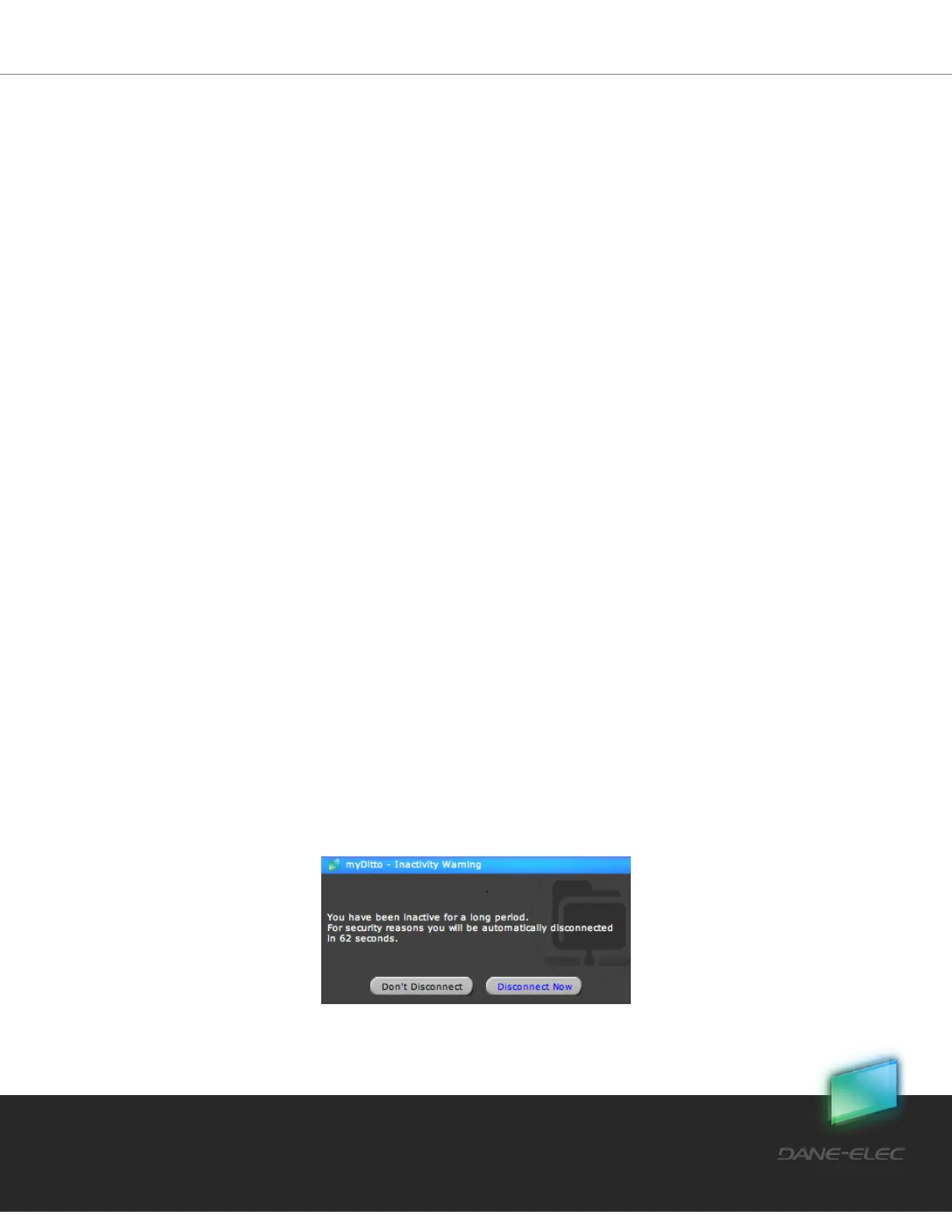
1. Clients who have not performed any action in the application for an hour will get a
message at the end of that hour that they will be automatically disconnected.
2. If the client chooses the “Disconnect Now” option – the application shuts down; if
he/she chooses “Don't Disconnect” – the client will stay connected and he/she will
be able to continue working as usual.
3. If no choice has been made within 2 minutes the client will disconnect from my-
Ditto. In order to reconnect the user will need to choose to “Reconnect” and then re-
enter his/her password.


 To Next Page