98
Dane-Elec. All rights reserved 2010
Solution:
There are no items to back up on this computer. How do I choose files/folders for backup?
1. Both computer and my-Ditto should be connected to the same local network.
2. Select the files/folders you wish to backup.
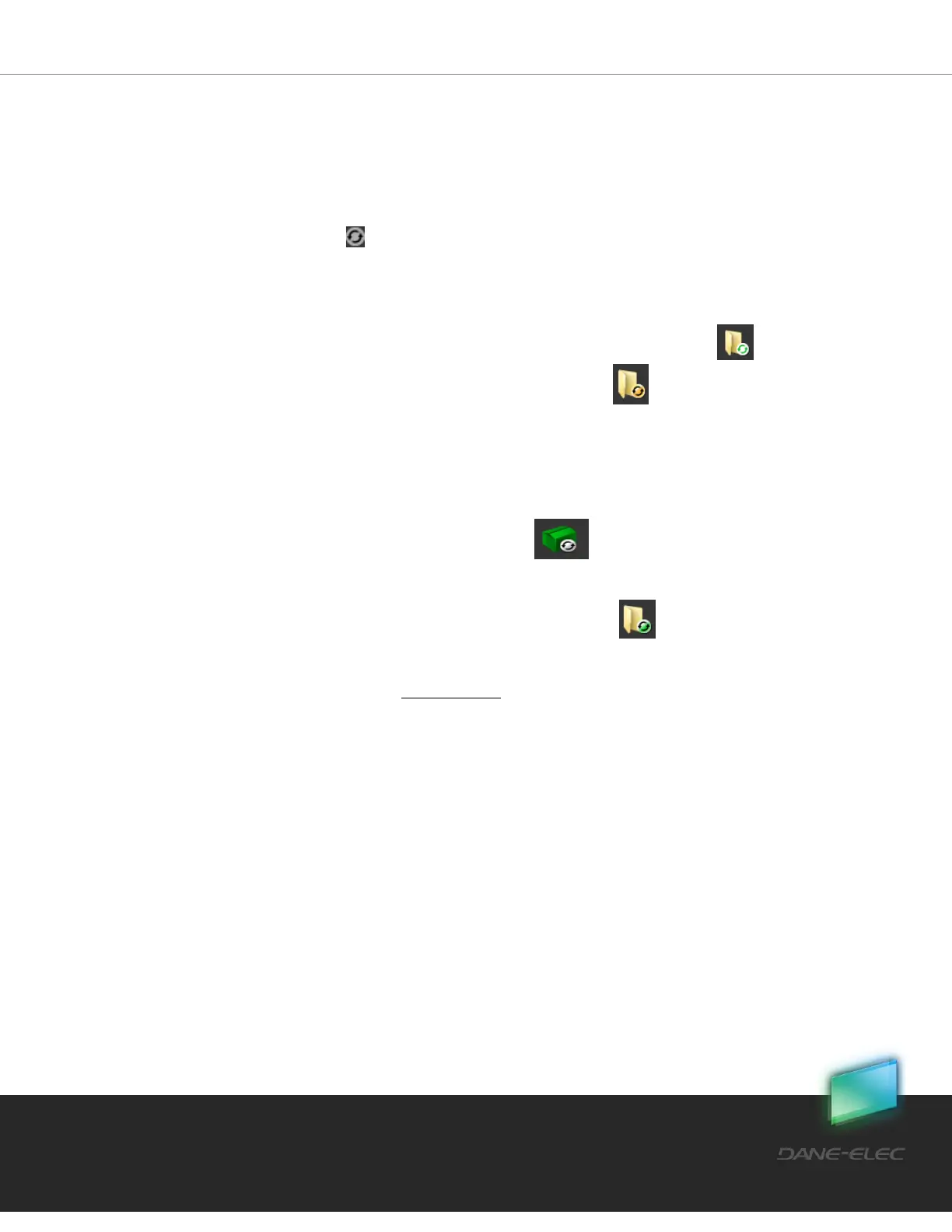
3. Click the backup button located on the right panel under my PC icon, or
place your cursor on a selected file or folder and right-click on it;
Now select the Add to backup function from the menu list.
a. The files/folder will now be marked with a white and green symbol .
b. Parent folders will be marked with an orange symbol .
Repeat steps 2 and 3 above until you have marked all folders you wish to backup.
Backup will start in a few minutes and the backed up content will be stored in your my-
Ditto private folder under a folder called: backup.computer_name, e.g. backup.Jonathan_PC.
This folder will be marked with a green mailbox icon . (Note: that this may take few
hours based on the amount of folders you are backing up.)
The backed up files/folders symbol will change to a green symbol .
You’re done! You can close my-Ditto application now; my-Ditto will check for changes in the
backed up files and folders and will automatically update itself every couple of hours.
Note: if your my-Ditto has 2 HDD in separate mode, backed up content will appear under
your my-Ditto private folder on Disk1.
Case:
Backup error.
Solution:
An error occurred.
Automatically my-Ditto will try again during the next few hours to complete the backup.


 To Next Page