Using PreScan
66
PreScan™ Queue-Busting System
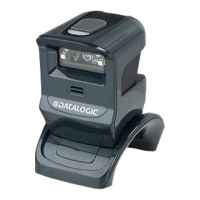
How to PreScan with Gryphon
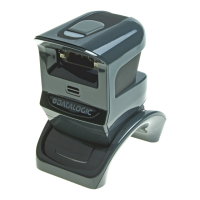
There are three steps to store a basket record on the Gryphon scanner.
1. Scan a control card to create the basket record
2. Scan the customer's items
3. Scan the control card again to close the basket record
If the customer makes additional selections after a record is closed, it can be added to by
following the same steps listed above.
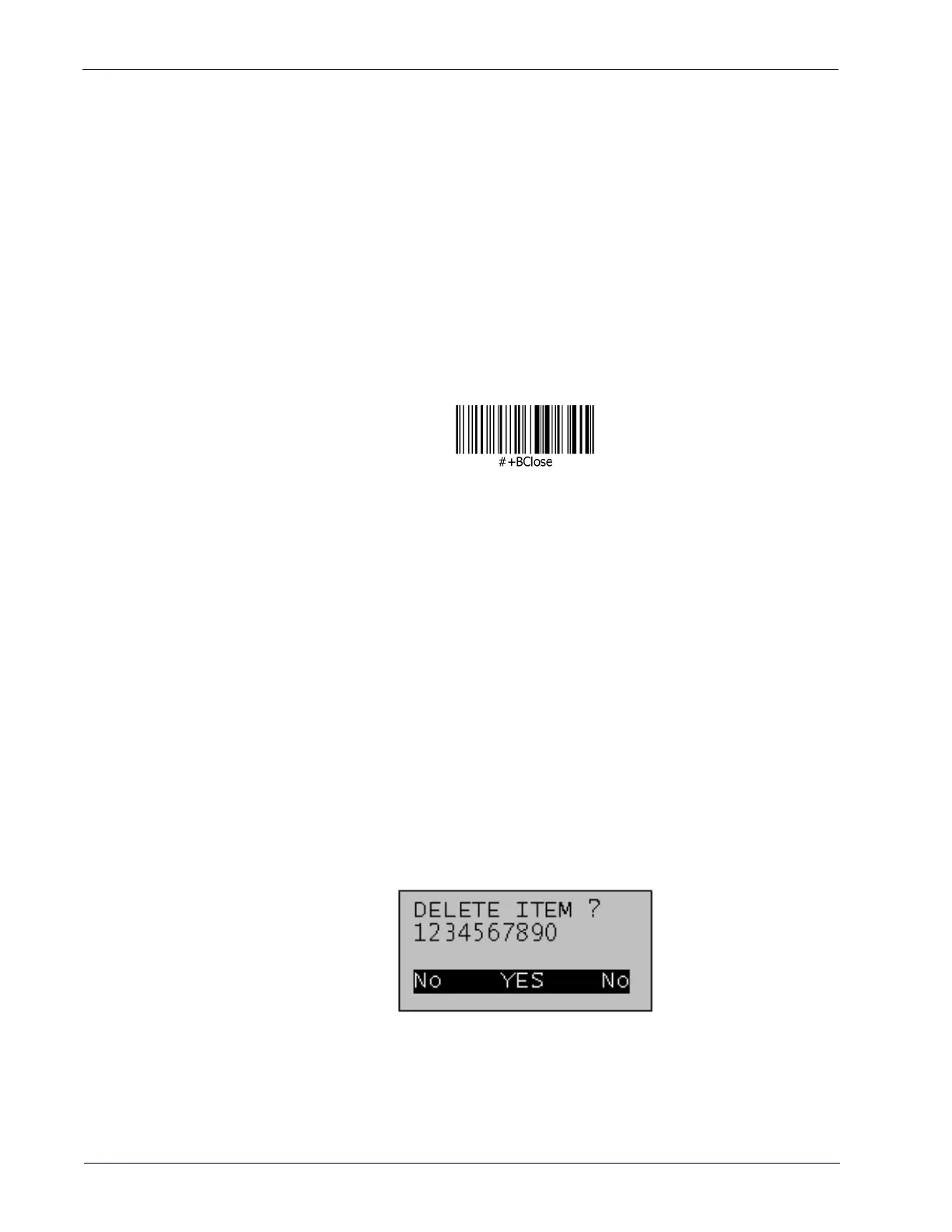
Alternatively, the following label can be used to close any open basket record:
When the customer is next in the queue, they should hand the control card to the cashier. The
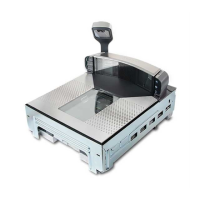
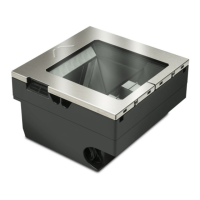
cashier scans the control card at the Magellan scanner. The Magellan then reads the basket
record from the Gryphon scanner and sends the data to the POS terminal. The record is then
deleted from the Gryphon's memory.
Editing the Basket Record on the Gryphon
Delete an Item
To delete an item in a basket the basket record must be open. Either scan the control card
associated with the basket, or use the arrow keys '▲' and '▼' key to select the basket from a list
of stored baskets. Press "ENTER" to open the basket.
Then follow the same process to select the item in the record to delete. Use the arrow keys '▲'
and '▼' key to select the item's code from a list of stored items. Press "ENTER" to delete the
item.
The display will show the following screen:
Press the "Enter" key to confirm.




 To Next Page