EasyManua.ls Logo

Datalogic DS2100N - User Manual

Datalogic DS2100N
119 pages
Print Icon
To Next Page IconTo Next Page
Loading...
DS2100N
Reference Manual

Table of Contents

Other manuals for Datalogic DS2100N

Questions and Answers

  • K
    Kenneth MatthewsAug 16, 2025
    How to troubleshoot Datalogic Barcode Reader not transmitting data to the host?
    • P
      Peter JonesAug 17, 2025
      To troubleshoot data transmission issues with your Datalogic Barcode Reader, verify the serial cable connection and wiring. Ensure the serial host settings match the device settings. If using a CBX, make sure the RS485 termination switch is set to OFF.
  • L
    Lauren PattonAug 19, 2025
    How to fix incorrect data transfer from Datalogic Barcode Reader to host?
    • J
      Joseph HintonAug 19, 2025
      To resolve incorrect, corrupted, or incomplete data transfers to the host from your Datalogic Barcode Reader, check the Header, Separators, and Terminator values in the Data Communication Settings/Data Format/Standard Parameters branch of the Genius™ program. Also, verify the Code Field Length and Fill Character values, and ensure the COM port parameters are correctly assigned.
  • C
    Charles TaylorAug 22, 2025
    What to do if Datalogic Barcode Reader fails to read barcodes?
    • W
      William ReyesAug 22, 2025
      To address the issue of the Datalogic Barcode Reader not reading barcodes or failing the Auto Setup procedure, ensure the scan line is correctly positioned on the barcode and run the Test mode via Genius™. Also, check if the reading distance and tilt angle are within the allowed ranges, and the skew angle is less than 10°. Enable different Code Symbologies (except Pharmacode) and set appropriate Length parameters. Finally, assess the barcode quality or use the BARCODE TEST CHART for testing.
  • J
    John SmithAug 25, 2025
    Why Datalogic Barcode Reader X-PRESS™ functions are not working?
    • J
      Jordan WilsonAug 26, 2025
      If your Datalogic Barcode Reader's X-PRESS™ functions are not working, and the LEDs light up but do not allow access to the functions, ensure that the scanner motor and laser are not turned off. Check the following parameters: Beam Shutter = enabled, Scan Speed = Motor Off, and Energy Saving>Serial Motor Off.
  • A
    Andre RiveraAug 27, 2025
    What to do if Datalogic Barcode Reader doesn't respond to external signals?
    • W
      waltonthomasAug 28, 2025
      To troubleshoot a Datalogic Barcode Reader that doesn't respond correctly to external signals, go to the Operating Mode branch in the Genius™ program and check the Reading Phase Timeout parameterization.
  • M
    Matthew WilsonAug 30, 2025
    How to troubleshoot Datalogic Barcode Reader not triggering in Serial On line Mode?
    • A
      andersonrandyAug 30, 2025
      To resolve a Datalogic Barcode Reader in Serial On line Mode that is not triggered, check if Serial On Line is selected in the On Line Options in the Operating Mode branch of the Genius™ program. Verify that the Start – Stop characters are correctly assigned and that the serial trigger source is correctly connected and configured.
  • R
    Robert FloresSep 2, 2025
    What to do if Datalogic Barcode Reader TRIGGER LED is lit but no reading results?
    • K
      Kristen RussellSep 2, 2025
      If the TRIGGER LED on your Datalogic Barcode Reader is correctly lit but no reading results are produced, ensure that the software configuration is consistent with the application condition, such as the operating mode. Check related parameters in the Operating Mode branch of the Genius™ program.
  • A
    Amy JosephSep 4, 2025
    How to fix Datalogic Barcode Reader TRIGGER LED not lighting up?
    • M
      Michael CooperSep 5, 2025
      If the TRIGGER LED is not lit on your Datalogic Barcode Reader when the external trigger activates, check if the sensor is connected to the I1A, I1B spring clamps (for CBX) or to pins 18 and 19 (for 25-pin connector). Ensure power is supplied to the photo sensor, the photo sensor LEDs are working correctly, and the sensor/reflector system is aligned.
  • J
    Jessica NelsonSep 7, 2025
    What does it mean when Datalogic Barcode Reader LEDs are blinking?
    • T
      Timothy CookSep 7, 2025
      If the “Ready” LED and “Status” LED are continuously blinking and the “Good” Read LED is ON on your Datalogic Barcode Reader, it indicates a diagnostic alarm/error condition. A User Defined Error message or an Internal Numeric Error message is sent over the selected communication interface. See the Help On Line for diagnostic error conditions.
  • J
    Jason LunaSep 10, 2025
    What to do if Datalogic Barcode Reader always returns Reader Failure Character?
    • J
      John RiosSep 10, 2025
      Contact your local Datalogic office, Datalogic Partner, or ARC, noting the exact model and Serial Number of the device, as the constant return of the Reader Failure Character ( char as default) from your Datalogic Barcode Reader indicates either a Motor or Laser failure.

Summary

REFERENCES

Conventions

Defines terms like "User", "Operator", "Device", and "You" for manual clarity.

Reference Documentation

Lists related Datalogic documentation for DS2100N management.

Support Through The Website

Details Datalogic's website services for technical support and product information.

Patents

Lists patents covering the DS2100N product.

SAFETY AND COMPLIANCE NOTICES

Laser Safety

Provides safety information and regulations regarding the laser diode used in the scanner.

FCC Compliance

Outlines compliance with FCC rules for the device's radio frequency emissions.

Power Supply

Specifies requirements for the power supply unit for the DS2100N scanner.

CE Compliance

Addresses CE compliance requirements for the product, particularly regarding interference.

Handling

Provides guidelines for safely handling the scanner to prevent damage.

GENERAL VIEW

DS2100 N Component Identification

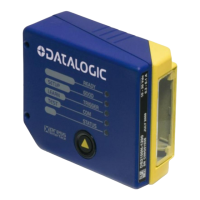
Identifies key components and LEDs on the DS2100N scanner via Figure A.

RAPID CONFIGURATION

Step 1 - Connect the System

Guides on connecting the DS2100N in a Stand Alone configuration for initial setup.

25-pin Connector Pinout

Details the pinout of the 25-pin D-sub connector for power and I/O signals.

Step 2 - Mounting and Positioning

Provides guidance on mounting and positioning the DS2100N for optimal reading.

Step 3 - X-PRESS Configuration

Introduces the X-PRESS™ interface for scanner configuration using LEDs and a button.

Auto Learn Procedure

Describes the Auto Learn function for automatic barcode detection and configuration.

Auto Setup (Optional)

Details the Auto Setup function for optimizing reading parameters for specific barcodes.

Reset Scanner to Factory Default

Explains how to reset the scanner to its factory default settings.

Step 4 - Installing Genius Configuration

Guides on installing the Datalogic Genius™ software for scanner configuration.

Step 5 - Test Mode

Explains how to use the Test Mode to verify scanner performance and reading capabilities.

Advanced Scanner Configuration

Introduces advanced configuration options for expert users using the Genius™ program.

INTRODUCTION

Product Description

Provides an overview of the DS2100N scanner's features and design.

Indicators

Explains the meaning and function of the five LEDs on the scanner.

ID-NET Interface

Introduces the ID-NET™ interface for high-speed scanner interconnection.

Network Setup and Configuration

Details the steps for setting up and configuring an ID-NET™ scanner network.

X-PRESS Human Machine Interface

Describes the X-PRESS™ interface for easy installation and maintenance.

Diagnostic Indication

Explains how the STATUS and READY LEDs indicate system failures.

X-PRESS Functions

Details how to access functions like Test Mode, AutoLearn, and AutoSetup via the push button.

AutoLearn Function

Describes the process of automatic barcode detection and configuration using AutoLearn.

AutoSetup Function

Explains the AutoSetup function for optimizing reading parameters for specific barcodes.

Model Description

Outlines the different versions of the DS2100N based on resolution, performance, and optics.

Accessories

Lists available accessories for the DS2100N scanner, including mirrors and connection boxes.

INSTALLATION

Package Contents

Lists the items included in the DS2100N scanner packaging.

Mechanical Installation

Provides guidelines and dimensions for physically installing the DS2100N scanner.

Mounting DS2100 N

Illustrates how to mount the DS2100N using its mounting bracket for optimal positioning.

Mounting GFC-2020 Mirror

Details the installation of the GFC-2020 accessory lateral output deflection mirror.

Mounting GFC-2100 Mirror

Explains the mounting procedure for the GFC-2100 accessory lateral output deflection mirror.

Mounting GFC-200 Mirror

Describes how to mount the GFC-200 accessory contact reading mirror.

Mounting OM2000 N Mirror

Provides instructions for mounting the OM2000N accessory oscillating mirror.

Positioning

Offers suggestions for optimal scanner positioning, focusing on Skew, Tilt, and Pitch angles.

CBX ELECTRICAL CONNECTIONS

Power Supply

Details power supply connections using the CBX100/500 terminal block connectors.

Main Serial Interface

Covers main serial interface options (RS232, RS485) available on the CBX spring clamp terminals.

RS232 Interface

Explains RS232 interface connections for point-to-point communication and hardware handshaking.

RS485 Full-Duplex Interface

Details RS485 Full-Duplex connections for non-polled communication over longer distances.

RS485 Half-Duplex Interface

Describes RS485 Half-Duplex connections for polled communication protocols.

ID-NET Interface

Covers the ID-NET™ interface for high-speed scanner interconnection.

ID-NET Cables

Specifies cable types and connection guidelines for ID-NET™ networks.

ID-NET Response Time

Shows how network response time varies with the number of nodes in an ID-NET™ network.

User Interface - Host

Details PC host interface connections using RS232 on the CBX.

Inputs

Describes the two optocoupled inputs (External Trigger, Input 2) available on the CBX.

Code Verifier

Explains how to configure the scanner as a Code Verifier using Genius™ or input triggers.

Outputs

Describes the two general-purpose outputs (Output 1, Output 2) available on the CBX.

25-PIN CABLE ELECTRICAL CONNECTIONS

Power Supply

Details power supply connections via the 25-pin D-sub connector.

Main Serial Interface

Discusses main serial interface options available on the DS2100N's 25-pin connector.

RS232 Interface

Explains RS232 interface connections using the 25-pin connector and hardware handshaking.

RS485 Full-Duplex Interface

Details RS485 Full-Duplex connections via the 25-pin connector.

RS485 Half-Duplex Interface

Describes RS485 Half-Duplex connections using the 25-pin connector.

ID-NET Interface

Covers the ID-NET™ interface connections via the 25-pin connector.

ID-NET Cables

Specifies cable types and connection guidelines for ID-NET™ networks using the 25-pin connector.

ID-NET Response Time

Illustrates network response time based on nodes and speed for ID-NET™.

Auxiliary RS232 Interface

Details auxiliary RS232 interface connections using the 25-pin connector for configuration.

Inputs

Describes the two optocoupled inputs (External Trigger, Input 2) available on the 25-pin connector.

Outputs

Describes the two general-purpose outputs (Output 1, Output 2) available on the 25-pin connector.

TYPICAL LAYOUTS

Point-to-Point Layout

Illustrates a serial interface point-to-point connection between the scanner and a host.

Fieldbus Interface Point-to-Point Layout

Shows a scanner connected as a slave on a Fieldbus network via a CBX500.

Pass-Through Layout

Describes a layout where devices pass messages through a chain to the host.

ID-NET Layouts

Covers ID-NET™ network configurations for data collection from multiple scanners.

Master;Slave Synchronized

Details the ID-NET™ Master/Slave Synchronized network topology.

Master;Slave Multidata

Explains the ID-NET™ Master/Slave Multidata network topology.

RS232 Master;Slave Layout

Illustrates a master/slave connection using RS232 for data collection.

Multiplexer Layout

Shows a scanner network connected to a multiplexer using RS485 half-duplex.

READING FEATURES

Advanced Code Reconstruction (ACR-LITE)

Explains the ACR-Lite technology for reading damaged or low-quality barcodes.

Linear Code Reading

Covers parameters influencing decoding capability in linear barcode reading.

Step-Ladder Mode

Describes the Step-Ladder scanning mode and its formula for effective scans.

Picket-Fence Mode

Explains the Picket-Fence scanning mode and its formula for effective scans.

ACR-Lite Reading Conditions

Lists important conditions and compatibility notes for using ACR-Lite effectively.

Tilt Angle for ACR-Lite

Discusses the significance of tilt angle in the ACR-Lite code reconstruction process.

Advanced ACR Reading Conditions

Provides minimum code height requirements for ACR-Lite based on conveyor speed and code resolution.

Performance

Details scanner performance based on different versions, including resolution and reading distance.

Raster Performance

Discusses performance aspects specific to raster versions of the scanner.

Reading Diagrams

Presents diagrams showing reading performance based on distance and code resolution.

DS2100 N-2200 Reading Diagrams

Displays reading diagrams for the DS2100N-2200 (high resolution) model.

DS2100 N-1204 Reading Diagrams

Shows reading diagrams for the DS2100N-1204 High Performance model.

DS2100 N-2204 Reading Diagrams

Presents reading diagrams for the DS2100N-2204 High Performance model.

MAINTENANCE

Cleaning

Provides instructions for cleaning the laser beam output window for optimal scanner operation.

TROUBLESHOOTING

General Guidelines

Offers general advice for troubleshooting, including wiring attention and parameter references.

Troubleshooting Guide

Lists common problems and their suggested solutions, covering power, errors, and X-PRESS functions.

TECHNICAL FEATURES

GLOSSARY

DECLARATION OF CONFORMITY

Datalogic DS2100N Specifications

General IconGeneral
TypeLaser Scanner
TechnologyLaser
Protection ClassIP65
Humidity5% to 95% (non-condensing)
Light SourceVisible Laser Diode (650 nm)
InterfacesRS-232
Operating Temperature0°C to 50°C
Power Supply5V DC
Storage Temperature-20°C to 70°C
Drop Specification1.5 m
Resolution0.15 mm / 6 mils

Related product manuals