AP20 Installation and Operating Guide Version 1.25
Appendix F. H338 Optical Film Card Option F-10 Document #: 9301H39200 Ver. 1.25
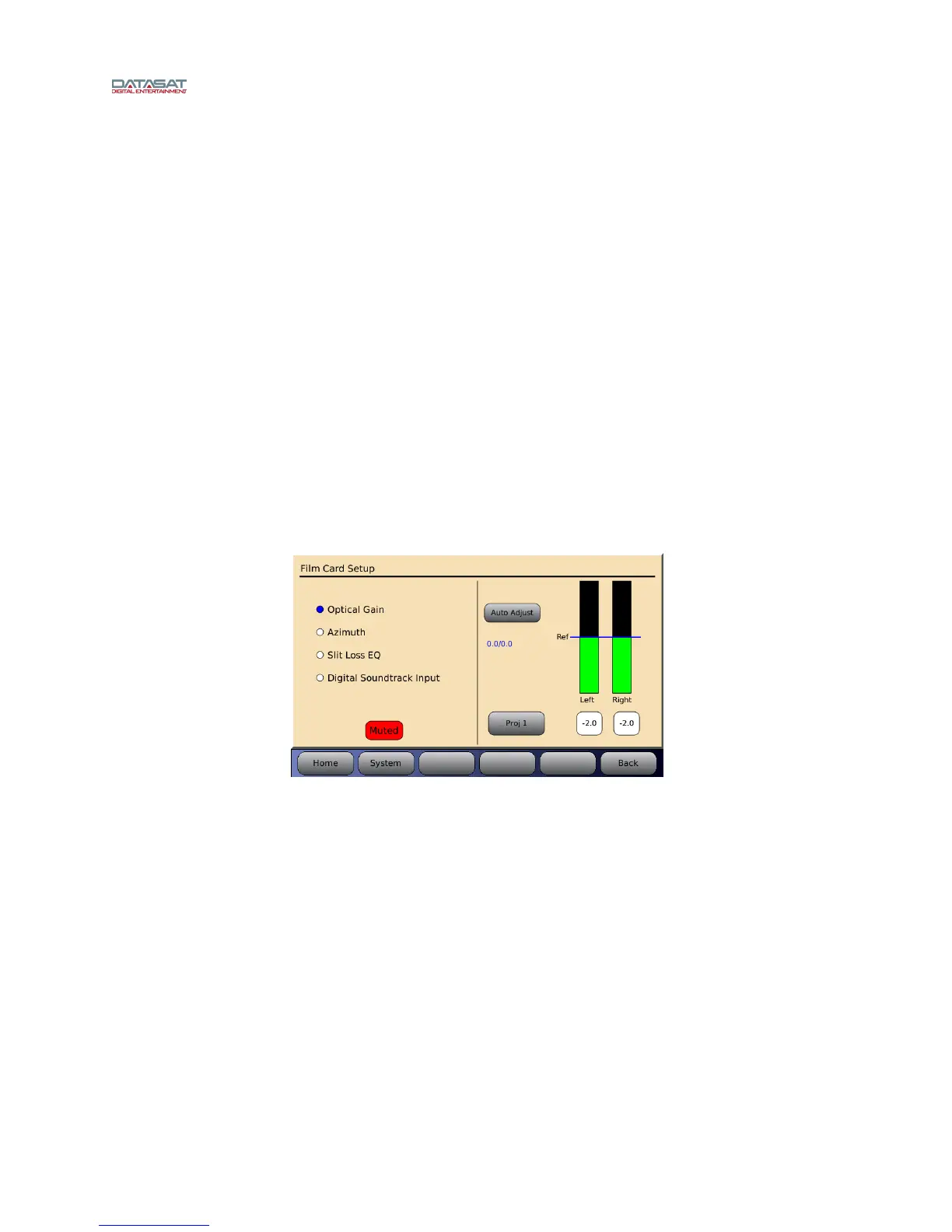
The Film Card Setup screen allows you to make needed adjustments in the selected optical
format.
The left screen allows you to choose the adjustment you want to make.
o y Optical Gain adjusts the optical gain.
o y Azimuth allows the azimuth to be viewed.
o y Slit Loss EQ adjusts the slit loss EQ.
o y Digital Soundtrack Input sets the Digital Soundtrack Input source that will use
Optical as its fallback. See section F4.4.6 for more information.
The right screen has a pictorial of adjustments that ca
n be made and changes with the selections
on the left.
F4.4.1. Optical Gain Adjustment
Items needed: 50% tone test film (CAT 69T), oscilloscope, and specific tools required to
make adjustments, such as Allen/Hex Wrenches, small screw driver etc.
On the AP20 select one of the optical formats in the home screen, next select Menu (System)
→ Formats → Format Options → Film Options → Film Setup. You should now be in the
Film Card Setup screen as shown in
Figure 11. Select Optical Gain.
Figure 11 – Film card setup screen, Optical Gain
Thread the 50% tone test film (Cat69T) and run the projector. The signal should now be
present on the scope and the AP20 Film Card Setup screen as shown in Figure 11.
Two vertical graphs indicate the optical level for the l
eft and right channels. The goal is to
adjust each signal to the reference level. The numbers in blue (under Auto Adjust) follow the
graph. The numbers are separated into two readings (0.0 / 0.0) where the number on the left is
left channel and number on right is the right channel.
A projector select button is provided: Projector 1 = Proj1 and projector 2 = Proj2. Pressing
the button makes the selection.
Auto Adjust enables auto (self) adjustment when pressed. When pressed, a count down will
appear as adjustments are made. If no signal is present or is out of range, a pop-up message
will appear:


 To Next Page