AP20 Installation and Operating Guide Page 58
AP20 Installation & Operating Guide Document # 9301H39200 Ver. 1.25
Depending upon your connection speed, downloading, decompressing, and installing files could take
anywhere from 10 minutes to less than a few minutes to complete. When the installation process is
finished, you will be prompted to reboot the AP20 by cycling the rear panel power switch.
4.2.2.2 Update System Software from USB Device
You may update the software through a USB drive.
1. First, obtain the software update file from the Datasat Digital Entertainment web page at
http://www.datasatdigital.com/support/documents/product-support/products/ap20/607-
ap20-software. The update is in the Su
pport page.
2. Download the update file and copy to the root directory of the USB drive. Be sure not to
change the filename, or the AP20 will not recognize it.
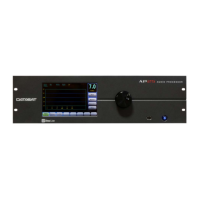
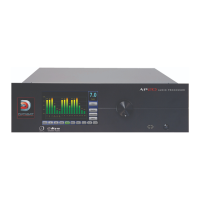
3. Insert the USB drive into the USB slot on the front panel of the AP20, choose Select
Update Source > USB (see Figure 28), select the update file and press the Start Update
button.
Note: If you select an older version of software than is currently loaded on the AP20, you will
receive a warning message and be asked to verify to continue.
4.2.3 Saving and Restoring Configuration Files
You can save and restore standard configurations and master configurations to a USB Flash drive
(memory stick). You can also save Diagnostic information (the system log file) for use in
troubleshooting the system.
A master configuration is intended to be a template used to configure similar AP20s in a system. It is
used as the first step in creating the configuration of each installed unit. Copy the master configuration
file from one AP20 and load it via USB into all AP20s.
Note: Always be careful, as any existing Master Configuration file on the USB will be
overwritten when you save another one.
The standard configuration is specific to one AP20. This contains the unique third octave EQ, DiracEQ,
formats, profile, automation, and global configurations needed for that AP20. The standard
configuration file can only be loaded back onto the same AP20.
You can also load a screensaver of your choice via the USB port.
To perform any of these options, insert the USB Flash drive into the front panel and then press the USB
Save/Restore button on the System Setup screen. (If no Flash drive is present, a message will appear
prompting you to insert a USB device.)


 To Next Page