AP20 Installation and Operating Guide Page 57
AP20 Installation & Operating Guide Document # 9301H39200 Ver. 1.25
Menu (System) > Update System Software
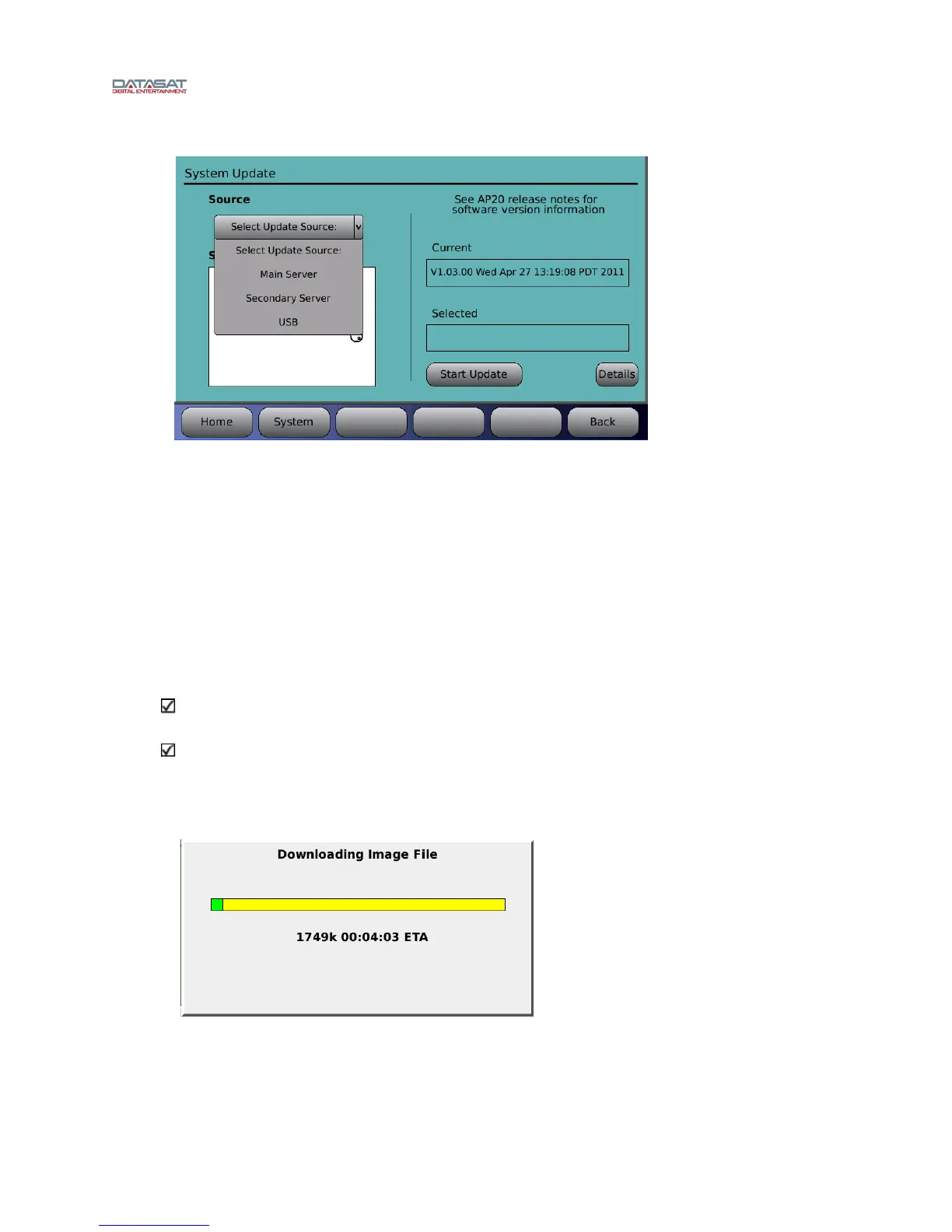
Figure 28. System Software Update Screen
4.2.2.1 Update System Software from Network
The following steps describe how to update your AP20 software through the internet.
Using the Select Update Source pull down menu, choose Main Server, or Secondary Server. Both
will provide the same information. If you successfully connect to the server a list will appear of all
available software versions. The most current will always be at the top of the list. Use the adjustment
knob to highlight the desired software version.
The current version of software loaded on the AP20 is displayed under Current on the right side of the
screen. The highlighted software version, will display under Selected on the right side of the screen.
Once the desired version is confirmed, press the Start Update button
Note: If you select an older version of software than is currently loaded on the AP20, you will
receive a warning message and be asked to verify that you wish to continue.
Note: Your AP20 must already have an active internet connection in order to update software
through the internet. If you receive a message “failed to get file list” your internet connection
is not working and the AP20 is unable to connect with the server.
Connection will take place automatically, and the following screen will appear.
Figure 29. Downloading Software Update via Internet


 To Next Page