AP20 Installation and Operating Guide Page 66
AP20 Installation & Operating Guide Document # 9301H39200 Ver. 1.25
Rename Format – Give an existing audio format a new name. Select an existing format
from the drop-down list on the right side of the screen. Touch the “To” box to bring up the
virtual keyboard and enter a new name for the format. Press the Rename button to
complete the process, or press Cancel to quit.
Note: Renaming the format will change any references, such as the button name or the
format on Macros and Events.
Delete Format – Select an existing audio format from the drop-down list on the right side
of the screen. Press the Delete button to complete the process, or press Cancel to quit.
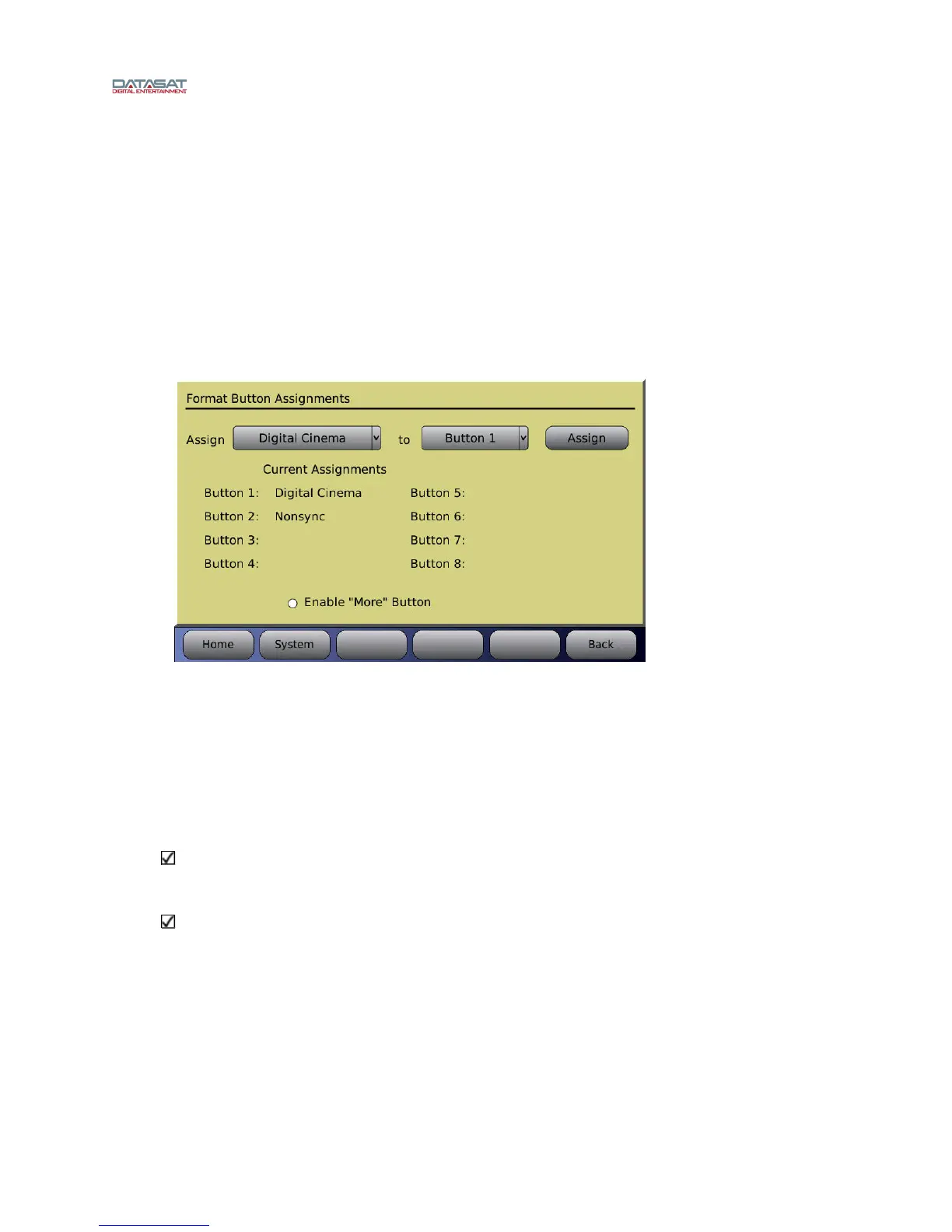
4.3.4 Assign Format Buttons
Menu (System) > Formats > Assign Buttons
Figure 40. Format Button Assignments Screen
Touch the Assign drop down list to open it, then select a format.
Touch the Button drop down list to open it, then select a button number.
Touch the Assign button.
The button assignment will now be listed in the Current Assignments listing in the screen above.
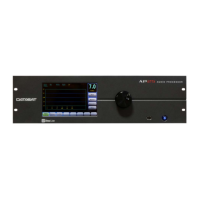
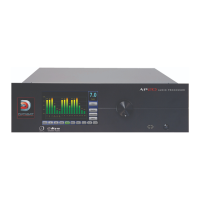
Additionally, the audio format will now be assigned to the corresponding button location along the
bottom of the Home screen as shown in Figure 41.
Note: If the format name you wish to assign to a button does not appear in the Assign drop
down list, you can add it using the Edit Formats > Copy Format function. See 2.14 Copy
Format, page 44.
Note: To unassign or delete a button assignment, select the button from the drop down list,
then select the blank option from the Assign drop down list, then touch Assign. The Current
Assignments listing will no longer show the button assignment.


 To Next Page