AP20 Installation and Operating Guide Page 62
AP20 Installation & Operating Guide Document # 9301H39200 Ver. 1.25
4.2.4.4 Identity
Three text fields can be entered into the AP20 to be used for identification of the AP20. These
are labeled “Screen”, “Theater”, and “Circuit”.
The text entered in the “Screen” field will be displayed in the bottom left corner of the home
screen above the navigation menu. This information can be useful for verification of the correct
AP20 when connecting through VNC.
The Screen, Theater, and Circuit information may be used by a remote theater management
system or other custom application software.
4.2.4.5 Feature Key
This is for fut
u
re use and not currently used for AP20. This will be used to enter an unlock code
when upgrading to optional features.
4.2.5 View Log File
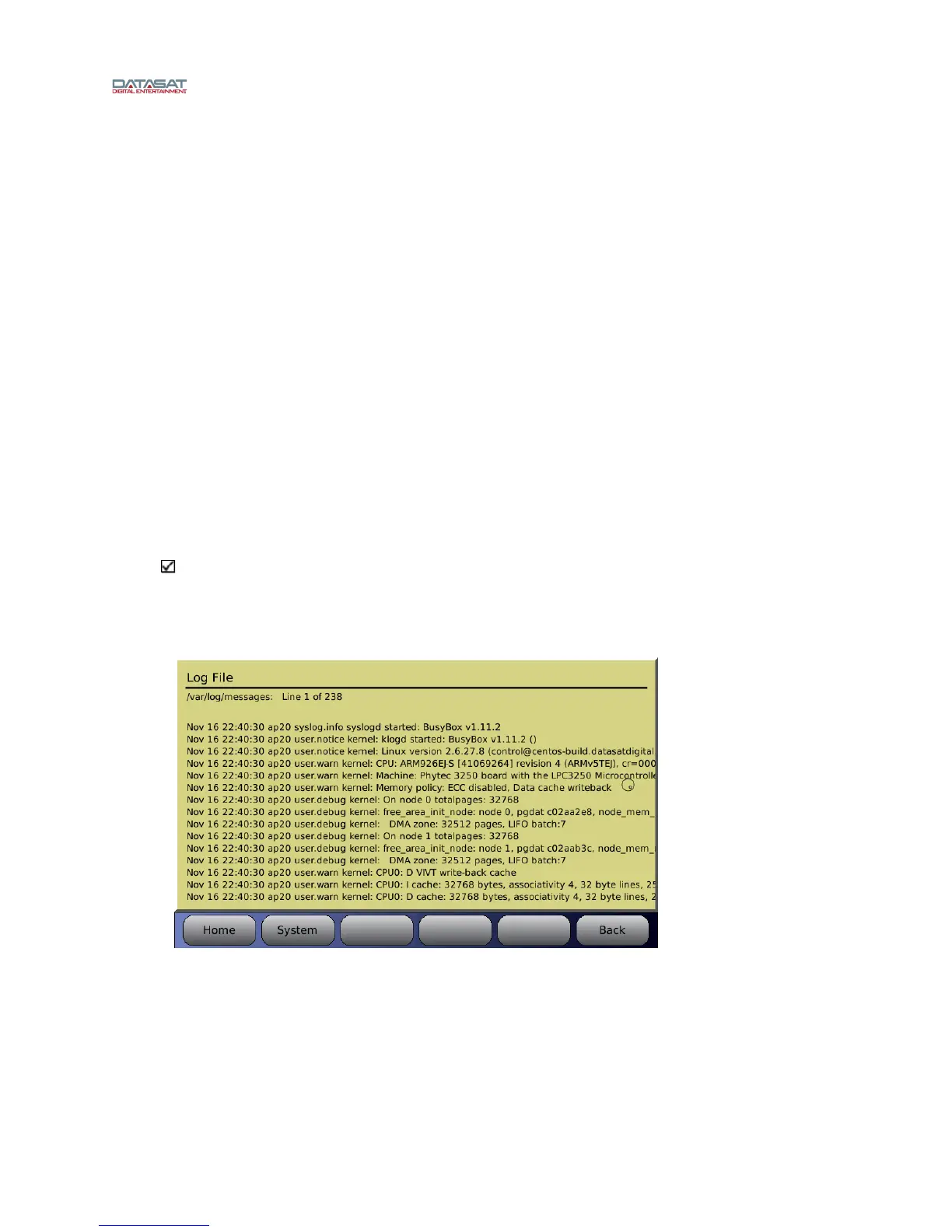
The log file (shown in Figure 34, below) is a complete listing of all software events that have taken place
since the AP20 was last powered on. The listing includes changes made internally by the AP20 software,
as well as user initiated system changes through the touch screen interface. You may scroll through the
log file using the front panel adjustment knob.
The log file is helpful for debugging by Datasat Digital Entertainment staff. You may be asked by the
Datasat staff to save the log files on the USB Flash drive, to send for troubleshooting purposes.
Note: The log files persist during a front panel off/on cycle. However, log files are cleared
after restarting the AP20 from a full power-on (rear panel power switch).
Select Save Diagnostic Info in the section Update System Software From USB Device
on page 58.
Menu (System) > View Log File
Figure 34. Log File Screen


 To Next Page