U
SING
THE
S
OFTWARE
File Menu
17
2. To begin the download, choose OK.
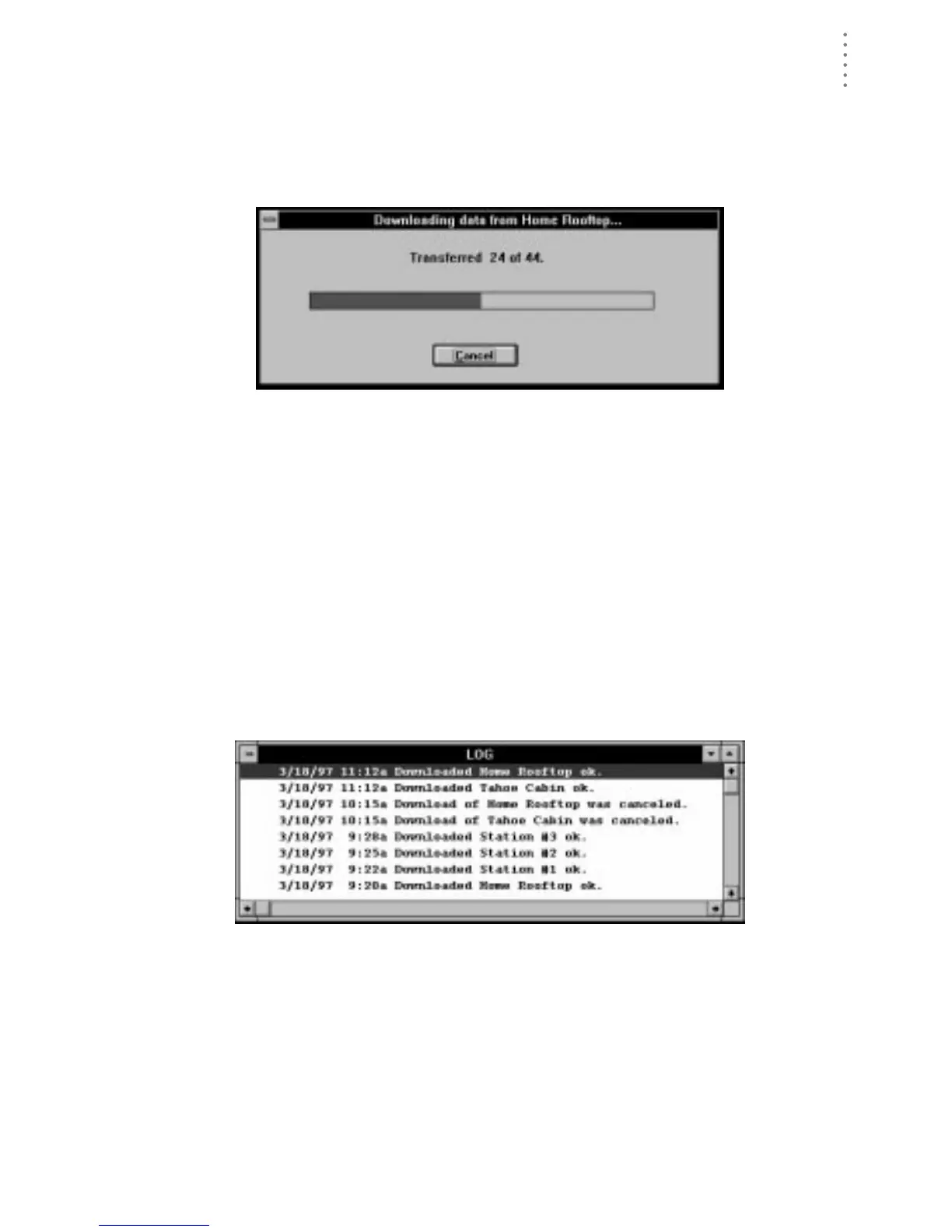
The software will begin to download data. The software shows you the
progress of the download in the form of a status bar and a text display of the
number of records transferred so far and the total number of records to be
transferred.
D
OWNLOAD
S
TATUS
After all records have been transferred, the software saves the information
into the open station’s database. If you have set up your station to clear the
archive memory after download (see “Clear archive memory after download”
on page 20), the software clears the archive memory.
View Log
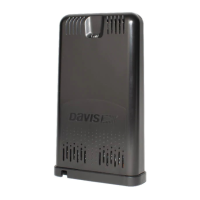
Information about the automatic download and automatic clear of your station(s)
is automatically written to a file called “download.log.“ The log will show you
whether or not the download/clear was successful for each station and give you
the time and date at which it started and completed.
1. Choose View Log from the File menu.
The automatic download log appears.
A
UTOMATIC
D
OWNLOAD
L
OG
2. To close the log window, double-click on the control-box or choose Close from the File
menu.




 To Next Page