23
Song Selection
Saving Song to Local
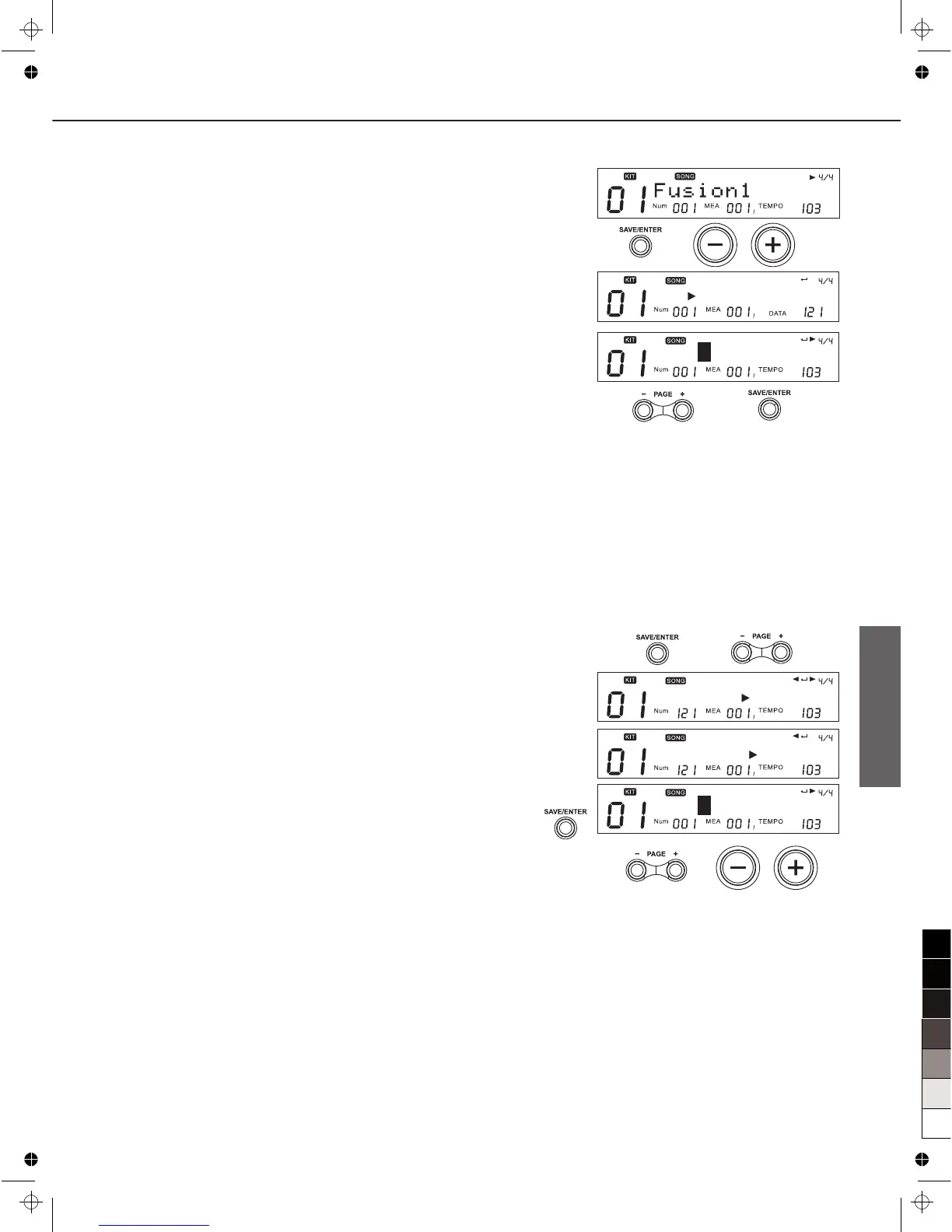
1. In the song screen, select a source song (preset song or
user song) which you want to saved.
2. Press [SAVE/ENTER], then press [+]/[-] button or use the
DIAL to select the destination song.
3. Press [SAVE/ENTER] to enter rename screen.
4. Press [PAGE+]/ [PAGE-] or [+]/[-] button and DIAL to change
the song name.
Press [SAVE/ENTER] again to finish this setting.
The editing of the parameter on preset song will take effect at
once, but after you change to another song before saving, the
edited parameter will be lost. For saving these editing, you can
save the edited preset song to user song.
Note:
After you have edited the parameters, and did not save the
song before powering off, the unsaved changes would be lost.
Saving Song to SD Card
1. Make sure you insert a available SD card into the slot.
2. In the song screen, select a source song(user song) which
you want to be saved.
3. Press [SAVE/ENTER], then Press [PAGE+]/ [PAGE-] to
select page “CurSng► Card” or “AllSngs► Card”.
4. Press [SAVE/ENTER] to enter rename screen. You can press
[PAGE+]/ [PAGE-] or [+]/[-] button and DIAL to change the
song name.
5. Press [SAVE/ENTER] again to finish this setting .
Note:
If there is not enough memory on SD card, new song also will
be saved to local; If both local and SD card did not have enough
memory for saving, then the digital drum will show hints and
cancel the operation of saving.
Individual Song Saving
— If no identified SD card, you can save song to local,
reference operation as “Saving Song to local”
— If exist identified SD card, you need enter menu to select file
type for saving (CurSng/AllSngs) and saving position
(Local/Card) reference operation as “Saving Song to SD
card”.
All User Song Saving
First, be sure that you insert available SD card in digital drum
card slot. Refer to “Saving Song to SD Card” select “AllSngs►
Card” and make sure for saving.
C u r S n g C a r d
A l l S n g s
C a r d
S v x M y s n g 0 0 1
M y s n g 0 0 1
M y s n g 0 0 1


 To Next Page