61
Online Software
DST
DST stands for Daylight Saving Time. You can adjust the DVR to change its time for you when daylight saving time
approaches, so you don’t have to go back and do it yourself. You can also customize when the DVR changes for DST.
Turn the DVR DST on:
1. Select the checkbox next to DST and a box will appear.
2. Select the checkbox next to DAYLIGHT SAVING TIME to enable.
3. Select the TIME OFFSET drop down list and choose if you would like your clock to go forwards or backwards by 1
or 2 hours.
4. Select the DAYLIGHT SAVING TIME MODE drop down list and choose if you would like DST to change in a specific
month and week or on a specific date.
If by Week
• Select the START TIME drop down list and choose the month.
• Select the drop down box below and select the WEEK.
• Select the drop down box below and select the WEEKDAY.
• Repeat steps above for END TIME.
If by Date
• Left click in the START TIME field, the keyboard will open.
• Enter the TIME you want the DST to change, then click the ENTER key.
• Repeat steps above for END TIME.
5. Click SAVE in the upper right corner to save your changes.
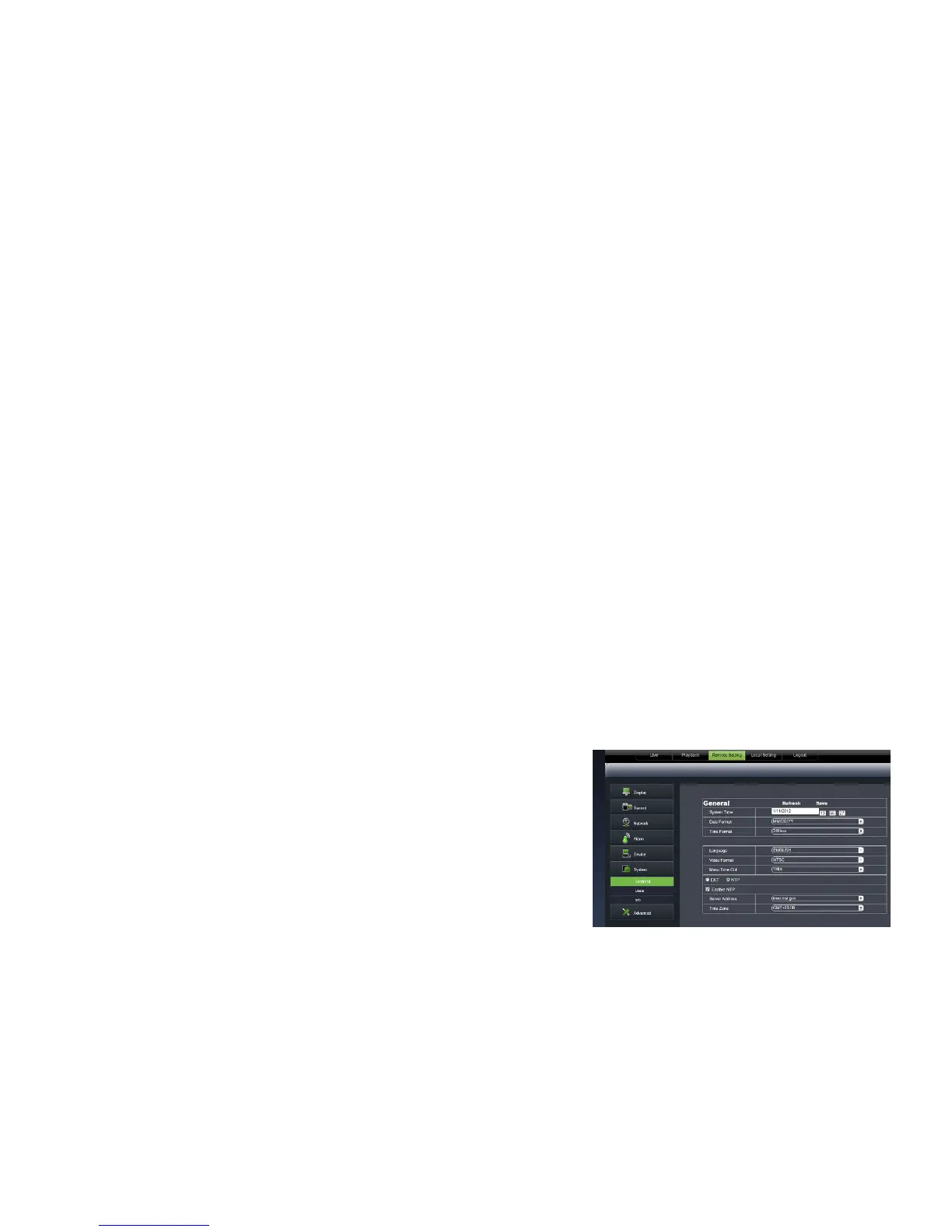
Network Time Protocol (NTP)
You have the option of setting your DVR to sync its time to various web servers. This ensures your DVR always has the
correct time. It will also automatically adjust for daylight saving time.
Setting the DVR to sync with an NTP time server:
1. Select NTP SETUP. Select ENABLE or DISABLE.
2. The NTP server options will come up. Choose one of three
time servers.
3. Select the SERVER drop down list and choose a server.
4. Select the TIME ZONE drop down list and choose a time zone.
5. Click the UPDATE NOW button.
6. Click SAVE in the upper right corner to save your changes.



 To Next Page