96
Cod.: 240.010.0042
DLS / DLS-C Series
8.2.2.1 STATIC IP
This type of setting allows you to keep the DLS congured to the selected IP even when the router is re-
started. This functionality is useful if you want to make direct remote access to the DLS system using a
smartphone / tablet / PC device using any browser and the selected IP address.
1. Access the "STATIC" menu to assign a static IP address to those available on the router network. The
selected IP address must be selected between the free and currently unassigned to other de-vices
attached to the selected Wi-Fi / LAN network.
2. Access the "GATEWAY" menu to assign the IP address of the router
3. Access the "NETMASK" menu to assign the value (255.255.255.0 default setting).
8.2.2.2 Dynamic IP (DHCP)
In this type of setting the router dynamically and automatically assigns the IP address to the DLS system
within the selected Wi-Fi / LAN network.
It is important to note that the IP address assigned automatically by the router to the inverter may vary when
the router restarts. At any time, the IP address assigned to the DLS system can be retrieved by accessing
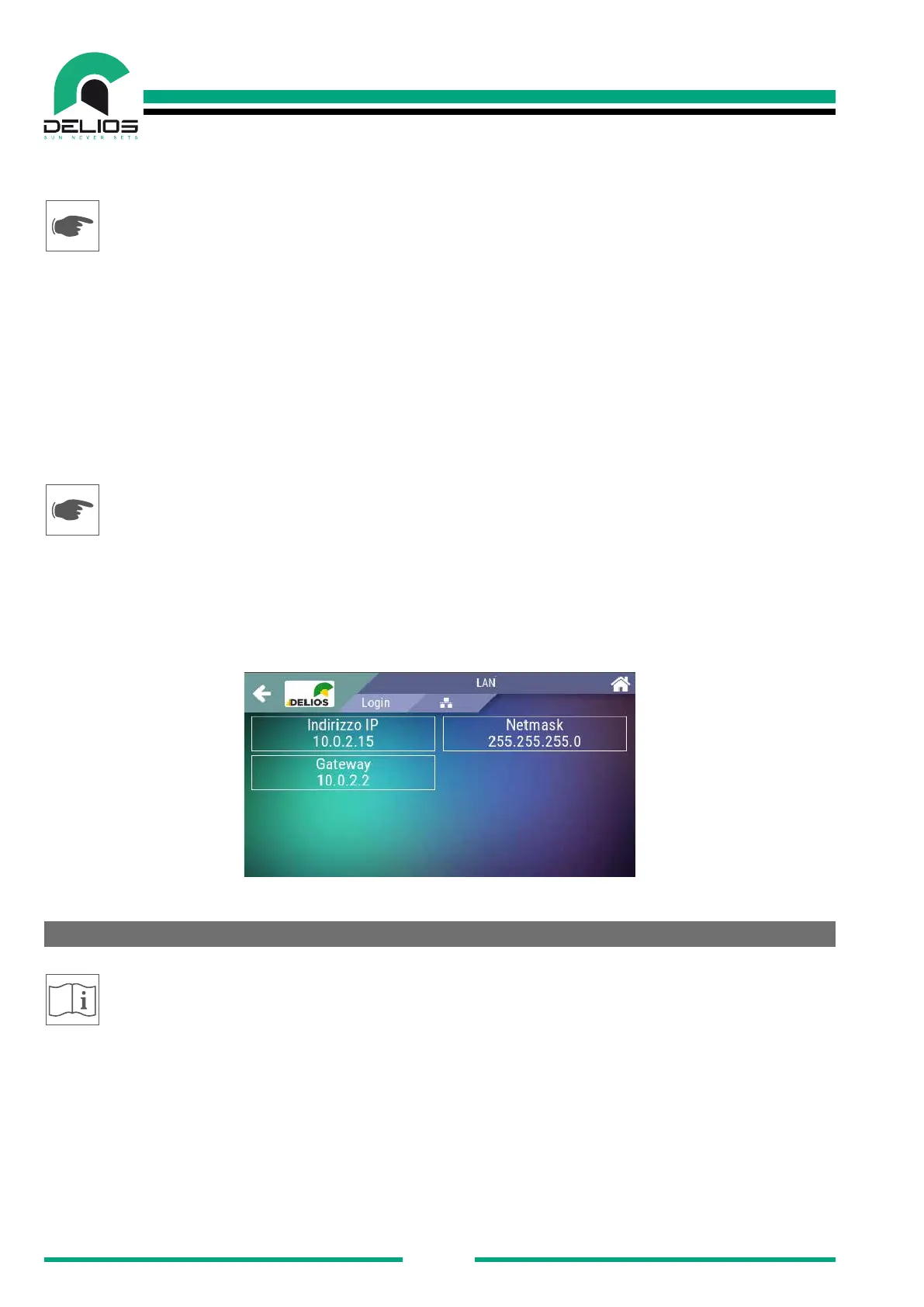
the "INFO" menu and the "NETWORKING" submenu:
MENU INFO NETWORKING WLAN
MENU INFO NETWORKING LAN
8.3 DIRECT Access over local Wi-Fi/LAN network
The following remote access mode to the DLS system allows to get the system control panel onto the de-
vice used for the remote connection. No parameters changes are allowed on the remote control panel, but
only system checks.
1. Make sure that the DLS system is operating (green LED (1) blinking or steady on) and that the Wi-Fi
connection to the local network is active (blue LED (3) on and icon (5) highlighted).
2. Make sure that the remote device (smartphone / tablet / PC / Laptop) that you want to use to access
the DLS is connected to the same local LAN / WLAN.
3. Start the system web browser on the remote device (smartphone / tablet / PC / Laptop) and enter the
IP address assigned to the DLS system on the search bar to visit the login page. In the case of STATIC
assignment, type in the chosen IP address, while, in the case of dynamic DHCP as-signment, retrieve the
address assigned by the router to the DLS by consulting the "IN-FO" menu on the "NETWORKING" page.


 To Next Page