45
Operating the monitor
Icon Menu and submenu Description
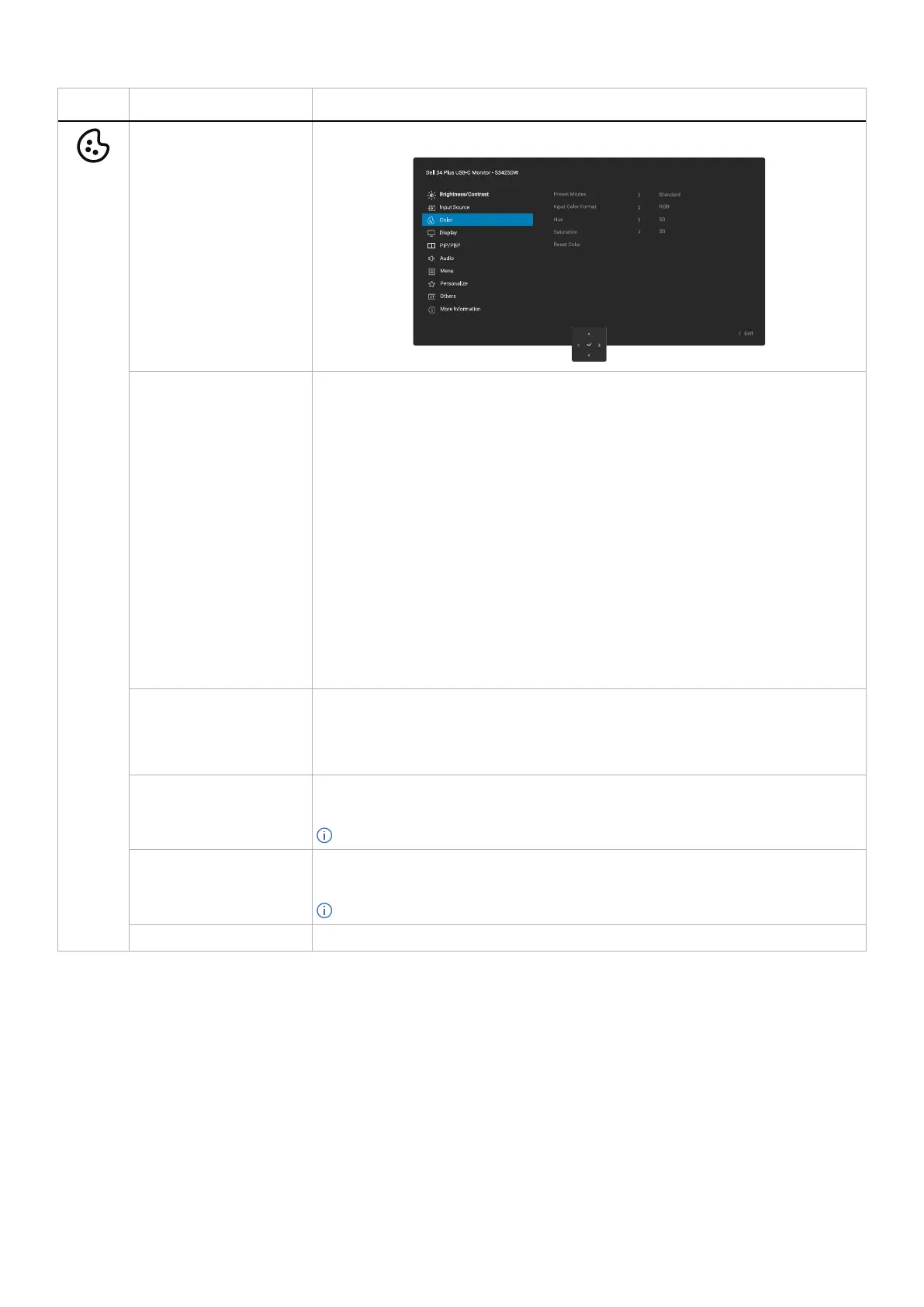
Color Adjusts the color setting mode.
Preset Modes Allows you to choose from the list of preset color modes. Press the joystick to confirm
the selection.
• Standard: This is the default setting. Using a low blue light panel, this monitor
is certified by TÜV to reduce blue light output and create more relaxing and less
stimulating images.
• Movie: Loads color settings ideal for movies.
• FPS: Loads color settings ideal for First-Person Shooter games.
• RTS: Loads color settings ideal for Real-time Strategy games.
• RPG: Loads color settings ideal for Role-Playing games.
• Warm: Presents colors at lower color temperatures. The screen appears warmer with
a red/yellow tint.
• Cool: Presents colors at higher color temperatures. The screen appears cooler with a
blue tint.
• sRGB: Presents colors at sRGB color space.
• Custom Color: Allows you to manually adjust the color settings (R/G/B) and create
your own preset color mode.
Input Color Format Allows you to set the video input mode to:
• RGB: Select this option if your monitor is connected to a computer or a media player
that supports RGB output.
• YCbCr: Select this option if your media player supports only YCbCr output.
Hue
This function can shift the color of the video image to green or purple. This is used to
adjust the desired flesh tone color. Move the joystick to adjust the hue level from 0 to 100.
NOTE: The function is available only when you select Movie, FPS, RTS, or RPG mode.
Saturation
This function can adjust the color saturation of the video image. Move the joystick to
adjust the saturation level from 0 to 100.
NOTE: The function is available only when you select Movie, FPS, RTS, or RPG mode.
Reset Color
Resets Color to the default settings.



 To Next Page