Dexcom G6
®
System User Guide
116Chapter 8: Home Screen
8.4 Navigation and Status Bar
Now that you’re familiar with the glucose information on your home screen, let’s see
how to get around. For example, how do you get to the calibration screen or the screen
where you record an insulin dose, or how do you check your alert settings? The Apple
app, Android app, and receiver home screens have slightly different ways to navigate to
other screens. This section details those differences.
Remember, if you entered a sensor code, you don’t need to calibrate so there isn’t a
Calibrate icon on the home screen. Calibrate via Menu > Calibrate.
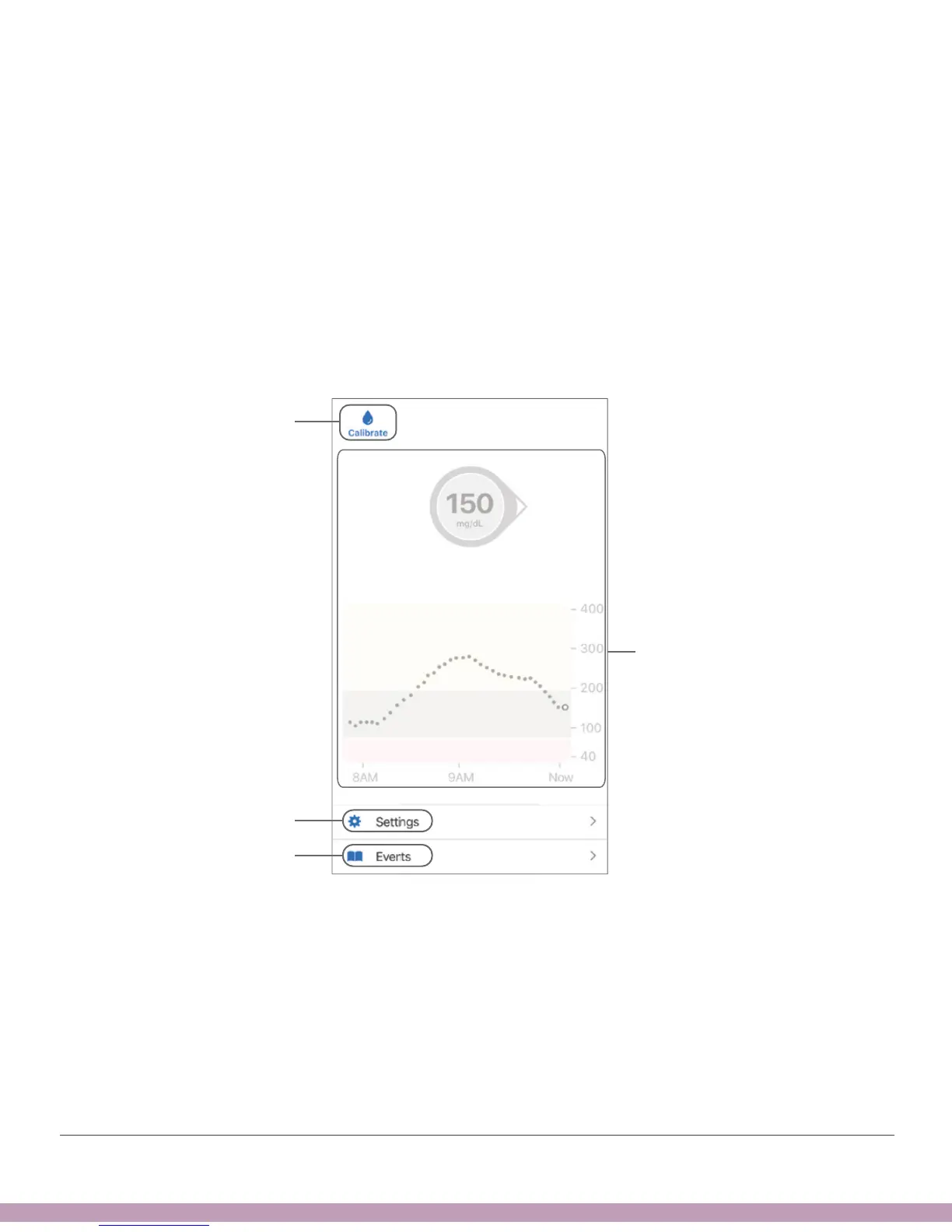
Apple App
Settings Menu
Glucose Information
Event History
Calibrate Icon



 To Next Page