Dexcom G6
®
System User Guide
166Chapter 10: Alarm and Alerts
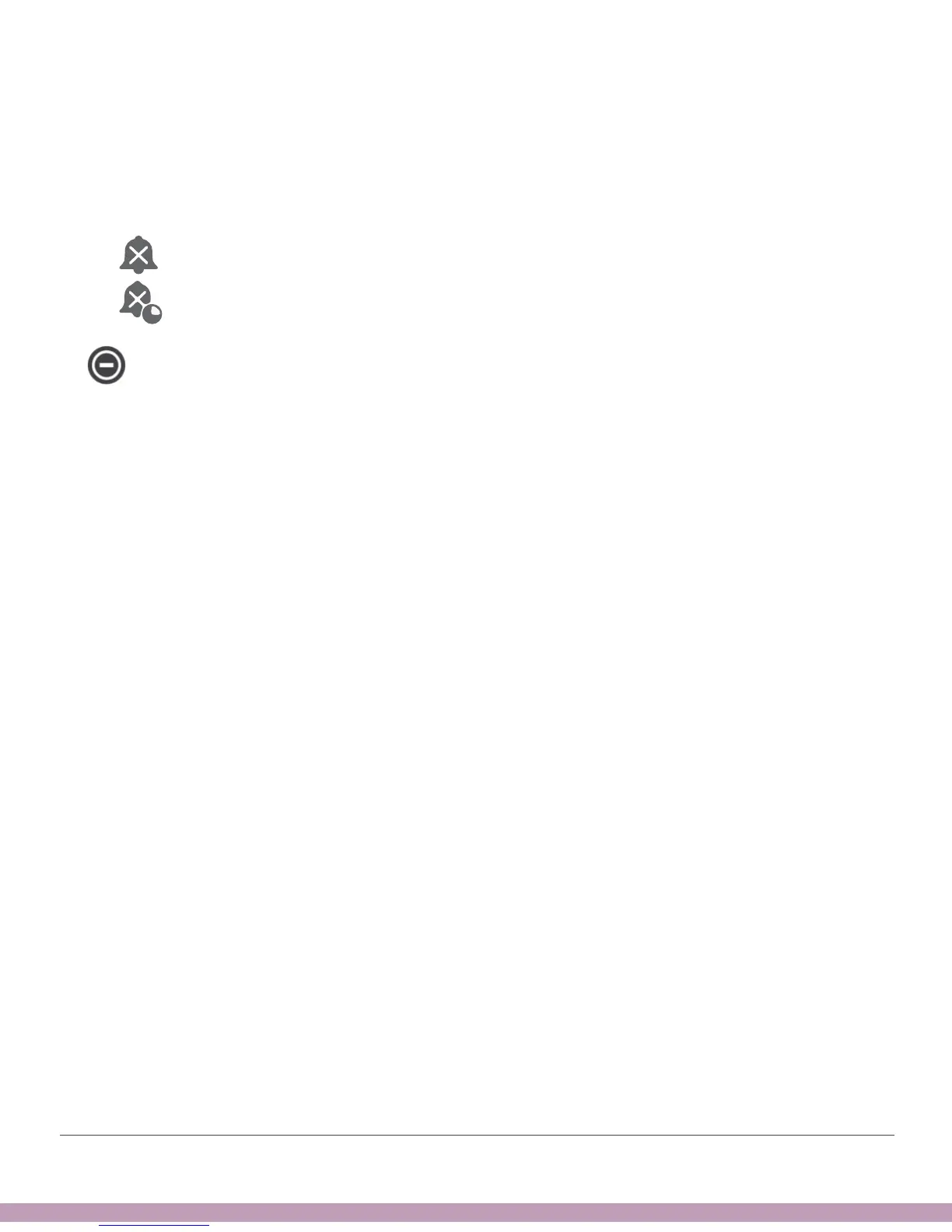
• However, if mute/Do Not Disturb is on, you hear only these three alarm/alerts:
Urgent Low Glucose Alarm, Transmitter Alert, and Sensor Failed Alert. You do not
hear any other noises from your phone. This may be the right setting combination
for you during the school or work day. These icons on your home screen show this
state:
Default Alerts
Scheduled Alerts
Android only: No alarm/alert sounds when your phone is in the most restrictive
Do Not Disturb settings.
10.9 App: Alert Schedule
The app Alert Schedule lets you pick how your alarm/alerts notify you at different times
and on different days. For example, you may choose loud alarm/alerts when you’re not
at work, but have them only vibrate during work hours.
Alert Schedule lets you add one schedule.
When you turn on the Alert Schedule for the first time, your glucose alert settings
are copied into your schedule. The Alert Schedule guides you through creating an
additional schedule. Follow the steps below to copy your glucose alert settings and
change them for workdays.
In this example, you add a night schedule for 10 pm through 7 am, all week long.
During these times, your Low Alert will be at 70 mg/dL and your High Alert will be at
200 mg/dL and they will always sound, even if your mute or Do Not Disturb setting
is on. During the day — when this schedule is not in effect — your alarm/alerts will
make the sounds and notify you at the levels you set outside the Alert Schedule.
We will set up your High and Low levels first then turn on Always Sound. That way, at
night, you can switch your display device to mute or Do Not Disturb at night and only
hear sounds from your CGM alarm/alerts.
Your smart device may have different calendars, time, etc. and look different than the
instructions below. Follow your device steps for choosing time and days.



 To Next Page