UTM-00339 | Rev 19
Page 150 of 253
DetNet South Africa Copyright © 2021
The following paragraphs contain a detailed description of User-interaction and safety features designed into the
DigiShot
®
Plus 4G Commander.
Press the POWER button briefly to switch ON the device.
Press-and-hold the POWER button for 2 seconds to switch the device OFF.
In case of malfunction, press-and-hold the POWER button for 10 seconds to force the device OFF.
While the Commander is plugged in and charging, the Power button can also be used to toggle between low
(500mA) and high (2A) charge rates.
Turn Off by disconnecting the charge cable, waiting a few seconds and then pressing the Power button.
Ensure that the device is switched OFF.
Press-and-hold the NEXT button, then press the POWER button to switch ON. The device will now enter
bootloading mode.
Some laptops are not able to sustain the charge current required by the Commander especially while users are
downloading logs off the Commander from their laptops. In such cases users can disable charging to assist in data
transfer to their computers.
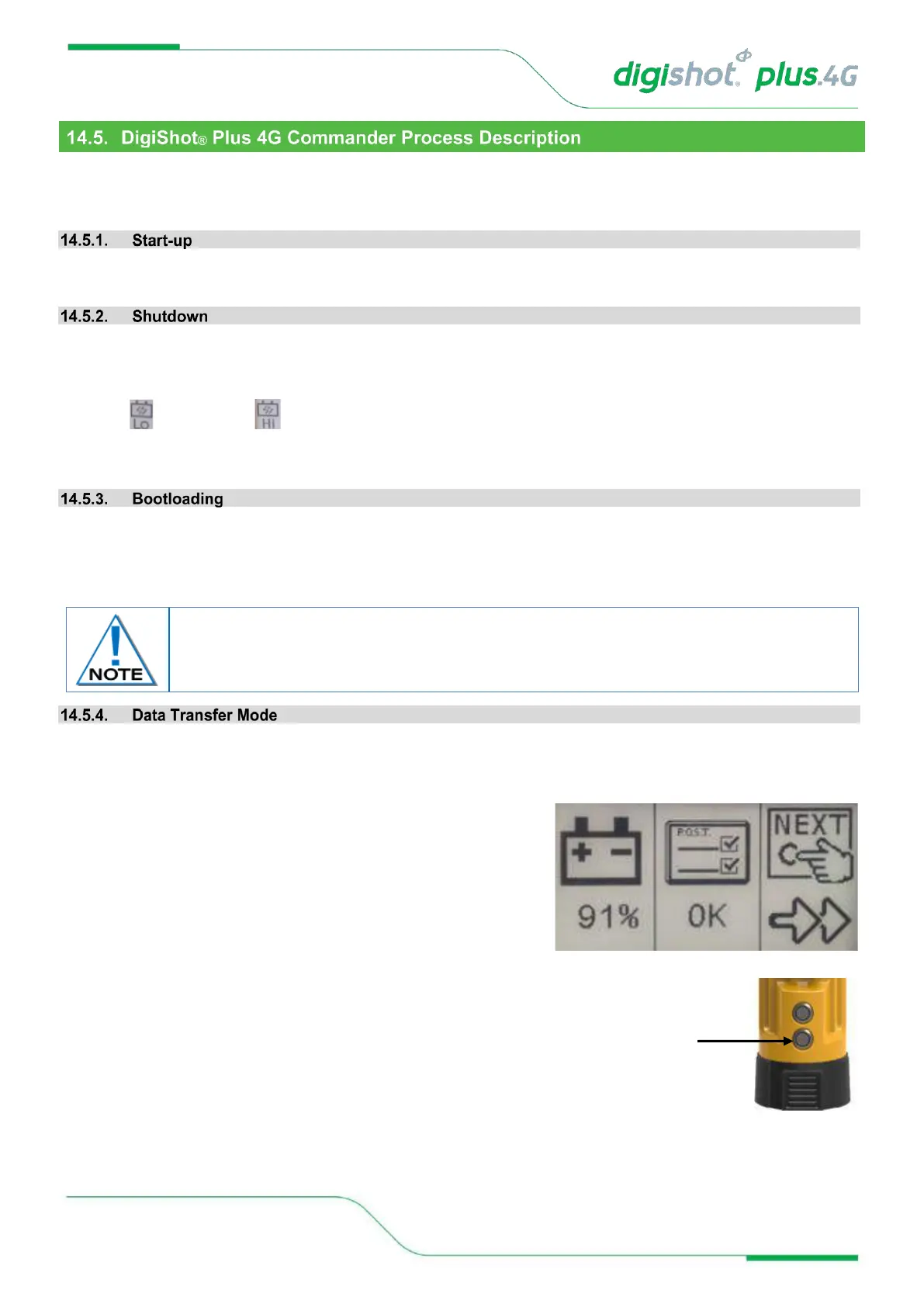
• To enable data transfer mode the user must be in the ‘press
next’ screen on start-up and must ensure that the Commander
is not charging.
• Hold in the power button until the Commander beeps to activate
Data Transfer Mode which will disable the charging function.
• Press next or connect via WiFi to restore charging (to the ‘low
current’ level).
• A short press of the power button will also turn off data transfer
mode.
To load new software, connect a flash drive containing the new software version into the
DigiShot
®
Plus 4G Commander. Place the DigiShot
®
Plus 4G Commander in boot loader-
mode to start the download of the software.



 To Next Page