5.3.4. Adding Locks (LUNA)
1. From the main menu, select the “E-Plex Doors” icon.
2. Enter a name for your door in the Name field provided
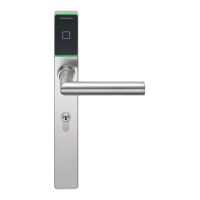
3. Use the drop-down to choose "E-Plex 7900" from the
list of supported Lock Models
4. Use the drop-down list to choose from one of the
following Function Types: Entry Lock, Residence Lock,
or Privacy Lock
5. Use the drop-down lists to select a time (in seconds)
for each of the following lock settings: Unlock Time,
Buzzer Volume (E-Plex 3X00 and 5X00 series only),
Tamper Count, Tamper Lockout, Manual Passage
Duration
6. Enter a “Door Held Open” time (in seconds) in the
field provided
7. Once you have entered all the required door/lock info,
click the Save button.
1. From the main menu, select the “E-Plex Doors” icon.
2. Click the plus sign to add a new E-Plex Door
Group
3. Enter a name for your E-Plex Door Group in the space
provided.
4. Use the “E-Plex Doors” and tabs to add new doors/
locks to the E-Plex Door Group. See “Adding Locks”
section for details.
5. Use the “Schedules” tab to apply schedules to your E-
Plex Door Group. To assign one or more schedules,
click the corresponding checkbox next to the schedule
name.
6. Click the Save button.
1. From the main menu, select the "Scehdules" icon
2. Click the plus sign next to “Schedules” to create a
new schedule.
3. Enter a name for the Schedule in the space provided.
4. Use the arrow icons to adjust the Start Time and End
Time for each of the days of the week and for
holidays.
5. Click the Save button.
5 Programming and Software Setup - LUNA
1. From the main menu, select the “E-Plex Doors” icon
2. Select a door from the list of E-Plex Doors on the left
side of the screen
3. Click on the “Create Program File” button.
4. This will create a data file in your computer’s My
Documents folder, with the file name being the same
as the E-Plex Door name.
To transfer the lock settings from LUNA, you will
need to create a program file, load the program file
onto the M-Unit, then use the M-Unit to transfer the
file.
Please refer to the M-Unit section for details.
19
E7900 Series
5.3.5. Creating an E-Plex Door Group (LUNA)
5.3.6. Schedules (LUNA)
5.
3.7.
Programming
E-Plex
Locks (LUNA)
5.3.8.
Creating
the
Program
File (LUNA)
5.3.9
. Transferring
files
Using
the
M-Unit (LUNA)
KD10114-E-1122



 To Next Page