5 Programming and Software Setup - M-Unit
5.7.5. M-Unit Audits
The M-Unit can be used to extract the transaction history
from an offline lock to be saved elsewhere and viewed using
the LUNA/Aurora software. This section outlines the
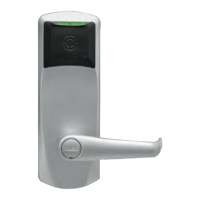
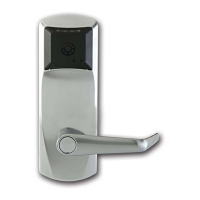
process of auditing an E-Plex 7900 lock.
WARNING: Prior to Auditing a lock, please do the following:
• Read the following steps carefully. Interruption to the
lock auditing process may produce undesirable
consequences to the lock itself.
• Ensure that the M-Unit battery has enough power to
complete the Audit process. For best results, leave
the M-Unit powered/plugged in via the USB cable
while auditing your lock.
Auditing an E-Plex 7900 Lock
1. Power up the M-Unit and enter you login information
and password.
2. From the M-Unit’s main screen, select “Door” by
pressing the left-most arrow button directly below
the Door icon on the screen.
3. Select “Audit” by either pressing the corresponding
number on the keypad or by scrolling through the
options with the up/down arrows and pressing the
ENTER button.
4. Choose the data file previously programmed onto the
lock by scrolling through the options with the up/
down arrows and pressing the ENTER button. The M-
Unit will take a few seconds to decrypt the file.
5. After decryption, you will be asked to select the
amount of audits. Select from 100, 1000, or ALL by
pressing the corresponding arrow button below the
M-Unit’s display screen.
6. The screen will display “Put Lock into Communications
mode”. If your lock wasn’t placed in Communications
Mode or has timed out, follow the procedure as
described earlier in this document.
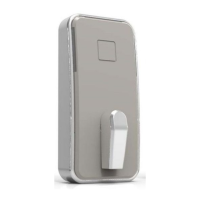
7. Attach the Programming Unit Adapter onto the lock
by mounting it to the top of the lock, over the card
reader, using the arms to secure it in place. Insert the
other end of the cable into the serial port on the
bottom of the M-Unit.
8. Select OK by pressing the right-most arrow below the
M-Unit’s display screen. “Retrieving Audits” is
displayed on screen while the M-Unit pulls
transactions from the lock.
9. “Audit success!” will appear on screen upon
completion of the audit. Select OK by pressing the
right-most arrow below the M-Unit’s display screen to
return to the main menu.
Viewing Audits (LUNA)
1. Plug the USB side of the cable into the USB port of the
computer and the USB Mini-B side of the cable into the
USB port on the M-Unit.
2. Open the LUNA software client and enter a valid
password. If you haven’t changed your password, the
default Keyscan generic password out of the box is
KEYSCAN (in all caps as shown).
3. Click the LUNA main menu icon in the upper left
corner , then click the“Settings” icon.
4. Under “E-Plex Settings”, click the “Import
Transactions” button.
5. Navigate through your computer to find the E-Plex M-
Unit folder (When plugged in to the computer, the M-
Unit should appear as a new drive). Select the Audit
file you wish to view and click Open. The Audit file will
be named “AUD” plus the name you gave the
corresponding E-Plex Door in the LUNA software.
“Importing Audits” will be displayed as the file is being
uploaded (this may take several minutes)
6. Upon completion, all Audit information can now be
viewed when creating a Transaction report. To create
a Transaction report, click the LUNA main menu icon in
the upper left corner, then select “Transaction Report”.
Please consult the LUNA Online Help by pressing F1 on
your keyboard for more information on setting up and
running a Transaction Report.
29
E7900 Series
5.7.6.
5.7.7.
KD10114-E-1122



 To Next Page