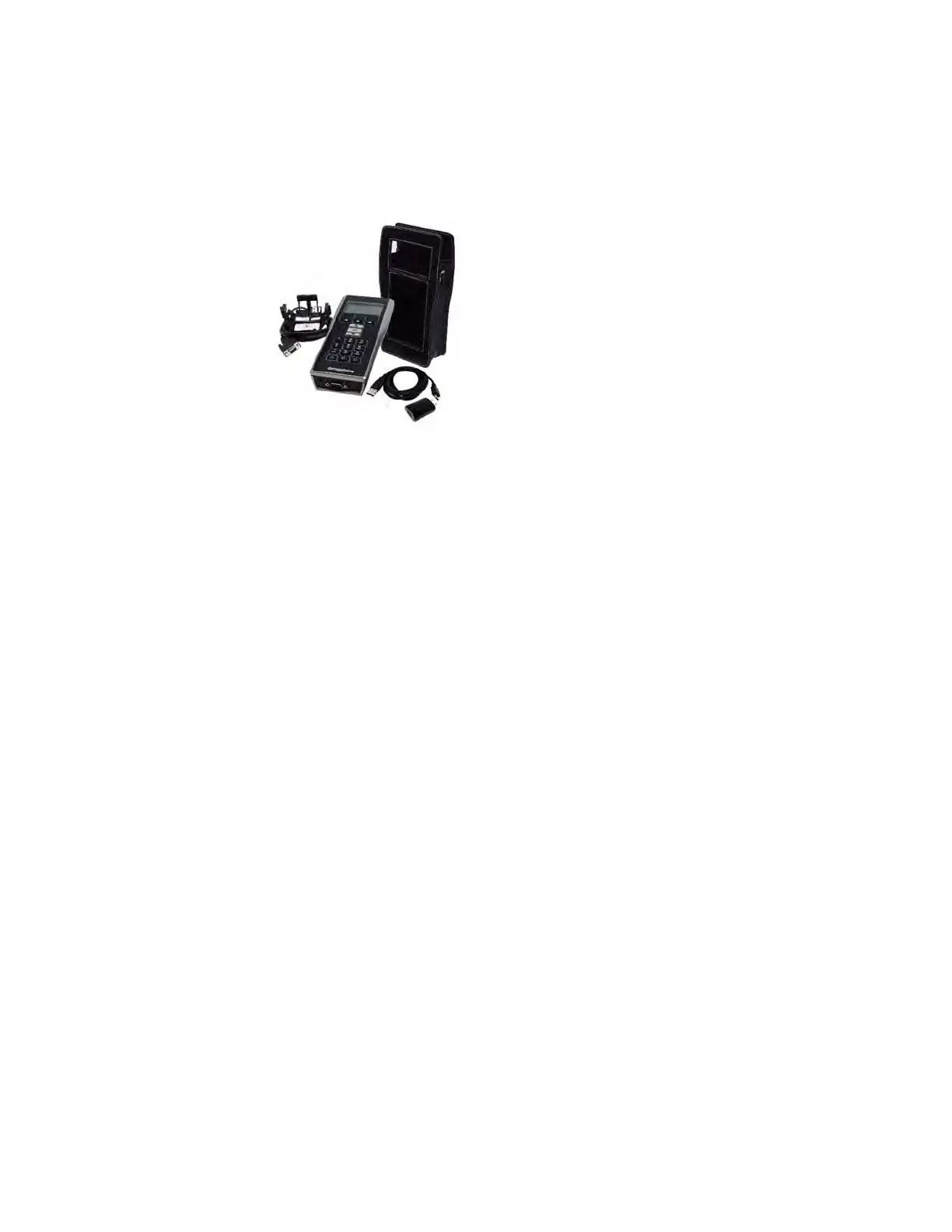
5 Programming and Software Setup - M-Unit
M-Unit:
1. Connect the programming cable from the M-Unit to
the USB port of the computer
2. Press and hold the M-Units power button on the
bottom-left corner of the keypad to power up the M-
Unit
3. Enter the Admin password using the M-Unit keypad,
then press the ENTER button. (The default out-of-
the-box password for the M-Unit is "000")
4. On your computer, use the Windows Explorer menu to
locate and open the E-Plex M-Unit folder
5. Copy and Paste the E-Plex Door Program file you
created previously, then Copy and Paste it into the E-
Plex M-Unit folder. Note: this file must be placed in
the root folder; the M-Unit cannot read files in sub-
folders.
6. Safely disconnect the USB cable from the computer
as per your PC’s operating system requirements for
ejecting media devices
5.7.3. Programming E-Plex Locks (Offline Lock Setup)
To program a lock, the lock must first be placed in
Communications mode. Once in Communications mode,
you have a 30-second window during which you can
program the lock. This procedure requires the use of
Command Cards. Refer to the “E-Plex 7900 Command
Cards User Guide” (KD10090-E) for more information.
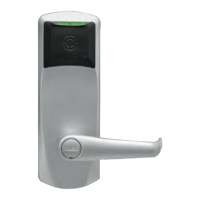
To place an E-Plex 7900 lock in Communications mode,
perform one the following steps depending on which mode
the lock is in:
1. If the lock is in Factory mode:
Present the Factory Communication command card to
the door reader to initiate Communications Mode. The
door lock can now communicate with the M-Unit.
2. If the lock is in Full Feature mode:
A user with Master or Manager privilege can present
the Communication card followed by their User Access
card to the door lock reader. An M-Unit credential can
also establish communication. The door lock can now
communicate with the M-Unit.
5.7.4. Transferring Program File to the Lock
To program the E-Plex lock with the data transferred
from the Aurora/LUNA software client to the M-Unit,
perform the following steps:
Note: If the 30-second window expires at any point during
this process, simply repeat the procedure.
1. Attach the Programming Unit Adaptor onto the lock
by mounting it to the top of the lock, over the card
reader, using the arms to secure it in place. Insert the
other end of the cable into the serial port on the
bottom of the M-Unit.
2. Power up the M-Unit and enter you login information
and password.
3. From the M-Unit’s main screen, select “Door” by
pressing the left-most arrow button directly below
the Door icon on the screen.
4. Choose “Program” by either pressing the
corresponding number on the M-Unit keypad or by
scrolling through the menu options with the up/down
arrows and pressing the ENTER button.
5. Choose the data file you wish to program onto the
lock by using the up/down arrows to highlight the file
name then pressing ENTER. The M-Unit will then
decrypt the file, which will take a few seconds.
6. The screen will display “Put Lock into
Communications mode”. If your lock wasn’t placed in
Communications Mode or has timed out, follow the
procedure as described earlier in this section.
7. Select “OK” by pressing the right-most arrow button
below the screen. “Writing Lock Config” appears
onscreen while the M-Unit programs the lock.
8. “Programmed Successfully” will display onscreen
upon completion. Select OK by pressing the right-
most arrow button below the screen to return to the
main menu. Programming is now complete.
About The M-Unit
The M-Unit is a handheld
diagnostic and configuration
file transfer tool designed to
be used with E-Plex locks
that conform to the most
recent versions of both the
Aurora and LUNA software
clients. The M-Unit can help
set up offline E-Plex locks by
gathering data from the
Aurora/LUNA client and
transferring it the lock.
This device can also transfer audit trails and be used as a
site survey tool.
This section focuses on using the M-Unit to setup and
program E-Plex 7900 locks (Offline Lock setup), and
touches on some of the additional tools for wireless lock
setup.
For more information about the M-Unit specifications,
functionality, and working with other lock types, refer to
the M-Unit User Guide (KD10093-E).
Once you have successfully created a Program File using
Aurora/LUNA software (outlined in previous section),
perform the following steps to transfer this file onto the
28 E7900 Series
M-Unit for Offline Lock Setup
5.7.
5.7.1
Transferring the Program File to the M-Unit
5.7.2
KD10114-E-1122



 To Next Page