5.2.
LUNA Installation and Setup
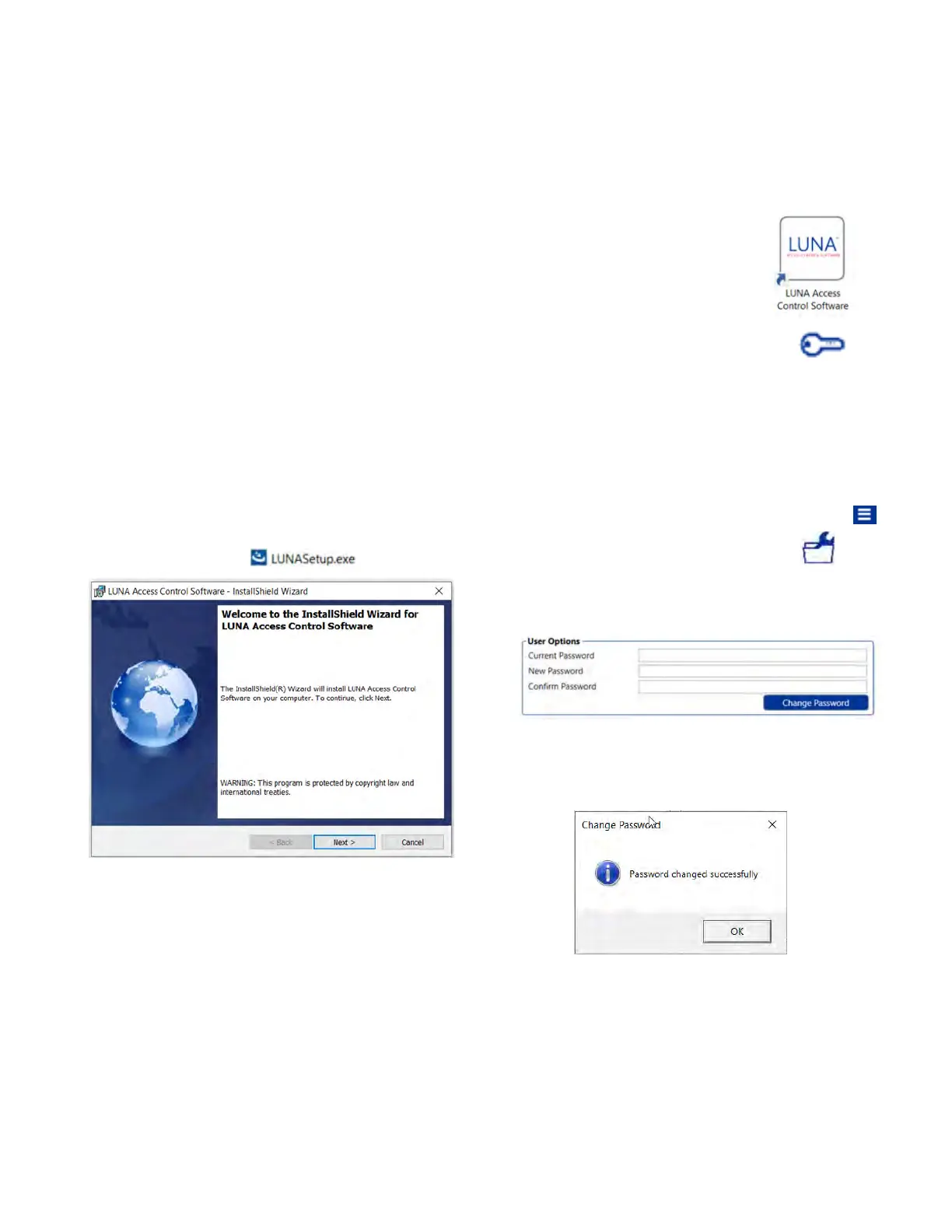
1. Once downloaded, run the LUNA Installation Wizard
by double-clicking the file.
2. Read and follow the steps of the Installation Wizard
and take the appropriate actions when prompted.
3. At the "Welcome..." screen, click the Next button to
proceed with the installation.
4. On the “License Agreement” page, read over the
license terms, click the circle next to “I accept the
terms in the license agreement”, then click the Next
button.
5. Next, click the “Install” button to allow the wizard to
begin the installation. Note: This requires Windows
Administration privileges.
6. When asked if you want LUNA Access Control
Software to make changes to your device, click Yes.
The InstallShield Wizard will then begin the
installation process.
7. Once the installation is complete, click Finish to exit
the wizard.
5 Programming and Software Setup - LUNA
Opening LUNA for the First Time
1. To run LUNA Access Control Software, double-click
the icon on your computer’s desktop
2. On the LUNA Login screen, enter your password, then
press Enter or click the key icon to login.
NOTE: If this is your first time logging into LUNA,
enter the default password > KEYSCAN (all caps). To
ensure better security, it is recommended that you
change the password to something unique.
5.2.2.
LUNA Software Installation
LUNA software can be used in conjunction with the M-
Unit hardware to manage offline E-Plex doors and
perform basic functions such as adding Users and
Credentials, creating Schedules, and viewing lock Audit
information. To download a free copy of the LUNA
software, do the following:
1. Open a web browser and visit the website
dormakaba.us/LUNAsoftware
2. Fill out the required company details on the page,
then click the Submit button.
3. Once your information has been submitted, a
download link should appear. You will also be sent an
email with a download link. Click one of these links to
download LUNA to your computer.
Changing your Password (LUNA)
1. From the main screen, click the triple-bar icon in the
top right corner of the screen to open the menu
2. From the menu, click the "Settings" icon
3. In the User Options section of the Settings screen,
type your Current Password, New Password, and then
confirm your new password in the spaces provided.
4. Click the Change Password button to finalize the
password change.
5. Click the OK button to close the popup.
17
E7900 Series
5.2.1. Downloading the LUNA Software
5.2.3.
5.2.4.
KD10114-E-1122



 To Next Page