Vigor2862 Series User’s Guide
76
Available settings are explained as follows:
Item Description
Index Display the WAN interface.
Display Name It shows the name of the WAN1/WAN2/WAN3/WAN4 that
entered in general setup.
Physical Mode It shows the physical connection for
WAN1(ADSL/VDSL2)/WAN2 (Ethernet/Wireless 2.4G)/WAN3
or LTE /WAN4 (3G/4G USB Modem) accroding to the real
network connection.
Access Mode Use the drop down list to choose a proper access mode. The
details page of that mode will be popped up. If not, click
Details Page for accessing the page to configure the
settings.
Details Page This button will open different web page (based on IPv4)
according to the access mode that you choose in WAN
interface.
Note that Details Page will be changed slightly based on
ADSL/VDSL2 physical mode specified on WAN>>General
Setup.
IPv6 This button will open different web page (based on Physical
Mode) to setup IPv6 Internet Access Mode for WAN
interface.
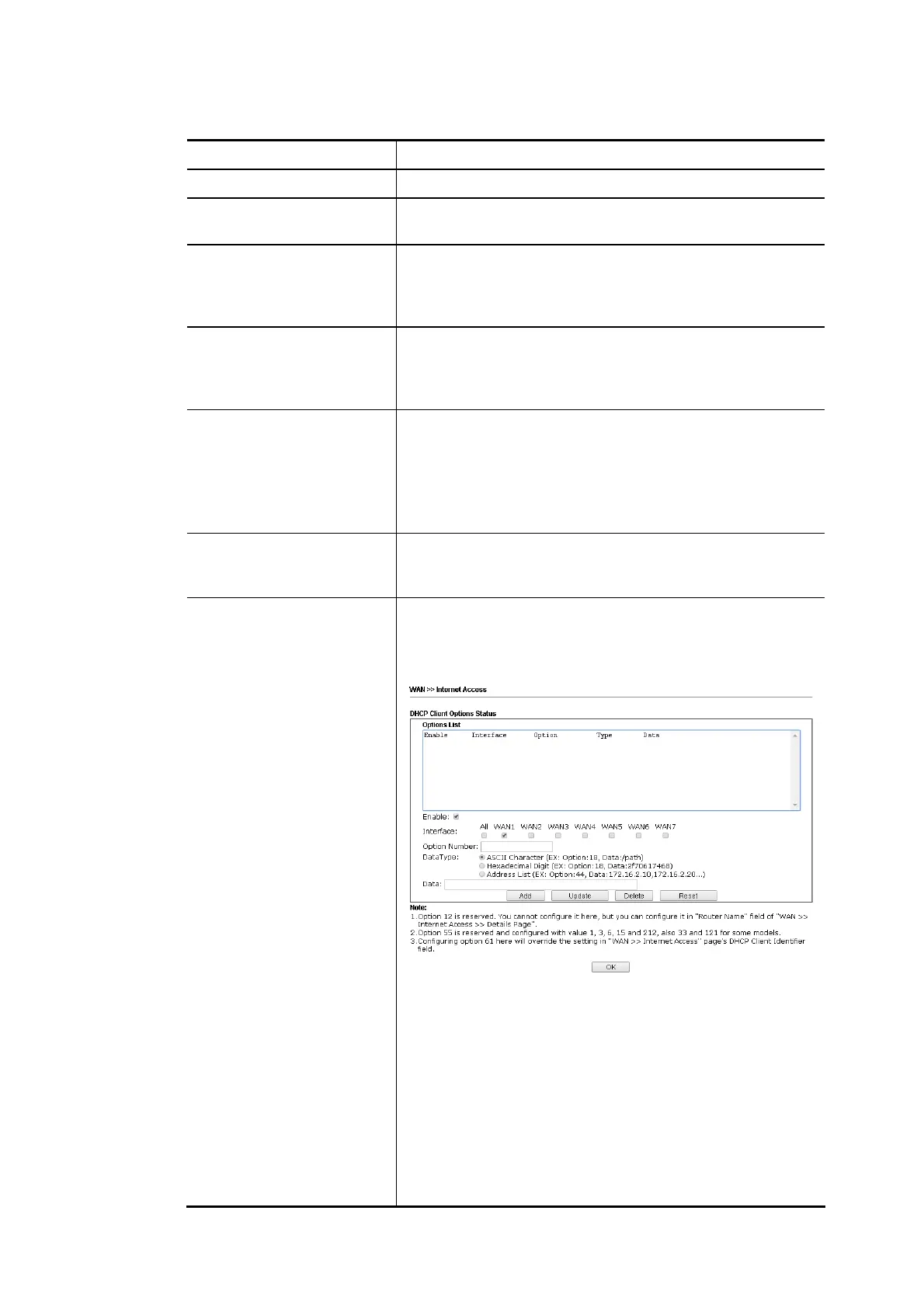
DHCP Client Option This button allows you to configure DHCP client options.
DHCP packets can be processed by adding option number
and data information when such function is enabled and
configured.
Enable/Disable – Enable/Disable the function of DHCP
Option. Each DHCP option is composed by an option number
with data. For example,
Option number:100
Data: abcd
When such function is enabled, the specified values for
DHCP option will be seen in DHCP reply packets.
Interface – Specify the WAN interface(s) that will be
overwritten by such function. WAN5 ~ WAN7 can be located
under WAN>>Multi-PVC/VLAN.
Option Number – Type a number for such function.







 To Next Page