VigorAP 800 User’s Guide
92
4. Click Save button, the configuration will download automatically to your computer as a
file named config.cfg.
The above example is using Windows platform for demonstrating examples. The Mac or
Linux platform will appear different windows, but the backup function is still available.
Note: Backup for Certification must be done independently. The Configuration Backup
does not include information of Certificate.
R
R
e
e
s
s
t
t
o
o
r
r
e
e
C
C
o
o
n
n
f
f
i
i
g
g
u
u
r
r
a
a
t
t
i
i
o
o
n
n
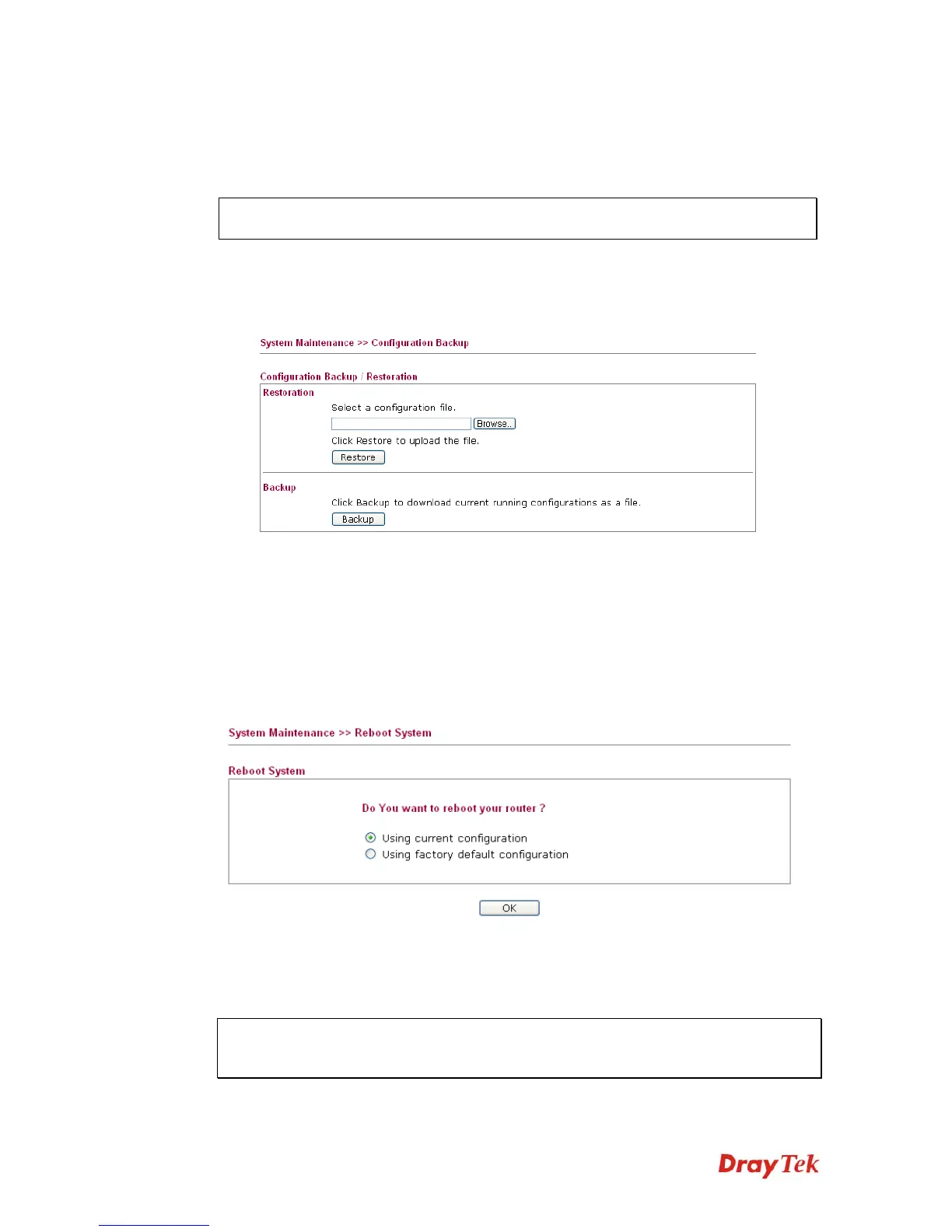
1. Go to System Maintenance >> Configuration Backup. The following windows will
be popped-up, as shown below.
2. Click Browse button to choose the correct configuration file for uploading to the
modem.
3. Click Restore button and wait for few seconds, the following picture will tell you that
the restoration procedure is successful.
3
3
.
.
1
1
1
1
.
.
5
5
R
R
e
e
b
b
o
o
o
o
t
t
S
S
y
y
s
s
t
t
e
e
m
m
The Web Configurator may be used to restart your modem. Click Reboot System from
System Maintenance to open the following page.
If you want to reboot the modem using the current configuration, check Using current
configuration and click OK. To reset the modem settings to default values, check Using
factory default configuration and click OK. The modem will take 5 seconds to reboot the
system.
Note: When the system pops up Reboot System web page after you configure web settings,
please click OK to reboot your modem for ensuring normal operation and preventing
unexpected errors of the modem in the future.








 To Next Page