VigorAP 902 User’s Guide
77
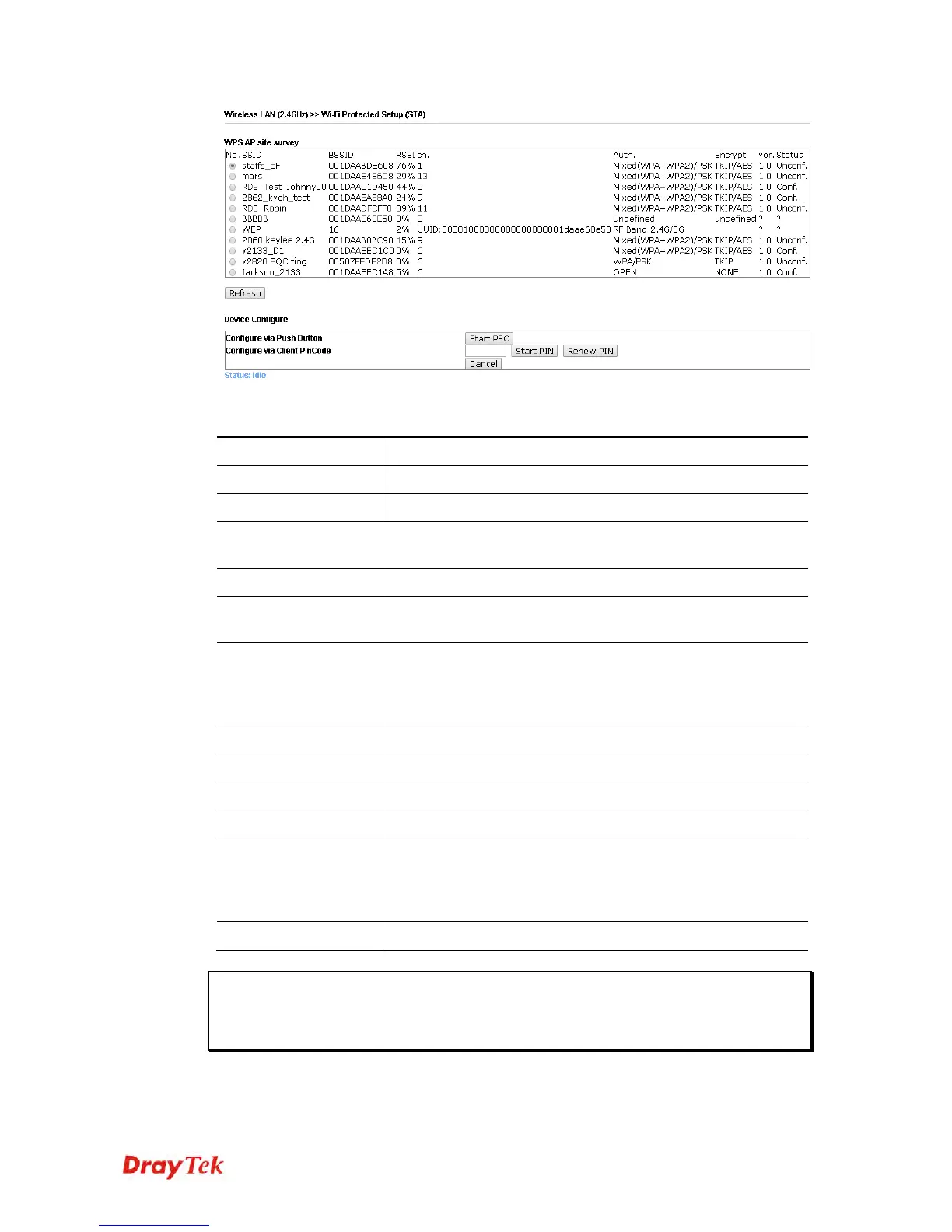
Available settings are explained as follows:
Item Description
SSID
Display the SSID name of the access point.
BSSID
Display the BSSID (MAC Address) of the access point.
RSSI
Display the signal strength of the access point. RSSI is the
abbreviation of Receive Signal Strength Indication.
Ch. (Channel)
Display the channel number of the access point.
Auth.
(Authentication)
Display the authentication type of the access point.
Encrypt (Encryption)
Display the encryption setting of the access points. If you have
selected the access point with security setting, you have to go
to 2-7 Wireless Security to set the same security with the
access point you want to associate.
Ver. (Version)
Display the version of WPS.
Status
Display the status of WPS access point.
Refresh
Click this button to refresh the AP site survey.
Start PBC
Click Start PBC to make a WPS connection within 2 minutes.
Start PIN
When using PinCode method, it is required to enter PIN Code
(Personal Identification Number Code, 8-digit numbers) into
Registrar. When the wireless station is Enrollee, the users can
use Renew PIN to re-generate a new PIN code.
Renew PIN
Click this button to re-generate a new PIN code.
Note: When you’re using PBC type WPS setup, you must press PBC button (hardware or
software) of wireless client within 2 minutes. If you didn’t press PBC button of wireless
client within this time period, please press PBC button (hardware or software) of this
access point again.







 To Next Page