8.3 Active alarms
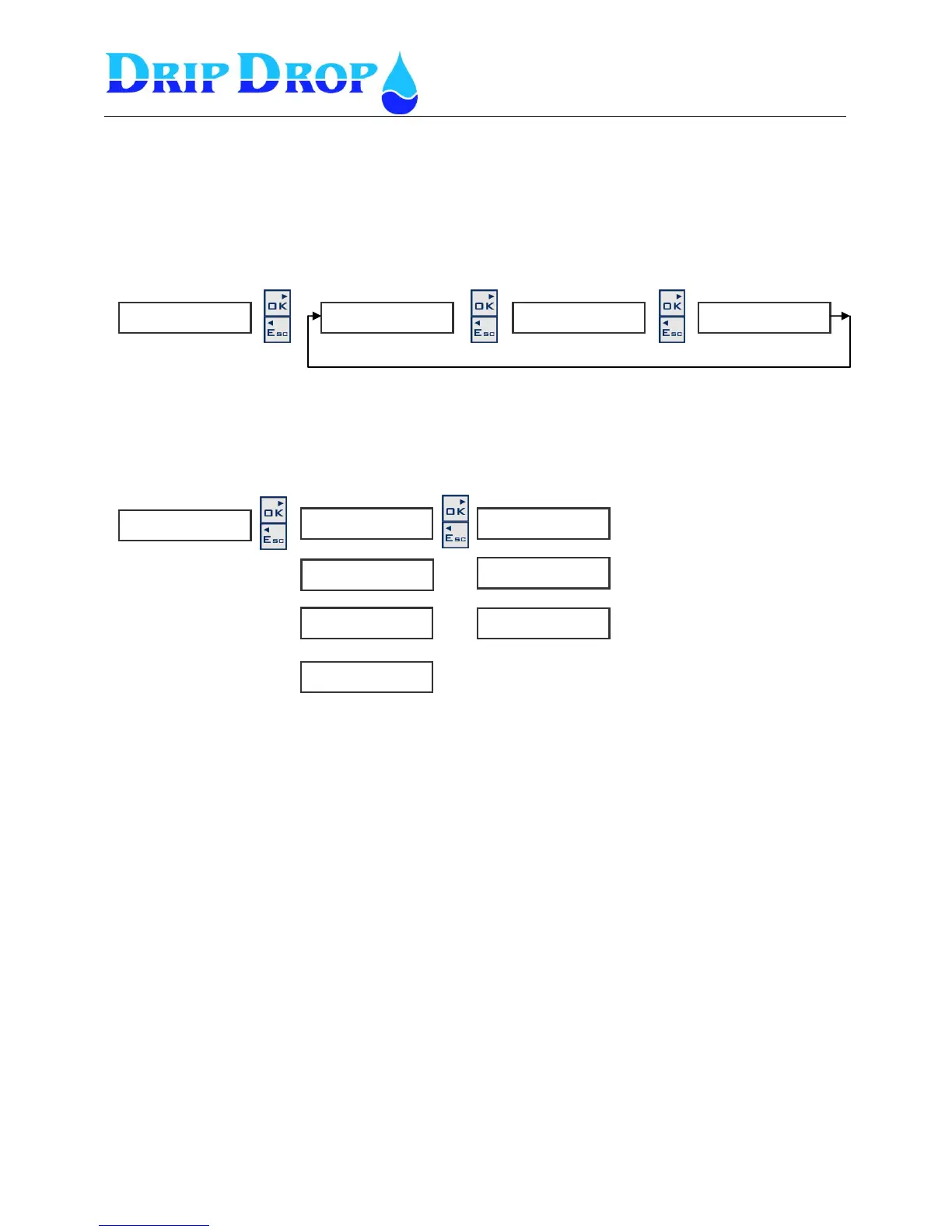
When there are new alarms to acknowledge you will by default enter the Active alarms section in the
alarm handling. Here you can see all active alarms one by one using the OK key, once you have gone
through all active alarms you will return to the Active alarms menu.
8.4 All Alarms
In the all alarms list you can look at all registered alarm events, active, not active , acknowledged and
not acknowledged alarms.
When you enter all alarms you enter a list of all registered alarmevents, where you can se all alarms
one by one. The ▼ Arrow in the display means that you are at the top of the list and that there are
older alarms to watch in the list. A ▲ arrow means that you are at the bottom of the list and that all
other alarms in the list are newer than this alarm. ▲▼ arrows means that you have both newer and
older alarms in the list than the one you are looking at. The √ sign in front of the alarm means that the
alarm is acknowledged, and an not acknowledged alarm still has the acknowledge prompt attached to
it.
If you press the OK key when looking at an alarm you will access the information of the time when the
alarm occurred, when it went unactive and when it was acknowledged. The alarm that shows first in
the list is the latest occurred alarm.
Alarm history
In the alarm list for active and all alarms totally max. 8 alarms can be stored. When the alarm list is
full the oldest disapears.


 To Next Page