JOB Entry
36
3. If settings were made for two
RTMs (Rotary Tool
Module)
in steps 4 and 5, go to step 10.
If one
RTM (Rotary Tool Module)
is installed and
a
center slitter module
is installed in
slot 2
or
slot
3
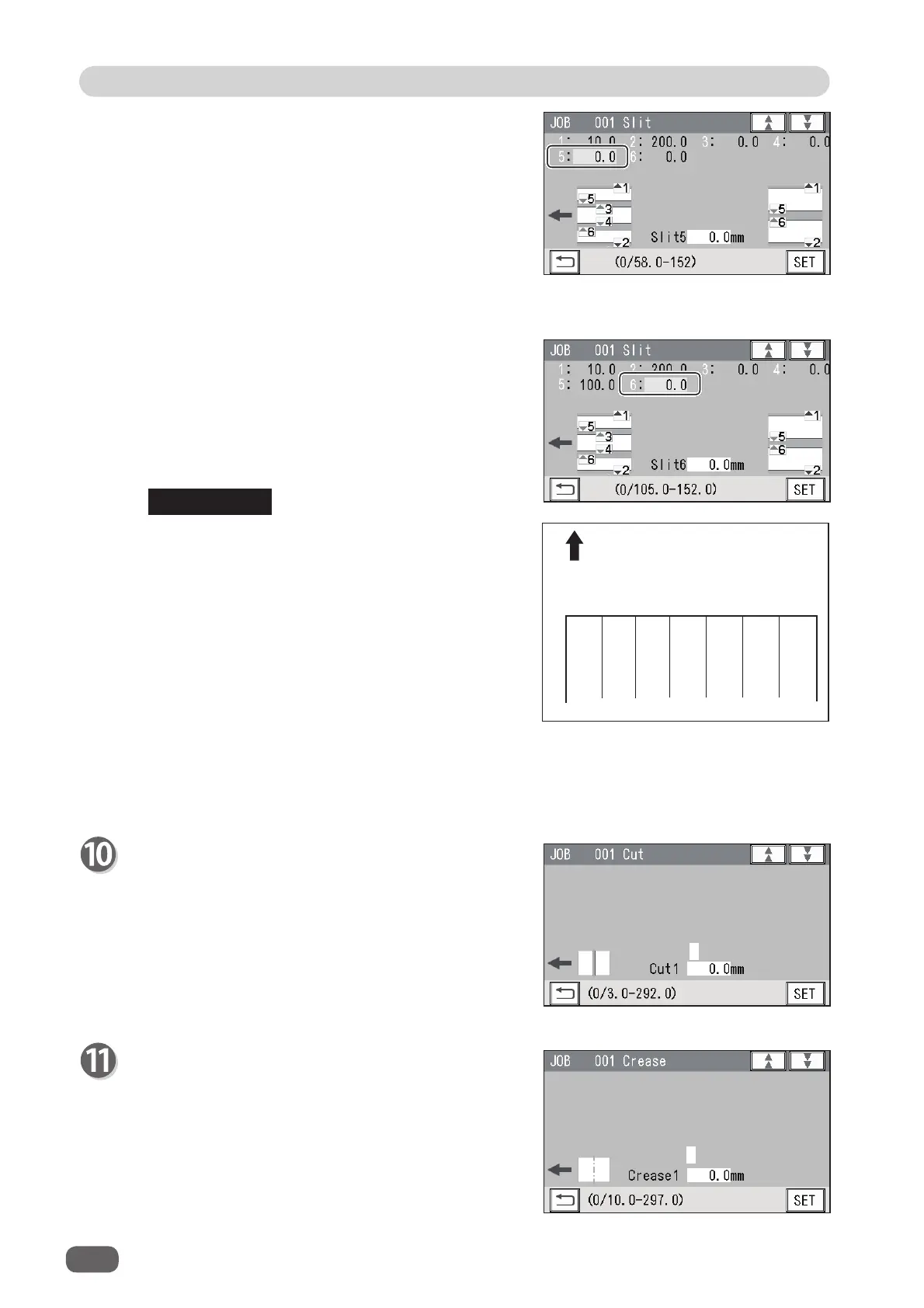
, set processing positions of the
center slitter
module
.
Enter the distance between the right edge of the
document and slit5 for
Slit5
with the NUMERIC
keys. Touch
SET
.
4. Enter the distance between the right edge of the
document and slit6 for
Slit6
with the NUMERIC
keys in a similar way to step 9-4. Touch
SET
.
Cut
Enter the distance between the lead edge of the
document and the fi rst cut position (
1
) with the
NUMERIC keys. Touch
SET
.
You can set up to 30 creases.
If you fi nish the setting with fewer than 30 cuts, enter
the last cut position and touch
SET
. Then enter
0
in
the next cut position and touch
SET
.
12 56 34
ABCEDF
Document feed direction
Slit position setting order:
•
Simple mode
: Slits are set in alphabetical order
from
SlitA
to
SlitF
.
•
Advanced mode
: Slits are set in numerical
order as shown in the fi gure
on the right.
1
,
2
: Margin slitter module
5
,
6
: Center slitter module
3
,
4
: Center slitter module
e.g. If one
RTM (Rotary Tool Module)
and one
center slitter module
are installed,
A
,
B
,
C
,
and
D
, or
1
,
2
,
5
, and
6
are displayed.
If two
RTM (Rotary Tool Module)s
are
installed,
A
and
B
, or
1
and
2
are displayed.
Crease
Enter the distance between the lead edge of the
document and the fi rst crease position (
1
) with the
NUMERIC keys. Touch
SET
.
You can set up to 20 creases.
If you fi nish the setting with fewer than 20 creases,
enter the last crease position and touch
SET
. Then
enter
0
in the next crease position and touch
SET
.
REFERENCE
1
1



 To Next Page