80
PC Controller Setting
Direct
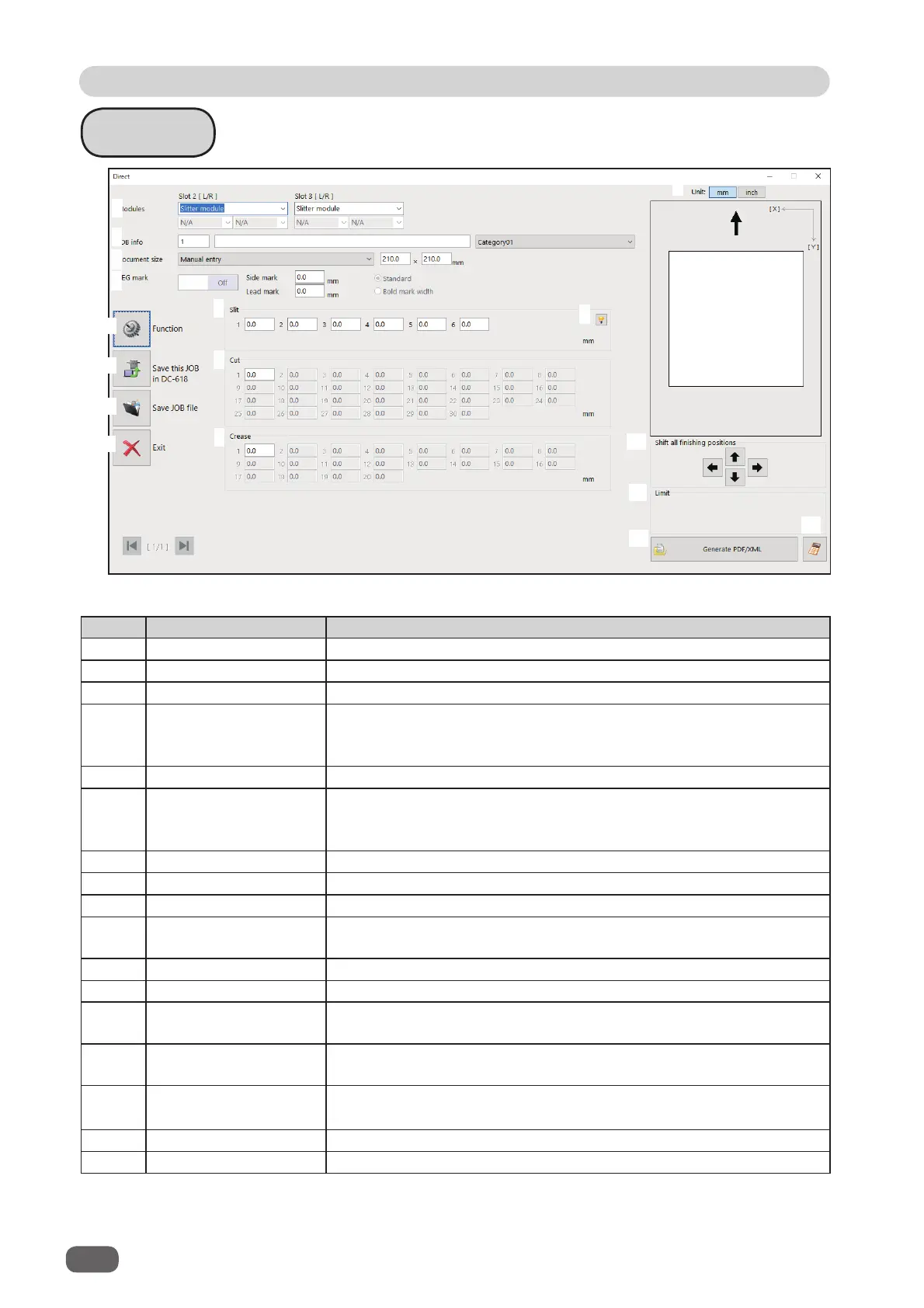
No. Name Function
1 Modules Displays modules installed in slot 2 and slot 3.
2 JOB info Enter a JOB number, a JOB name, and a category name.
3 Document size Select a document size.
4 REG mark
Set a position and a width of a REG mark (a side mark and a lead
mark).
Appears only when CCD is activated.
5 Slit Set slit positions.
6 Hint button
Displays the
Setting procedure
screen, which you can use as
reference for setting slit positions.
Appears only when the
Advanced mode
check box is selected.
7 Cut Set cut positions.
8 Crease Set crease positions.
9 Unit Select a unit of values to enter out of mm or inch.
10
Shift all fi nishing
positions
Fine-adjust fi nishing positions of the JOB by clicking the arrows if
necessary.
11 Limit Displays the limit of a value to enter.
12 Generate PDF/XML Saves a JOB as a PDF template or an XML fi le.
13 NUMERIC key
Displays the NUMERIC keys, with which you can enter values
instead of using the keyboard.
14 Function
Displays the
Function
screen on which to make function settings
for a JOB.
15
Save this JOB in
DC-618
Saves a programmed JOB or a JOB saved on a computer to the
DC-618.
16 Save JOB fi le Saves a programmed JOB on a computer.
17 Exit Finishes a JOB programming and returns to the main screen.
1
2
3
4
5
6
7
8
9
11
12
13
14
15
16
10
17



 To Next Page