JOB Entry
43
Programming a JOB on the Control Panel
2
3.
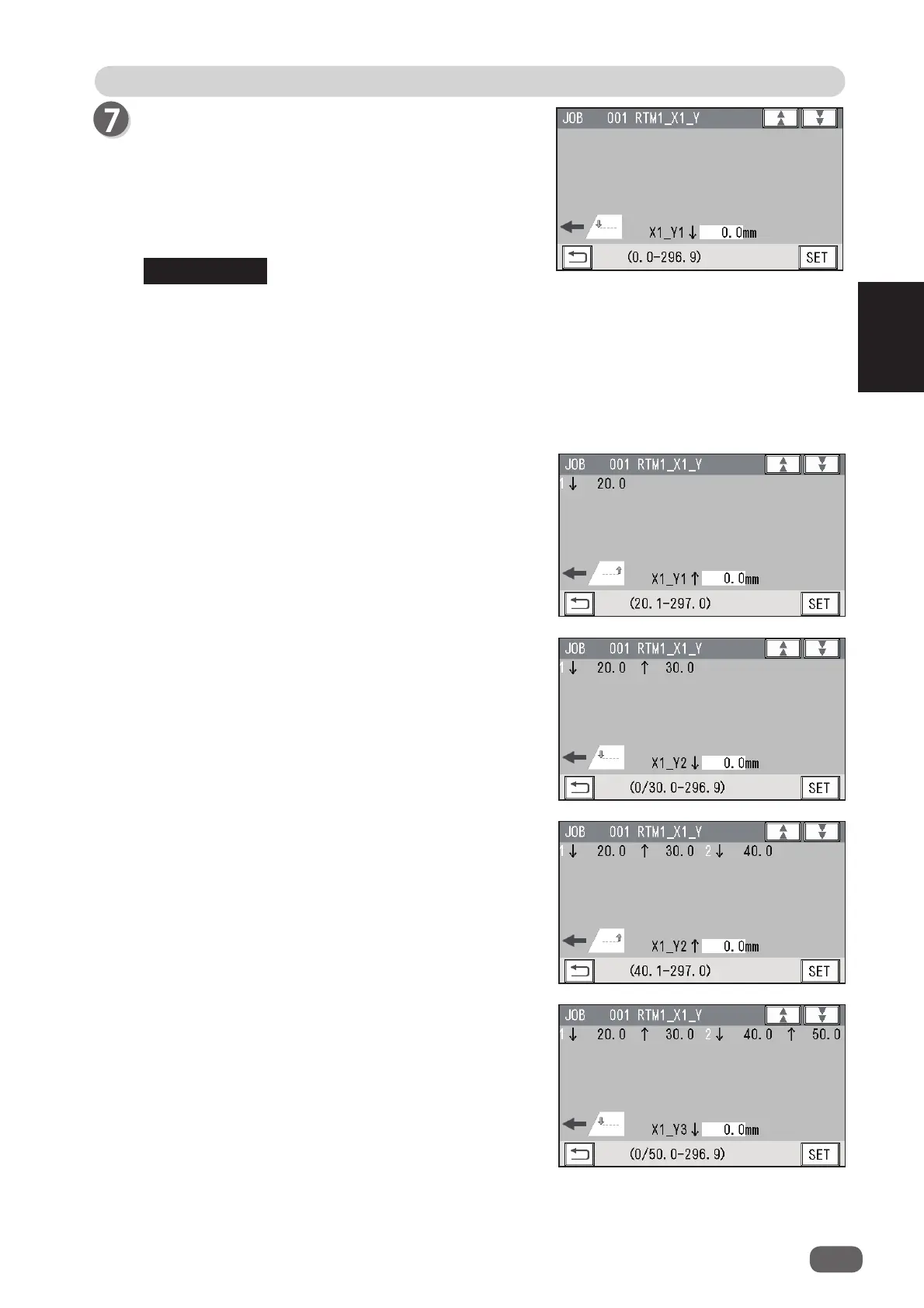
X1_Y2 ↓
Enter the distance between the lead edge of the
document and the
On
position (the processing start
position of the rotary tool) of
Y2
(
Set 2
in the Y
direction) with the NUMERIC keys. Touch
SET
.
4.
X1_Y2 ↑
Enter the distance between the lead edge of the
document and the
Off
position (the processing
stop position of the rotary tool) of
Y2
(
Set 2
in the Y
direction) with the NUMERIC keys. Touch
SET
.
5.
X1_Y3 ↓
Enter the distance between the lead edge of the
document and the
On
position (the processing start
position of the rotary tool) of
Y3
(
Set 3
in the Y
direction) with the NUMERIC keys. Touch
SET
.
2.
X1_Y1 ↑
Enter the distance between the lead edge of the
document and the
Off
position (the processing
stop position of the rotary tool) of
Y1
(
Set 1
in the Y
direction) with the NUMERIC keys. Touch
SET
.
RTM1_X1_Y
1.
X1_Y1↓
Enter the distance between the lead edge of the
document and the
On
position (the processing start
position of the rotary tool) of
Y1
(
Set 1
in the Y
direction) with the NUMERIC keys. Touch
SET
.
The tools on the left side (
L
) and the right side (
R
) skip at the same time.
You can program up to six sets (
Y1
to
Y6
) in the Y direction each for
X1
(Pattern 1 in the X
direction) and
X2
(Pattern 2 in the X direction).
To fi nish setting for the Y direction with less than six sets, enter a value for the last
processing position and touch
SET
.
Then touch
SET
again, which proceeds to the screen in step 8.
REFERENCE



 To Next Page