24 | 4.2 Die-Cut Label Printing Instructions
DuraLabel.com | 800.788.5572
CONFIGURING PRINTER DRIVERS
These settings may be adjusted in Printer Properties* when printing your labels.
*NOTE: This will show as Preferences if accessing File > Print from DuraSuite Labeling
Software.
4.2 Die-Cut Label Printing Instructions
4.2.1 LABEL SUPPLY CALIBRATION
Label supply must be calibrated to print die-cut labels.
A. With the power OFF, hold the Feed button down while turning ON the printer. The
LED will flash red 5 times, amber 5 times, green 5 times, alternating green and
amber 5 times, alternating red and amber 5 times and then turn solid green.
B. Release the Feed button while the LED blinks red and amber.
C. Follow directions in Section 4.2.2, Driver Settings.
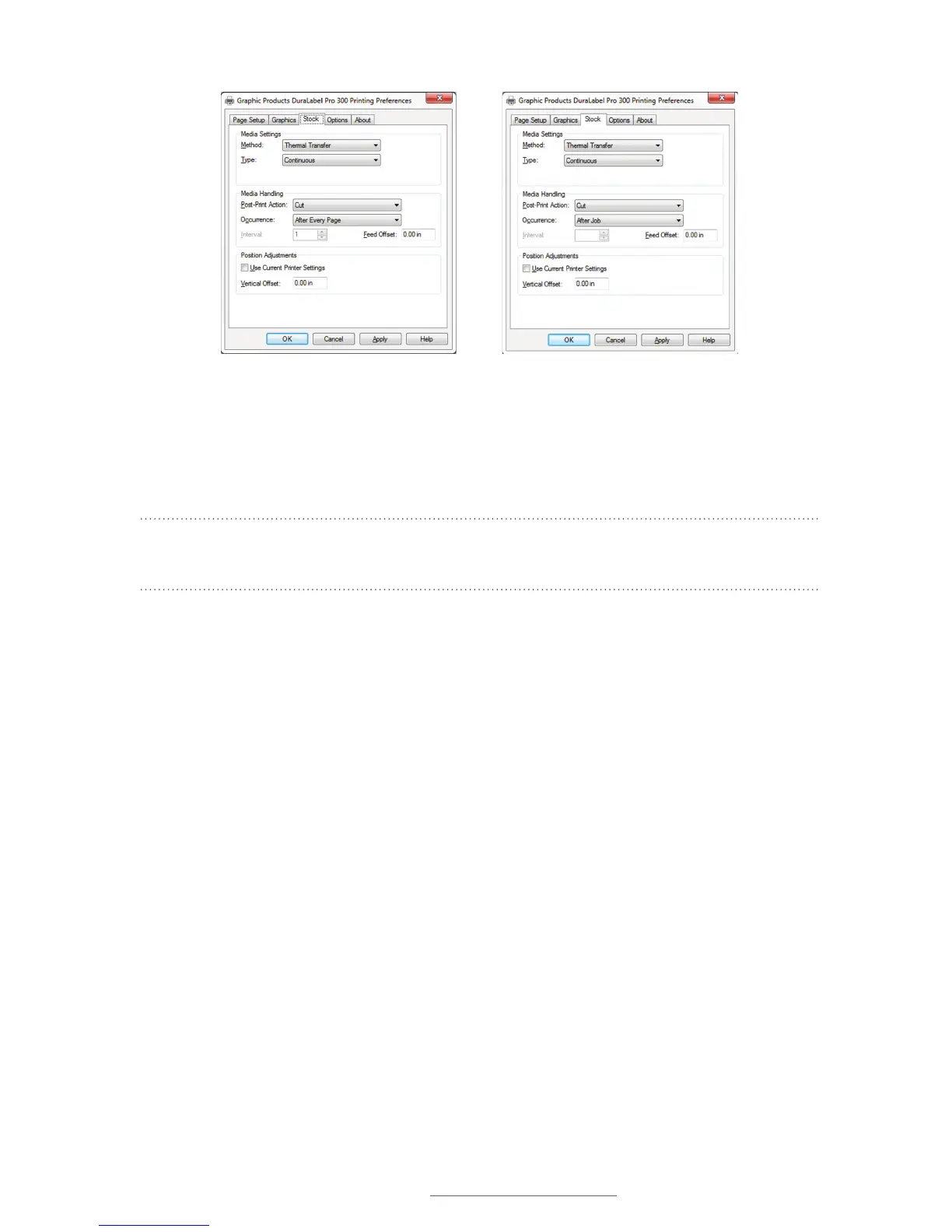
FIGURE 2 Printing Preferences dialog
box, with Type set to “Continuous” and
Occurrence set to “After Every Page” on the
Stock tab
FIGURE 3 Set the Printing Preference
Occurrence menu to “After Job” to print
multiple labels on a single length of supply.



 To Next Page