26 | 4.4 Cutting Labels in Intervals
DuraLabel.com | 800.788.5572
CONFIGURING PRINTER DRIVERS
4.4 Cutting Labels in Intervals
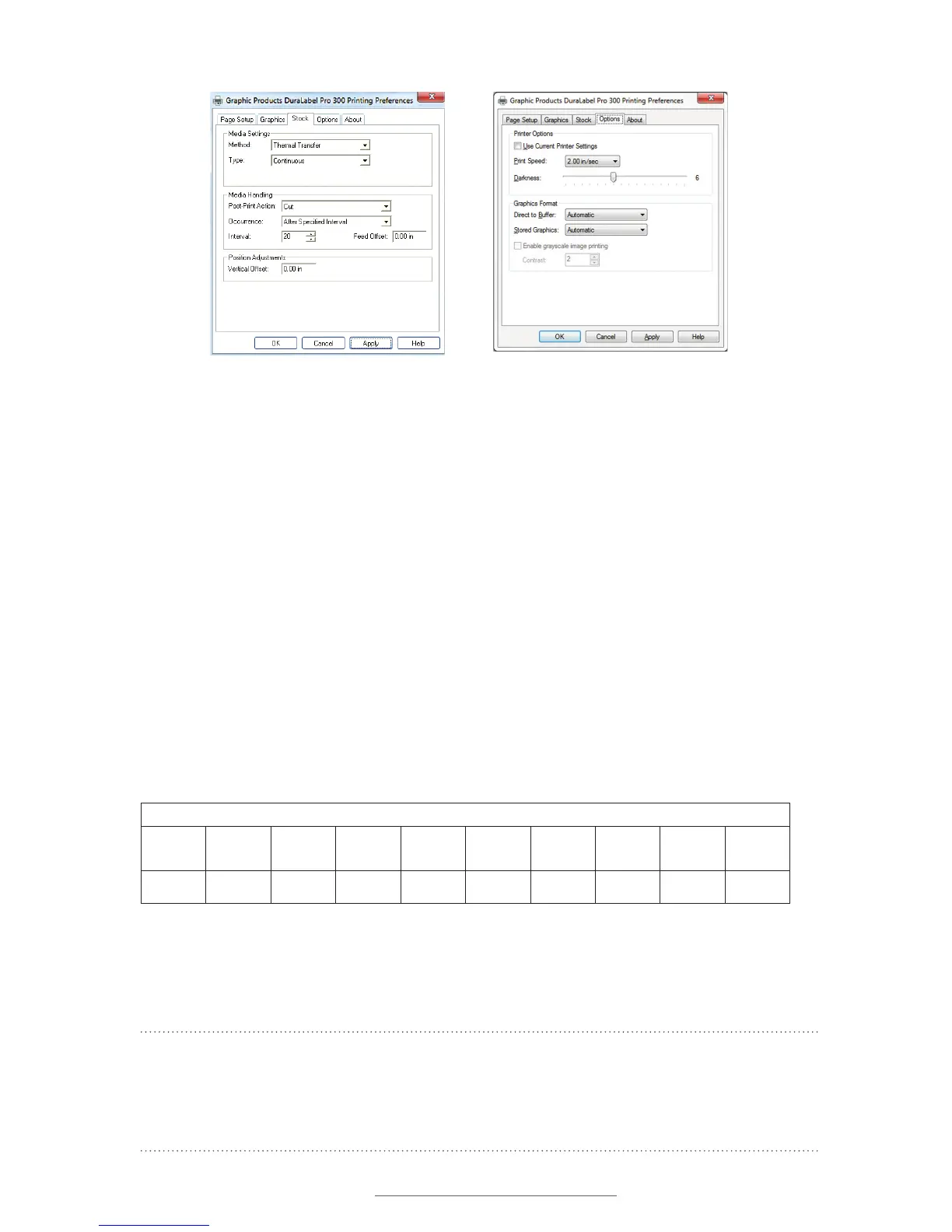
To cut labels in intervals, set “Occurrence” to After Specified Interval. Set the interval to
the number of labels needed, then click Apply to save your settings.
4.5 Adjusting Print Speed
Choose print speed from the Options tab, clicking on the arrow to the right of the Print
Speed drop-down menu. A 2” per second setting is recommended.
4.6 Adjusting Darkness
Change darkness settings from the Options tab, dragging the slider on the Darkness
bar (see Figure 7). Darkness can be adjusted in single increments from 0 – 15. Keep
the Graphics Format settings on Automatic.
When satisfied with all your settings, click Apply, then OK. Your driver is now set up and
ready to create labels.
NOTE: You may need to change print settings to optimize the DuraLabel PRO/PRO 300
for printing with some ribbons and specialty supply. Higher speeds generally require
higher densities. If a ribbon wrinkles, lower the darkness. Increase darkness to ensure
all ink is being transferred from the ink ribbon.
FIGURE 6 Printing Preferences dialog box,
ZLWK2FFXUUHQFHVHWWR´$IWHU6SHFLÀHG
Interval”
FIGURE 7 Printing Preferences dialog box,
with Options tab selected
RECOMMENDED DARKNESS SETTINGS FOR RIBBON: (PRINT SPEED SET AT 2)
Ribbon
Petroleum
Resistant
Standard
Black
White Red Blue Green Orange
Shrink
Tube/RTK
Die-Cut
Labels
Darkness 9-15 4-8 4-8 4-8 4-8 4-8 4-8 6-8 10-13
FIGURE 8 Adjust darkness settings to match your ribbon type and your printing needs.



 To Next Page