DuraLabel.com | 800.788.5572
7.1 Text Boxes | 31
LABEL DESIGN
7.1.2 POSITIONING TEXT BOXES
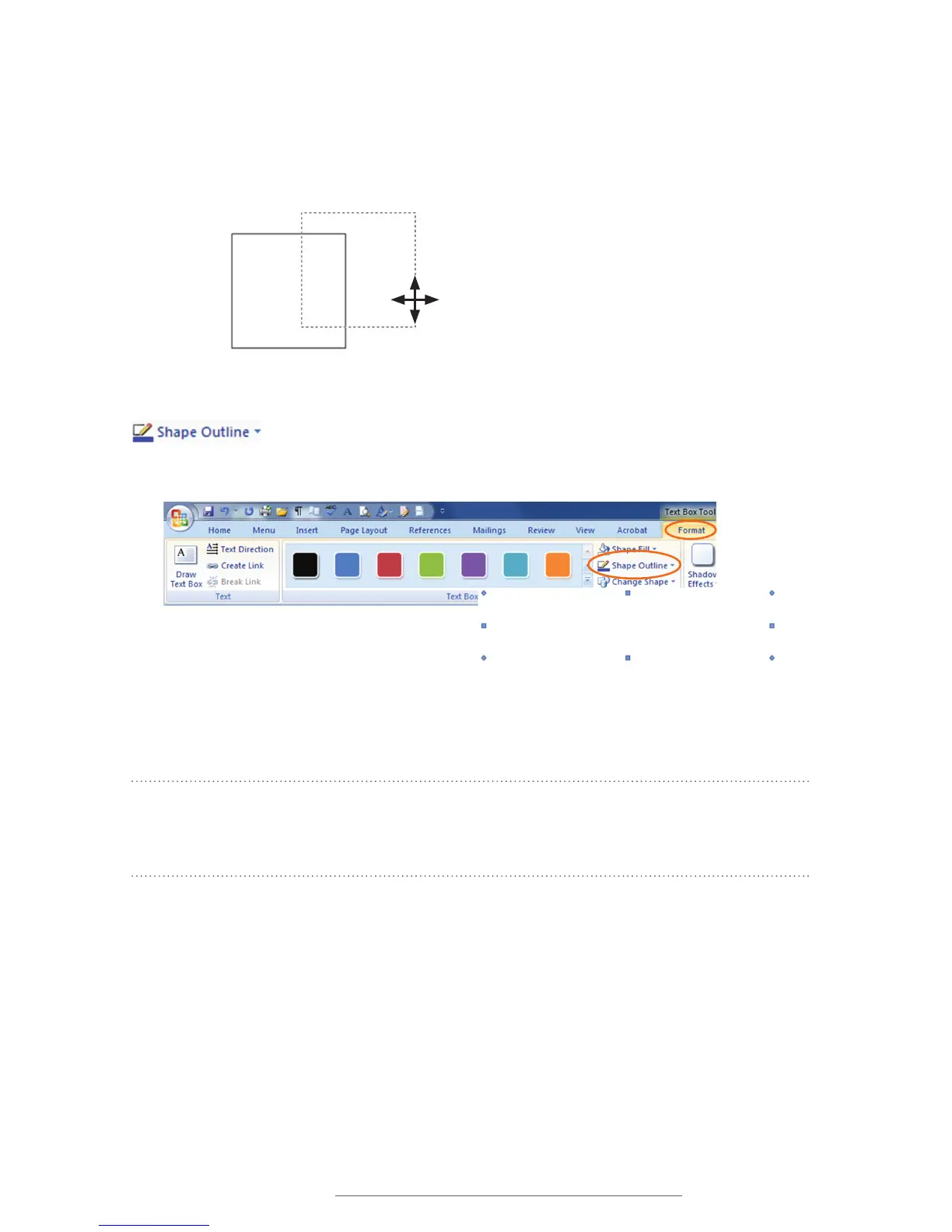
To position a text box on a label canvas, place the cursor anywhere along the text box’s
border, but not on a handlebar. Your cursor will become a 4-headed arrow. You can now
drag the text box to another location.
If you don’t want the text box border to print on your label, double-click on a corner of
the text box. A Format tab opens on your computer’s menu bar
*
. Click Shape Outline
, then select No Outline from the options that appear.
*
Describes Word 2007 or Word 2010 procedure
The text box border disappears.
NOTE: If you choose not to use a text box for your text, you will still be able to print your
label, although you will not be able to move your text or graphics freely. Consult your
ZRUGSURFHVVRU·VKHOSÀOHIRUPRUHGHWDLOHGLQIRUPDWLRQDERXWXVLQJWKHWH[WER[WRRO
FIGURE 5 Click Shape Outline from the Format tab, then
No Outline.
FIGURE 6 Text box with its border removed
FIGURE 4 Placing your cursor along a text box
border creates a 4-headed arrow.
You can now move the text box by dragging it with
your mouse.



 To Next Page