DuraLabel.com | 800.788.5572
7.3 Merging Information, Sequencing Labels | 33
LABEL DESIGN
7.3 Merging Information, Sequencing Labels
Follow these steps to effectively create and efficiently organize labeling projects.
7.3.1 CREATING AN EXCEL SPREADSHEET
Successful labeling projects often involve merging Microsoft
®
Word and Excel
documents to produce well-coordinated, sequentially organized groupings of labels.
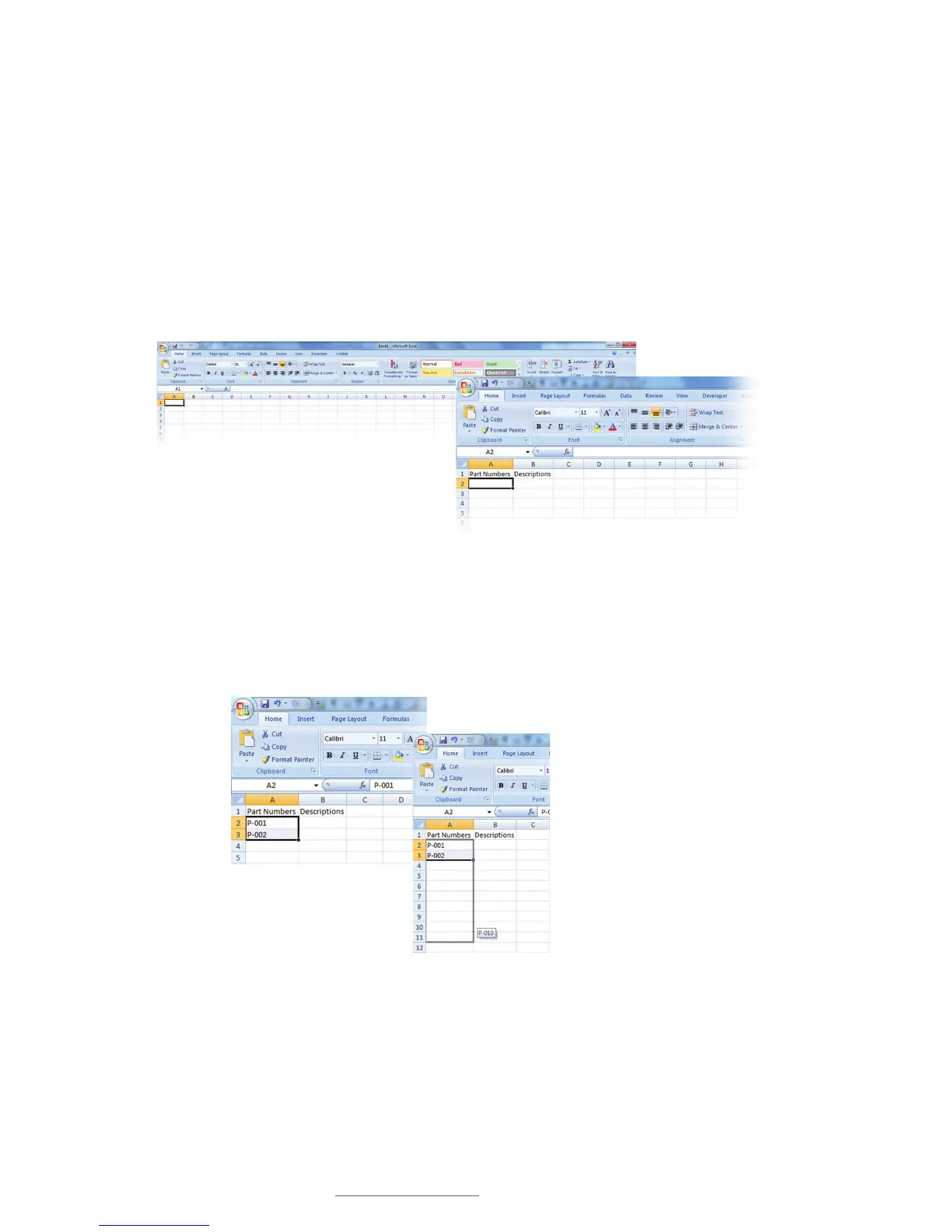
Start by opening an Excel document, placing column headers in the first row (Fig. 1).
For this example we use Part Numbers and Descriptions (Fig. 2).
A. Enter your first two sequential numbers in cells A2 and A3 (Fig. 3). Select cells
A2 and A3 and place your cursor over the little box in the lower-right corner of the
selection. Your cursor becomes a “+.” Now click and drag the selection down the
number of cells equal to the number of labels in the sequence (Fig. 4).
B. All the column’s numbers will sequence the same as the sequence used in the first
two rows (Fig. 5). This example reflects 10 labels, with a sequence of 1.
C. Now enter the data for Column B, e.g., Descriptions, that relates to the data in
corresponding rows of Column A (Fig. 6).
FIGURE 1 Blank Excel document
FIGURE 2 Excel document with headers
FIGURE 4 … then drag your
cursor the number of cells
equal to the total number of
labels in your sequence.
FIGURE 3 Enter two rows of
numbers …



 To Next Page