34 | 7.3 Merging Information, Sequencing Labels
DuraLabel.com | 800.788.5572
LABEL DESIGN
D. When all your data has been entered in the Excel spreadsheet, name and save
your document in a location where you can easily find it. Consider placing it in a
folder with other project documents. Close your Excel document after naming and
saving it. You’ll come back to it shortly.
E. Now open the Word template you want to import your Excel data into. In Figure
7 the static text “Part Number:” and “Description:” are already typed in. Now place
your cursor where you want to insert your data.
F. Select the Mailings tab from the Word menu bar, then click on Select Recipients
and Use Existing List (Fig. 8) from the drop-down menu. A Select Data Source
window appears (Fig.9).
G. Locate and click the Excel spreadsheet you just saved using the Select Data
Source window (Fig. 9). A Select Table dialog box appears (Fig. 10).
H. Highlight and click on the Excel Spreadsheet page where your data is located, e.g.,
Sheet 1, on the Select Table dialog box. The Select Table dialog box closes after
making your selection.
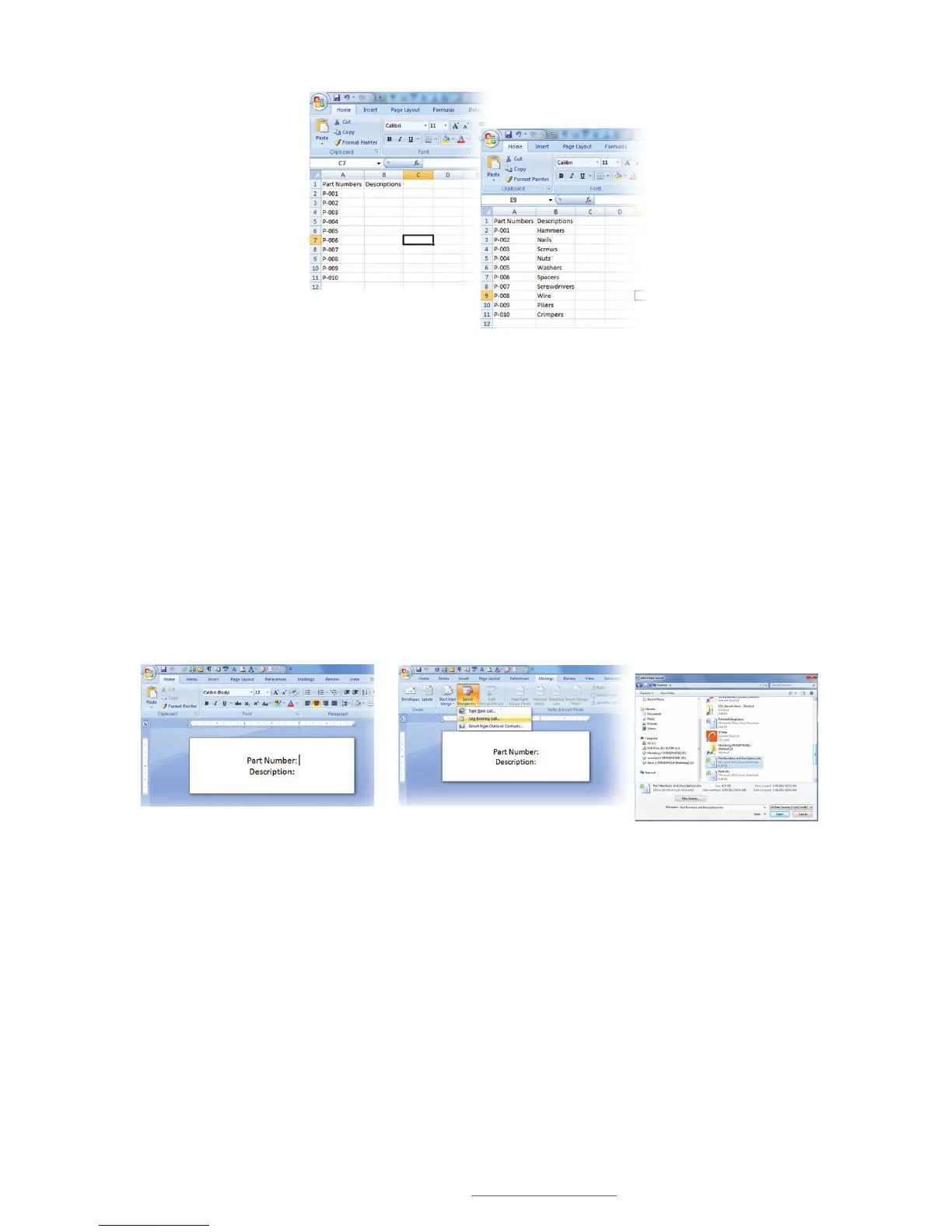
Figure 5 The spreadsheet
reveals plans to print 10
labels, with Part Numbers
sequenced by 1
Figure 6 Enter data under
Column B that relates to the
data on the corresponding row
of Column A.
FIGURE 7 Word document ready to receive
data from an Excel spreadsheet
FIGURE 8 With the Mailings tab selected,
click on “Select Recipients,” then “Use
Existing List” from the drop-down menu
that appears.
FIGURE 9 Navigate the Select
Data Source window to access your
([FHOÀOH



 To Next Page