DuraLabel.com | 800.788.5572
7.3 Merging Information, Sequencing Labels | 35
LABEL DESIGN
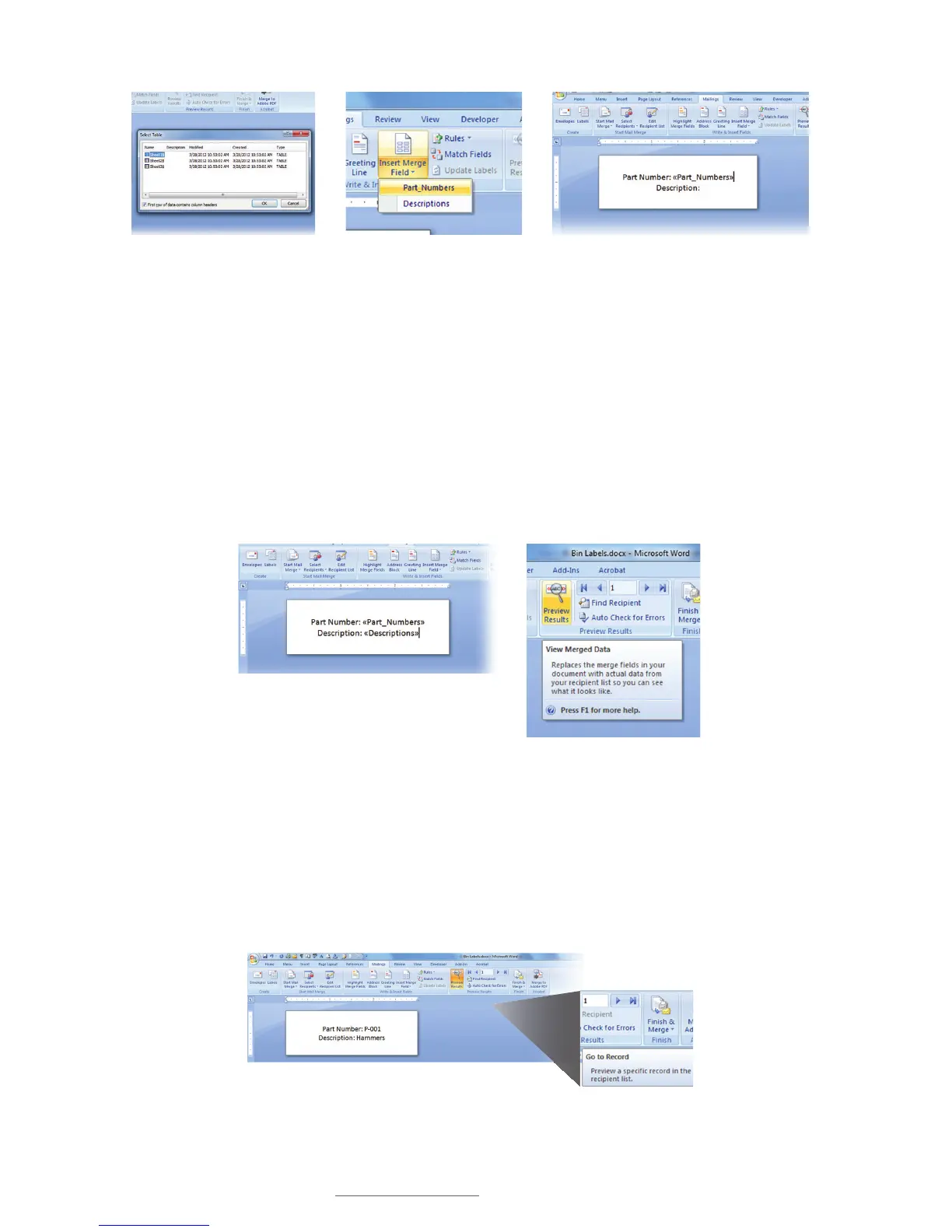
FIGURE 10 Select the Excel sheet
number where your data is located
from the Select Table dialog box.
FIGURE 11 Press the bottom half
of the Insert Merge Field button to
display column header names.
FIGURE 12 Word document ready to receive
data from Excel Column A.
I. Now click on the bottom half of the Insert Merge Field button on your Word
toolbar (Fig. 11). The names of your column headers will be displayed.
J. Select Column A header. A Column A space-holder (<<Part_Numbers>>) appears
next to the Column A header (Fig. 12).
K. Select Column B header. A Column B space-holder (<<Descriptions>>) appears
next to the Column B header (Fig. 13).
L. Select Preview Results from the Word toolbar. A View Merged Data window should
appear (Fig. 14).
M. With the Go to Record set at 1 (Fig. 15), the first label in a sequence should now
appear on the Word template.
FIGURE 15 First label in the sequence, populated with
content imported from an Excel spreadsheet.
FIGURE 13 Word document ready to receive data
from Excel Column B.
FIGURE 14 Click Preview Results
to display View Merged Data
window.



 To Next Page