DuraLabel.com | 800.788.5572
4.3 B Mark Label Printing Instructions | 25
CONFIGURING PRINTER DRIVERS
4.2.2 DRIVER SETTINGS
Your printer driver has been preset to reduce the number
of steps to be completed manually. You can change your
settings by following these steps:
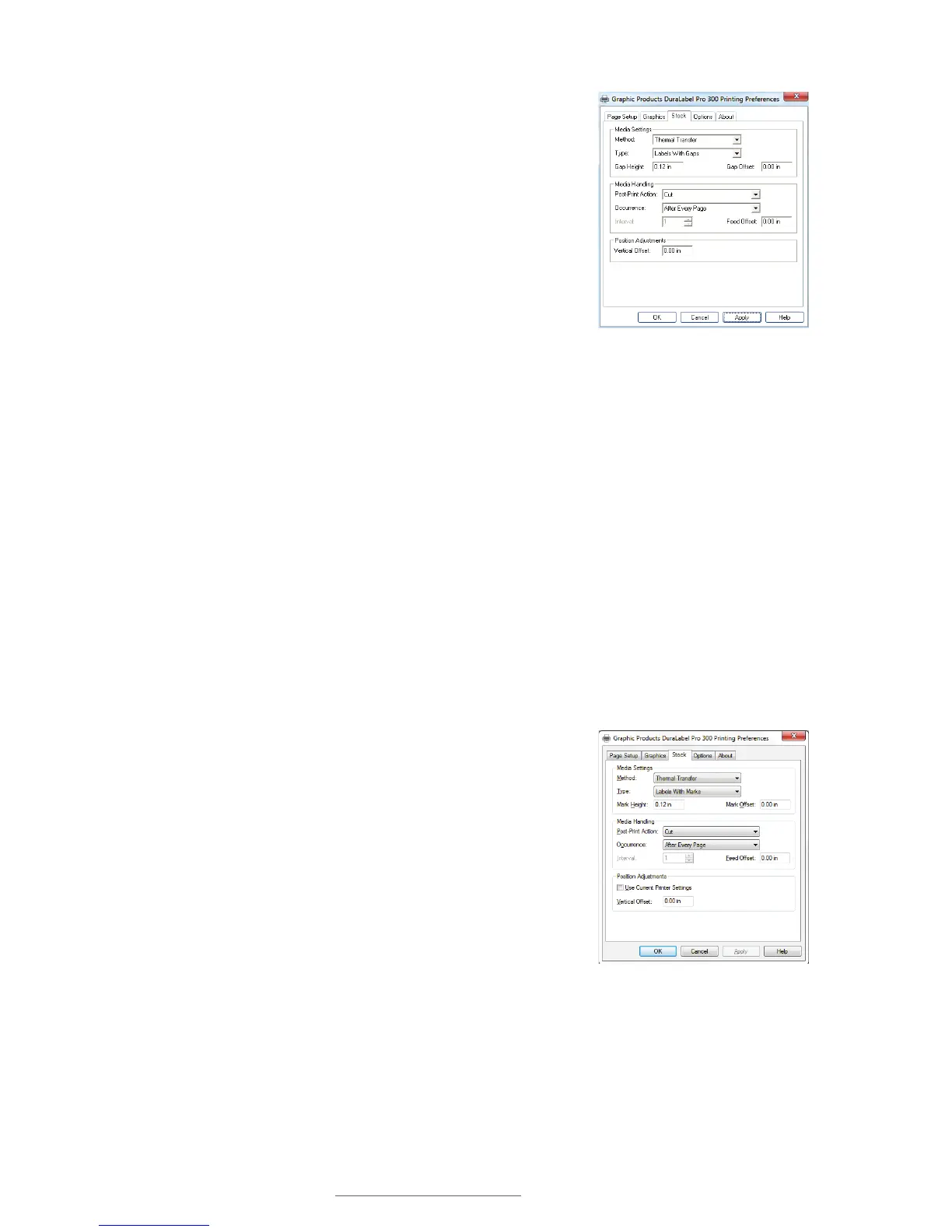
A. For die-cut labels, select Labels With Gaps from the
Type drop-down menu.
B. Set Gap Height to 0.12 inches and Gap Offset to 0
inches (default).
C. Click Apply, then OK.
4.3 B Mark Label Printing Instructions
4.3.1 LABEL SUPPLY CALIBRATION
Label supply must be calibrated to print B Mark labels.
A. With the power OFF, hold the Feed button down while turning ON the printer. The
LED will flash red 5 times, amber 5 times, green 5 times, alternating green and
amber 5 times, alternating red and amber 5 times and then turn solid green.
B. Release the Feed button while the LED blinks green and amber.
C. Follow directions in Section 4.3.2, Driver Settings.
4.3.2 DRIVER SETTINGS
Your printer driver has been preset to reduce the number
of steps to be completed manually. You can change your
settings by following these steps:
A. For B Mark labels, select Labels With Marks from the
Type drop-down menu.
B. Set Mark Height to 0.12 inches and Mark Offset to
0 inches (default).
C. Click Apply, then OK.
FIGURE 4 Printing Preferences dialog
box, with Type set to “Labels With Gaps”
FIGURE 5 Printing Preferences dialog
box, with Type set to “Labels With Marks”



 To Next Page