32 | 7.2 Graphics
DuraLabel.com | 800.788.5572
LABEL DESIGN
7.2 Graphics
To insert a symbol on your Word document, select
Picture from your Insert tab, browse for the symbol
you want to add, select it, then click Insert
.
The symbol now appears on your Word document.
Move and resize symbols as necessary.
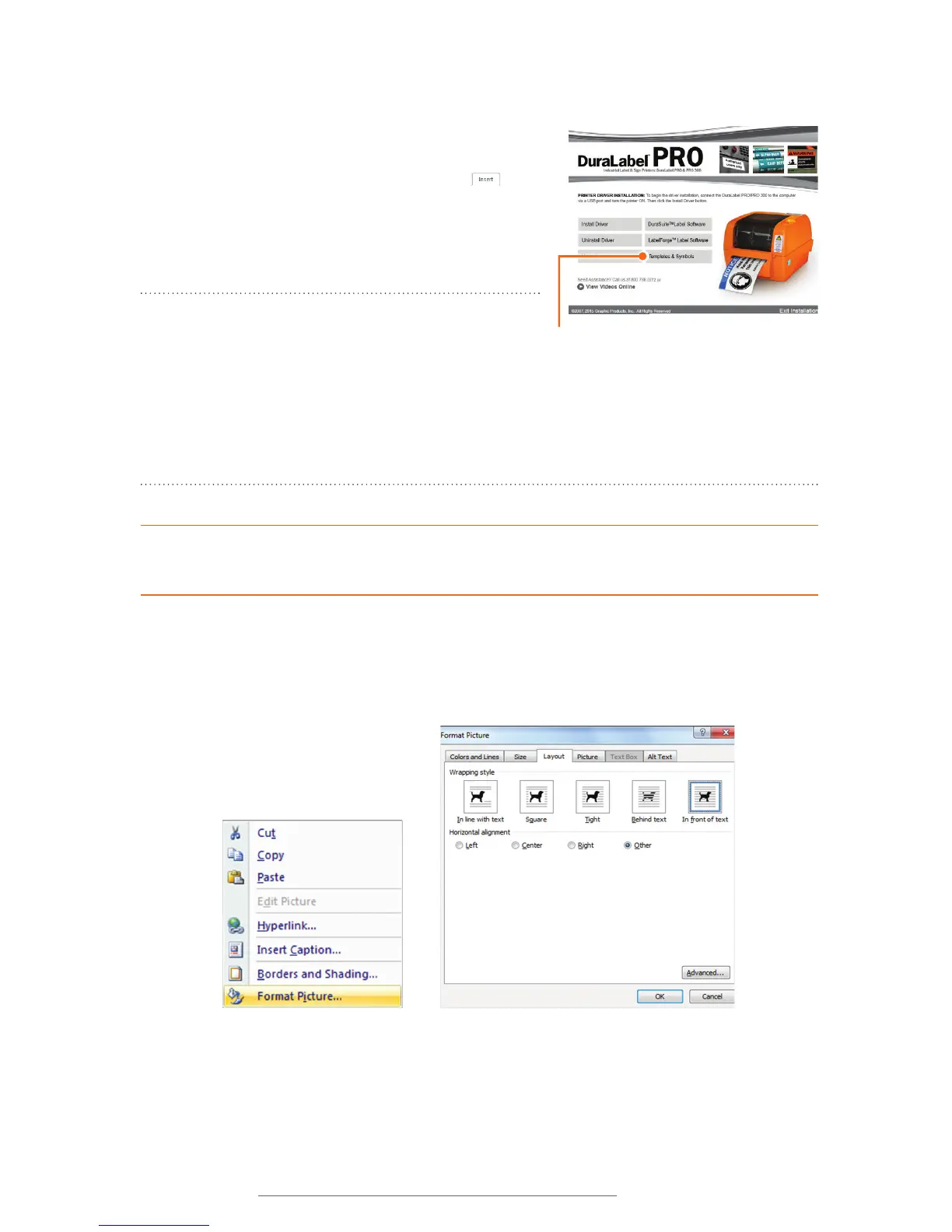
NOTE: Graphic Products provides you with
industrial safety symbols in the DuraLabel PRO/
PRO 300 Templates and Symbols folder on your
DuraLabel PRO/PRO 300 CD. Run the CD, then
click on Install Templates & Symbols on the
DuraLabel PRO/PRO 300 Startup Screen that opens. You can store the Templates and
Symbols folder in any convenient location on your computer.
HINT! When determining a symbol’s size, make it large enough to be recognized from a
reasonable distance and check regulatory requirements to ensure compliance.
To freely position an image or symbol, right-click on it and select Format Picture from
the context menu that appears. Select the Layout tab on the Format Picture dialog box
that now appears and choose the “In front of text” text wrapping option.
FIGURE 1 Access Templates and Symbols by
clicking the Install Templates & Symbols button
on your DuraLabel PRO or DuraLabel PRO 300
Startup Screen.
FIGURE 2 Context drop-down menu,
with Format Picture selected
FIGURE 3 Position an image on a document by choosing
“In front of text” from the Format Picture dialog box.



 To Next Page